
The Templates tab under the Seeding tab presents a listing of previously created, available templates with template-related information. You can clone and delete templates provided they aren’t being edited by another user.
Navigating the Templates Tab
The Templates tab under the Seeding tab presents a listing of previously created, available templates with template-related information. You can clone and delete templates provided they aren’t being edited by another user.
Click the tile view icon or the list view icon in the upper right corner of the Templates tab, to change how this list of templates is displayed.
- Tile View
- List View
Tile View
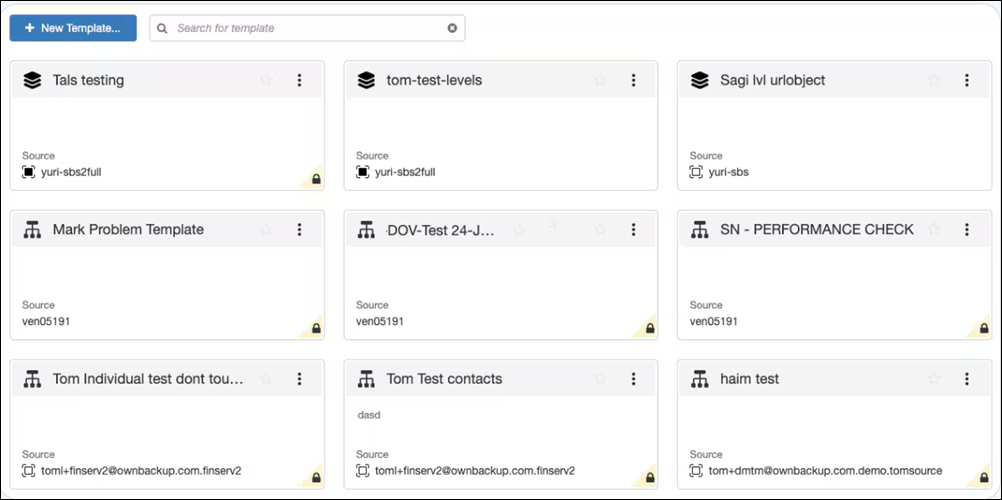
In tile view, each template appears in a separate tile and presents template-specific information. Click the Sort templates button to open a drop-down menu of information options. Then select an information option by which to sort the template tiles. Also, you can select from the drop-down menu the Reverse order option to simply reverse the (ascending/descending) order of the current sort of template tiles.
List View
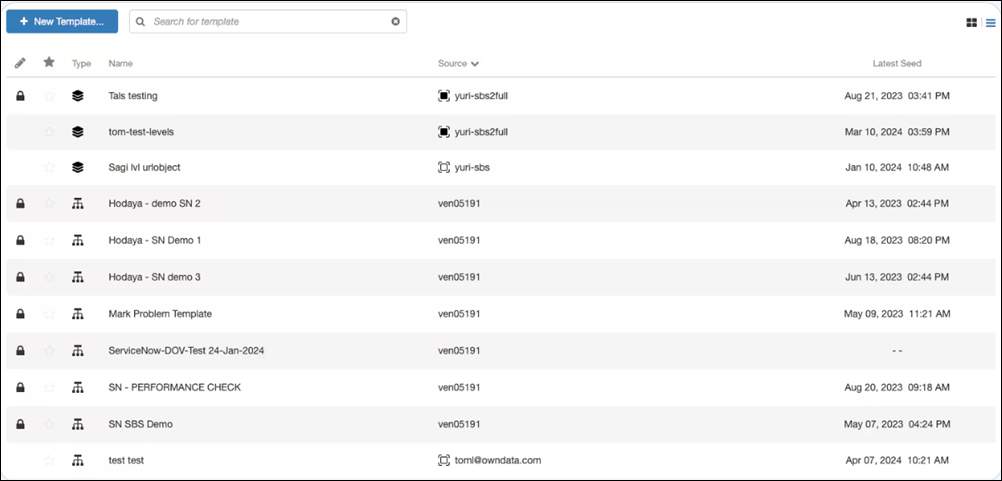
In list view, each template appears in a separate row and presents template-specific information in columns. Click on a column heading to sort the template entries (ascending/descending) by that column.
Template Listing Information
The listing presents specific information, per template entry:
- Edit status shows if the template is being edited by you (pencil icon) or being edited by another user (lock icon). If this entry is blank, it means that the template is not being edited by anyone.
- Star - identifies whether the template is designated as a favorite (the orange star icon) or this entry is blank
- Type - an icon that identifies the template's type. A Nodes template is the only template type that is available for use in a ServiceNow data environment, therefore the template type icon is always the Nodes template icon.
- Name - the name of the template and, if provided, a description that appears underneath the name
- Source - an icon that identifies the Source service's type and the Source service's name
- Latest Seed - the date (month day, year, time AM/PM) that the template was last used in a seeding job; or two dashes (- -) indicating that the template has not yet been used in a seeding job. When viewing the listing of templates in tile view format, Latest Seed information isn't provided in template tiles
By default, templates are alphabetically sorted by name. However, you can sort the templates by any single, specific piece of information, using any of the following methods:
- In tile view, click the Sort templates button to open a drop‑down menu of information options. Then select an information option by which to sort the template tiles. Also, you can select from the drop‑down menu the Reverse order option to simply reverse the (ascending/descending) order of the current sort of template tiles.
- In list view, each template appears in a separate row and presents template-specific information in columns. Click on a <column heading> to sort the template entries (ascending/descending) by that column.
Locked Template
The lock icon identifies that another user is editing the template. You can't edit a template while another user is editing it. However, you can use the published version of the template to run seeding jobs and to export the template hierarchy.
Cloning a Template
The Clone option provides you with the ability to instantaneously create a new, identical copy of an existing template. Cloning templates is useful for addressing any of the following use cases:
- Creating copies of existing templates for backup. For example, you want to save your template locally, as a backup, on your machine
- You want to make changes to a template. You apply the updates to a clone of the template, without affecting the original template's content
To clone a template in the template entry that you want to clone, click the three dots menu and select the Clone option. If the Clone option doesn't appear in the menu, contact your administrator to assign you the required permission. The Template Builder tab appears displaying the newly cloned template that contains the identical hierarchy as the original template from which it was copied. The newly cloned template is in Edit mode, meaning that it is locked so that only you can edit it.
Deleting a Template
To delete a template in the template entry that you want to delete, click the three dots menu and select the Delete option. If the Delete option doesn't appear in the menu, contact your administrator to assign you the required permission. The Delete Template dialog is displayed. Click Yes, delete it to delete.