
When opening an existing Nodes seeding template, it opens in view-only mode. You can edit a seeding template if another user isn't editing the template. Master admins can edit locked templates.
View Mode
In view-only mode, you can export the seeding template's node (object) hierarchy and run seeding jobs. You can also manually initiate the recalculation of the template counts by clicking the Recalculate link.
If this template is being used in a scheduled seeding job, the Scheduled seeds icon is
displayed above the Template Builder tab's border on the right. In this icon, click  to open the Scheduled tab in a new browser tab.
In the Template Builder tab, when viewing a seeding template that is locked by another user for editing, the Lock icon appears in the upper right of the UI. Users that are assigned the Master Admin role can use the Make me editor link. Master Admin users can find this link by hovering over the Lock icon. This expands and shows a message about the template being locked for edit, followed by the Make me editor link.
Clicking Make me editor:
- Refreshes the display of the seeding template to present the latest state of the template
- Keeps the template in Edit mode
- Assigns the Master Admin user as the template's current editor, who can then modify the template and, also, publish the template
Edit Mode
While a template is in Edit mode, it is locked, and other users can't edit it.
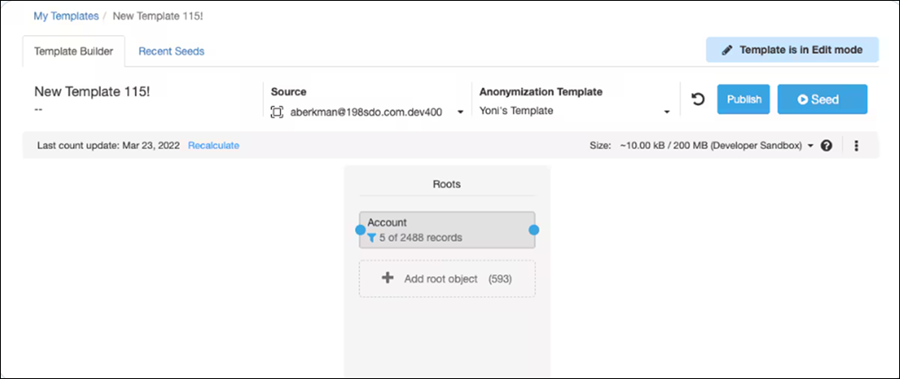
If you aren't authorized to view production data, you can't modify the Template Source field or the Anonymization Template field.
When running a seeding job using a seeding template that
is in Edit mode, the seeded data is according to the template as currently displayed in the
editor (other users would run a seeding job using the published version of this seeding
template, if a published version exists). If this template is being used in a scheduled
seeding job, the Schedule seed icon is displayed above the Template Builder tab's border on
the right. In this icon, click to open the Scheduled tab in a new browser tab. Click Edit
to edit the template. In edit mode, you can make changes without disturbing other users from
using the published version of the template to run seeding jobs. Editing changes that you
make are not published until you click Save. Click  to discard your changes and return to the last saved display.