
Select the objects you want to seed and apply filters to ensure you are seeding the exact data required by your use case.
In the Template Builder tab, once your seeding template is in Edit mode (either upon template creation or by clicking Edit), you can start building your node hierarchy of objects that you want to seed.
In the Template Builder tab, when viewing a locked seeding template (locked by another user for editing, as indicated by the display of the Lock icon in the upper right of the UI), users that are assigned the Master Admin role have use of the Make me editor link.
This link is made available to Master Admin users by hovering their cursor over the Lock icon, which then expands and presents a template locked for edit status message followed by the Make me editor link.
Clicking Make me editor refreshes the display of the seeding template to present the latest state of the template, keeps the template in Edit mode, and assigns the Master Admin user as the template's current editor, who can then modify the template and, also, publish the template.
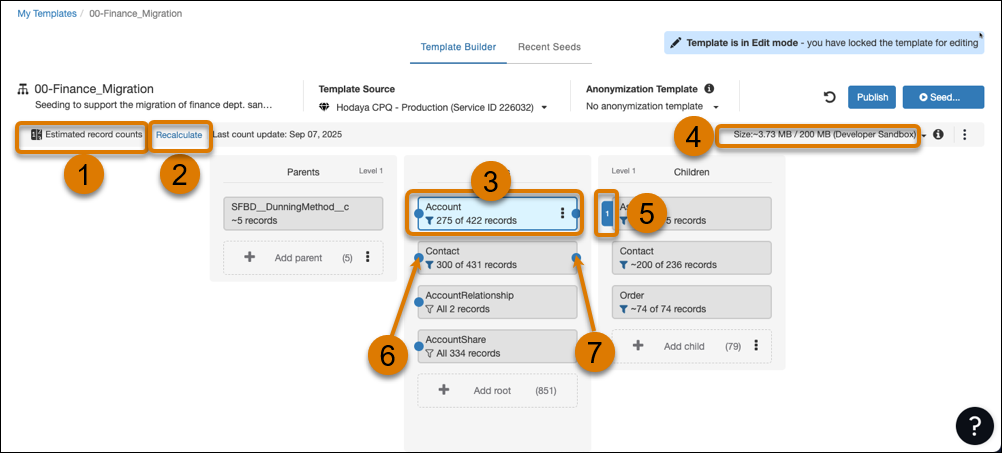
| (1) | Using Estimated Record counts (Other options are: No record counts, Accurate record counts) |
| (2) | Recalculate record count |
| (3) | Selected root node |
| (4) | Estimated seeding job size |
| (5) | Node with 1 additional node in hierarchy |
| (6) | Click to show parent nodes |
| (7) | Click to show child nodes |
- Node Context Menu for a Salesforce Nodes Template
Each node in a Nodes Template has an available options context menu, regardless of where that node (object) is located in the template hierarchy (Parent, Root, or Child). - Editing a Nodes Template for Salesforce
When opening an existing Nodes seeding template, it opens in view-only mode. You can edit a seeding template if another user isn't editing the template. Master admins can edit locked templates.
Add a Root Node
Root nodes are the anchor objects of your schema. Add their parent nodes and their child nodes based on your business requirements. Typically, select an object that is the center of the business data model to be the root. The graph of related objects is built from the root.
You can have more than one root object in your template, although we encourage you to have as few as possible, to keep the template easy to understand. For example, to seed your customer data, including Opportunities, Assets, and Cases, add the Account object as a root object. Then add Opportunities, Assets, and Cases as its children and, if needed, also its parent Account. When selecting an object with mandatory relationships to other objects, usually because of a primary-detail relationship, the system automatically adds those objects to the template. These nodes can’t be removed.
- On the Template Builder screen, in the Roots column, click + Add root object to add an object a table as a root object.
- Filter by typing in the drop-down to find the desired object. Objects with a strike through do not have any records in the source service.
- Click on the object to create the root node.
- Objects having more than 30 mandatory parents aren’t allowed as root objects in the template. Attempting to add such a root object results in a UI validation error.
- You could now seed an org with data or bring in some more objects to seed a complete business data set.
Add Child Nodes
Child nodes are objects that have a direct reference by schema to the Parent node. They can come from a Primary/Detail relationship or a lookup relationship.
- When adding a Child with a mandatory Parent, the system automatically adds the mandatory Parents to be seeded.
- Click the root node you want to select. The Children and Parents columns open.
- Click Add child object.
- Filter or scroll to select the desired object (the system strikes through objects with 0 records in the source organization).
- Repeat if more Child nodes are required.
- To add multiple Children, click on the three dots next to the Add Child object icon, and click Add multiple children. The Add Multiple Children window opens.
- Select all the Child objects you wish to add.
- If required, set a new default limit for the selected Children.
-
Click Add.
When the "Show objects without records" is selected all Children objects that currently do not have records in the template source service are added to the list.
Click the blue tab next to your node to view the inserted objects and added records estimate.
Add Parent Nodes to a Root Object
When a Root object has optional parents (from a lookup relationship), you can add them to the hierarchy.
- Click the Add parent object icon to add optional parent nodes to the root object.
-
To add multiple Parents, click on the three dots next to the Add parent object icon and
click Add multiple parents.
The Add Multiple Parents window opens.
- Select all of the parent objects you wish to add.
- Click Add.
Add Optional Parent Nodes to Child Objects
When a Child object has optional parents, you can add them to the hierarchy.
- On the child node, click the three dots to display the menu.
- Select Add Parents. The Add parents window opens.
- Add the required parent nodes.
Configure a Seeding Template to Anonymize As Part of a Seeding Job
As part of the execution of a seeding job, you can anonymize the data of the service that is defined as the Template Source in the seeding template. This allows you to anonymize personally identifiable information (PII), sensitive information, and classified information before it is copied to the destination.
-
Configure the seeding template to reference an anonymization template:
- In the Seeding application Templates tab, select a seeding template in which you want to define a reference to an anonymization template. The seeding template displays in the Template Builder tab.
- If the selected seeding template is currently not in Edit mode, click Edit. The seeding template transitions to Edit mode.
- Click Publish. The seeding template is updated with the reference to the selected anonymization template and transitions to view-only mode.
- Click Publish. The seeding template is updated with the reference to the selected anonymization template and transitions to view-only mode.
-
(Optionally) Anonymize data as part of the execution of a seeding job:
- Using a seeding template selected for the seeding job, define and execute the seeding job, whether manually executed or by schedule. The Seeding application retrieves the seeding source's data.
-
The Anonymize application uses the anonymization template that is referenced in the
Anonymization Template field of the seeding template to anonymize the retrieved seeding
source data.
The Seeding application copies (seeds) the anonymized seeding source data into the destination that is defined for the seeding job.
When data anonymization is performed as part of the execution of a seeding job, no Anonymization Report is produced for the anonymization. The anonymization processing phase of the seeding job is reported in the Seeding Report of that seeding job, including any associated warnings and errors.
For information about defining and executing a seeding job, see Execute a Seeding Job for Salesforce.