
Before publishing your Experience Cloud site with public access enabled, configure the guest user profile so that your customers can view and interact with your site without logging in.
Required Editions
| Available in: Essentials, Enterprise, Performance, Unlimited, and Developer Editions |
| User Permissions Needed | |
|---|---|
| To access Experience Workspaces: |
Create and Set Up Experiences AND Is a member of the Experience Cloud site |
| To edit app and system permissions in profiles: | Manage Profiles and Permission Sets |
| To edit object and field permissions in profiles: |
Manage Profiles and Permission Sets AND Customize Application |
For Experience Builder sites, access the guest user profile from Experience Builder.
- In Salesforce Setup, enter digital experiences in the Quick Find box and select All Sites.
- Next to the site that you want to access, click Builder.
-
In Experience Builder, click
 and select General.
-
Under Guest User Profile, click the profile name.
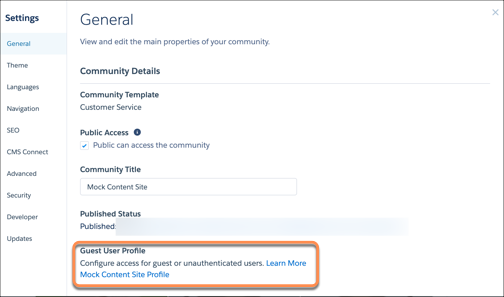
- Click Edit.
- Scroll to the Standard Object Permissions section, and change the object permissions to meet your business needs.
- Create a sharing rule for each object you want to share with your users.
- Click Save.
For Salesforce Tabs + Visualforce sites, access the guest user profile from Experience Workspaces.
- In Salesforce Setup, enter digital experiences in the Quick Find box and select All Sites.
- Next to the site that you want to access, click Workspaces.
- Select Administration | Pages | Go to Force.com.
- Click Public Access Settings and change the access levels based on your needs.
- Best Practices and Considerations When Configuring the Guest User Profile
When configuring the guest user profile, keep these recommendations and considerations in mind.