This example uses Process Builder to manage documents in Salesforce. The example moves a document to a shared folder in Quip whenever the record that the document is associated with is created or updated. This process ensures that the documents associated with a Salesforce record object are always available to users who have access to the shared folder.
Required Editions
| Available in: both Salesforce Classic (not available in all orgs) and Lightning Experience |
| Available in: Essentials, Professional, Enterprise, Performance, Unlimited, and Developer Editions |

After December 31, 2025, existing processes continue to run, and you can activate, deactivate, and edit them; however, we recommend using Flow Builder. To migrate existing processes, plan your switch to Flow Builder and use the Migrate to Flow tool. For new automations, create flows in Flow Builder.
In the example, it’s assumed that:
- The Account object has a custom field labeled Quip Account Plan Doc (API name Quip_Account_Plan_Doc__c). For each account, the custom field stores the URL of an associated document that contains a plan for the account.
- All the Account Plan documents are in a shared folder. The folder’s URL is https://acme.quip.com/123FakeURL456.
The process starts when an Account record (1) is created or updated.
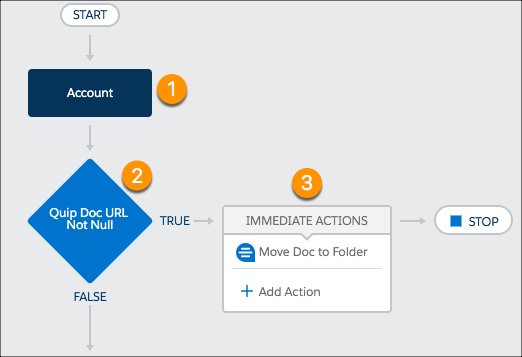
The criteria (2) checks whether the value of the Quip Account Plan Doc custom field has changed and whether the field isn't null. If both conditions are true, an immediate action (3) moves the Quip Account Plan doc to the specified shared folder. Let’s dig a little deeper into the criteria and action in this sample process.
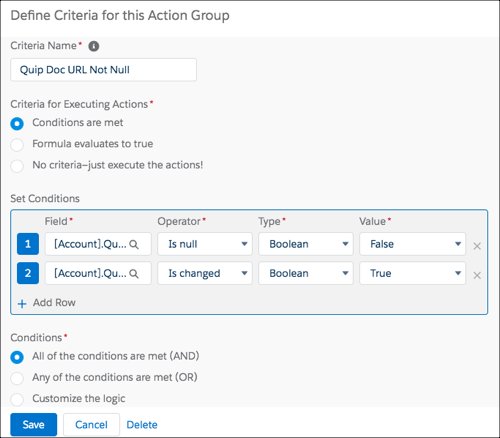
The criteria’s Set Conditions section defines which conditions must be met in the Quip
Account Plan Doc field to move a document. There are two conditions: the Quip Account Plan
Doc field isn’t null and that it’s changed. The Field column requires the full API name of
the field, in this case, [Account].Quip_Account_Plan_Doc__c. The Conditions section specifies that all
the conditions must be met to execute the action.
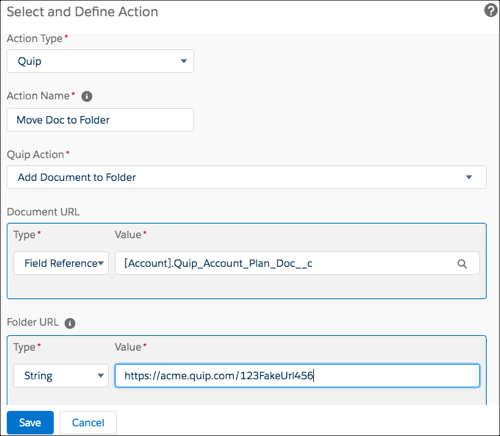
For the action definition, you select Quip for Action Type to view the Quip-related actions. Enter an Action Name (Move Doc to Folder in our example) then select the action (Add Document to Folder). The Document URL is a field reference to the custom field ([Account].Quip_Account_Plan_Doc__c) that contains the URL of the document to move. The Folder URL is a String type that specifies the URL of the shared folder.