
Copy content from a source document and paste it with Live Paste in a new document. After you update the source content, set the content to automatically update in all documents that reference it.
Required Editions
| Available in: Lightning Experience |
| User Permissions Needed | |
|---|---|
| To create, edit, or view processes: |
Manage Flow AND View All Data |

After December 31, 2025, existing processes continue to run, and you can activate, deactivate, and edit them; however, we recommend using Flow Builder. To migrate existing processes, plan your switch to Flow Builder and use the Migrate to Flow tool. For new automations, create flows in Flow Builder.
After you create a Quip action and select Copy with Live Paste, fill in the relevant fields to add the action to your process.
-
Enter a name for this action.
This text appears on the canvas and helps you differentiate this action from others in your process. The name truncates to fit on the canvas.
-
Enter the anchor links of the sections in the source document you want to copy with Live
Paste. To copy content from multiple sections of the same document, enter anchor links and
separate with commas. Your content appears in the order that the anchor links are entered. You
can’t copy content from multiple documents at the same time.
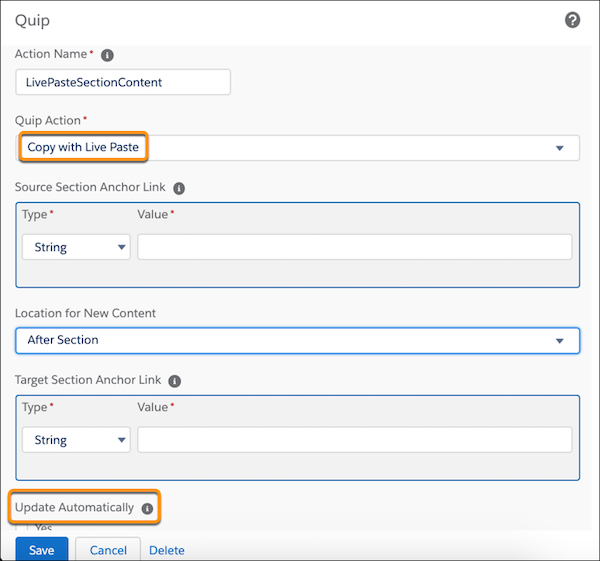
- Select the location in the document where you want to paste your content. Live pasted content can appear at the end or beginning of a document, before or after a section, or can replace a document section.
- To paste content at the beginning or end of a document, enter the target document URL. To paste content in a target document based on a section, enter the anchor link of the section where you want your copied content to appear.
- To have content copied with Live Paste automatically update in the target document, select Update Automatically.
- Save the action.
