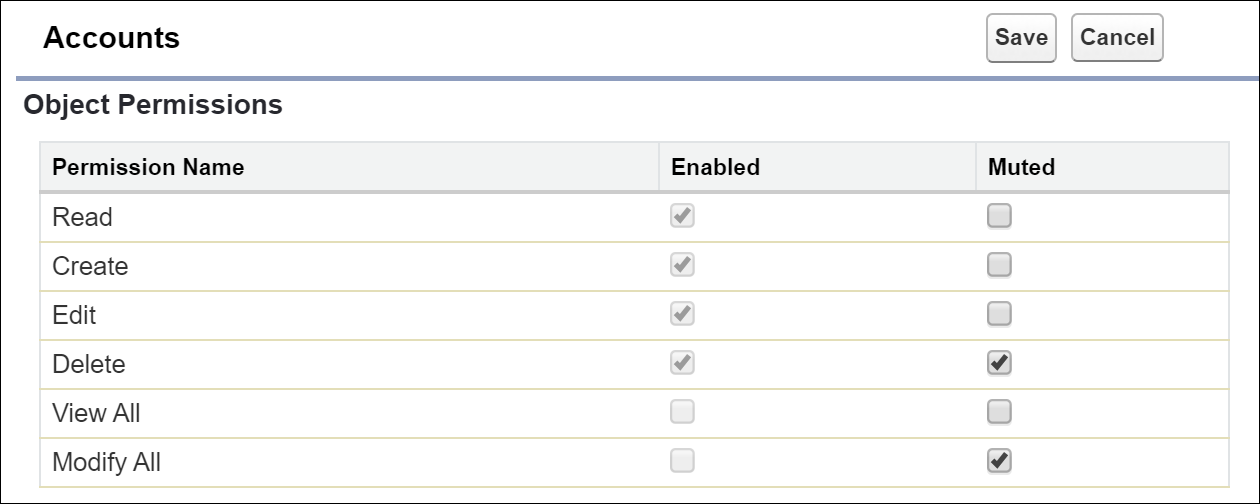
You can mute one or more permissions in a permission set group. If you mute a permission in a permission set group, only the permission set group is affected. The permission sets themselves aren’t affected.
Required Editions
| Available in: both Salesforce Classic (not available in all orgs) and Lightning Experience |
| Available in: Contact Manager, Group, Essentials, Professional, Enterprise, Performance, Unlimited, Developer, and Database.com Editions |
| User Permissions Needed | |
|---|---|
| To mute a permission in a permission set group: | Manage Profiles and Permission Sets |
Before muting permissions within a permission set group, review your business and user needs for the permission set group and understand how permission dependencies can affect access.

Note Muting only impacts permission set group users. Users outside of the group who are
assigned directly to the permission sets remain unaffected.
- From Setup, in the Quick Find box, enter Permission Set Groups, and then select Permission Set Groups.
- Select the permission set group in which you want to mute permissions.
-
Click Muting Permission Set in Group, and then click
New.
Only one muting permission set is allowed per permission set group.
- Give your muting permission set a label and API name and click Save.
- Click the link for your new muting permission set.
-
In the Find Settings box, search for the name of the object or permission that you want
to mute. Select it and click Edit.
You can also navigate to permission or access settings pages from the muting permission set's detail page.
-
Select Muted for the permission or setting that you want to mute
and click Save. If a confirmation message is displayed, review your
changes and click Save or Cancel.