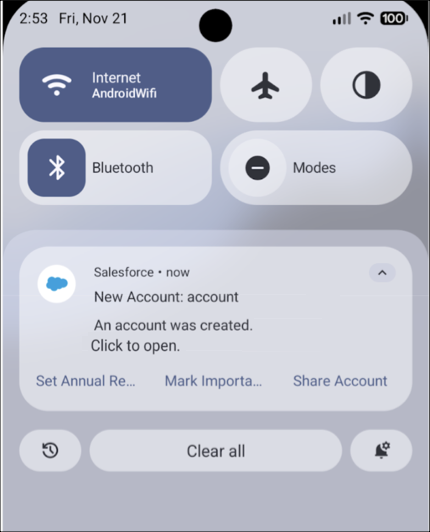
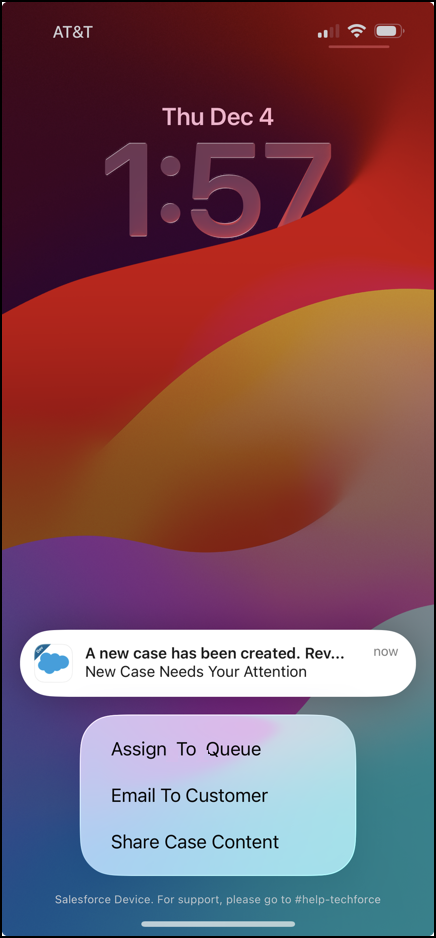
You can now add actions to custom notifications. These notifications appear on a user’s screen, depending on their settings, and can be used for a variety of actions, such as approving requests, following up on deals that might be at risk, or closing a case.
Required Editions
| Available in: Lightning Experience |
| Available in: Essentials, Professional, Enterprise, Performance, Unlimited, and Developer Editions |
| User Permissions Needed | |
|---|---|
| To create and edit mobile action groups: | Customize Application |
| To view Apex classes: | View All Data |
- From Setup, in the Quick Find box, enter Notification Builder, and then select Custom Notifications.
- Click on a custom notification.
- Click on the Mobile Action Groups tab and create a new mobile action group, giving it a unique API name.
- Click New Action to add up to three actions per mobile action group. For each action, add a name, API name, and select an action type.

Note
- You can create a mobile action group only if mobile is selected as a supported channel.
- You can have a total of two mobile action groups per custom notification, and each group can have a maximum of three actions.
- When sending a notification, you must specify which mobile action group to use. The action group configured here defines the available actions, but it won't appear in the notification unless you provide it in the send request.