
Use work items to track the progress of changes created for a specific task, such as a user story, feature, or issue. Tracking releases through work items makes it easier to monitor progress and identify concerns.
Required Editions
| Available in: Lightning Experience in Professional (API access required), Enterprise, Performance, Unlimited, and Developer Editions |
| Not Available in: Government Cloud Plus. Contact your Salesforce account executive for more details. |
| Not available in: EU Operating Zone. EU Operating zone is a special paid offering that provides an enhanced level of data residency commitment. Lifecycle Center is supported in orgs in the EU that aren't part of EU OZ, per standard product terms and conditions. |
Review the work item management best practices to learn about recommendations and suggested best practices to manage your work items effectively.
Create a Work Item
All work begins with a work item. A work item captures a logical unit of work, such as a user story, task, or issue. A work item includes:
- ID: A unique, auto-generated identifier with a WI-prefix. For example, WI-012345. The ID helps users differentiate work items and identifies the related feature branch in the project repository.
- Subject: A required, brief summary of the task.
- Description: Detailed information about the task. For issues, include reproduction steps. For user stories, include benefits and acceptance criteria.
- Assigned To: The user responsible for completing the work item.
Your team creates work items as needed to capture the complete scope of the project. For steps, see Create and Assign Work Items.
You can also create work items directly in your development environment from DX Inspector.
Open a Work Item
When you open a project for the first time, it may contain several work items that your team created. You and other team members can create other work items as the project progresses.
From the Projects tab, select your project to open the All Work Items page. If you know the work item ID, go to the Work Item tab, search for the work item ID, and open it.
If a work item doesn't have an associated development environment yet, Lifecycle Center associates the DX Inspector environment and creates a branch when you commit for the first time. Alternatively, use external IDEs or other development tools to work outside Lifecycle Center.
Lifecycle Center also creates a branch when the work item moves to the In Progress status. You can add or change a development environment from the Pipelines tab.
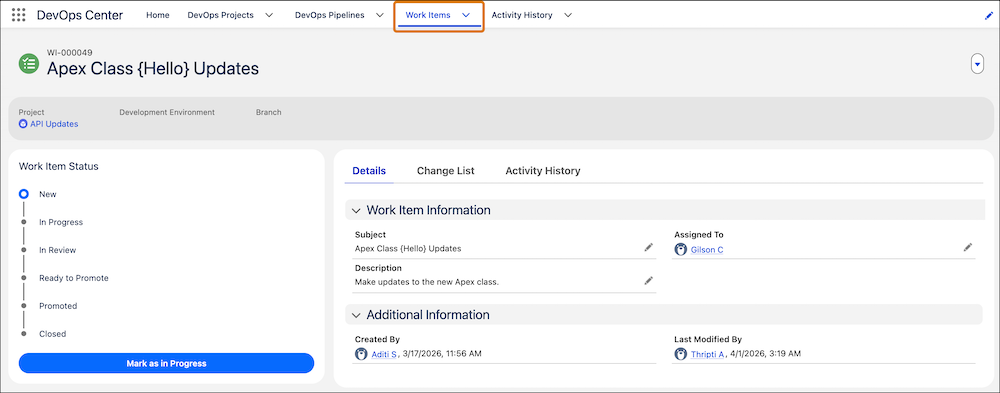
View Work Items
Lifecycle Center provides these ways to view the work items associated with a pipeline. Switch between views by using the toggle on the Work Items tab.
- List view: Displays work items as rows in a table so you can easily scan details across multiple items at once.
- Kanban view: Displays work items as cards in columns that represent pipeline stages, such as New, In Progress, In Review, and Ready to Promote. Use this view to get a visual overview of where work items stand.
Modify Work Item Details
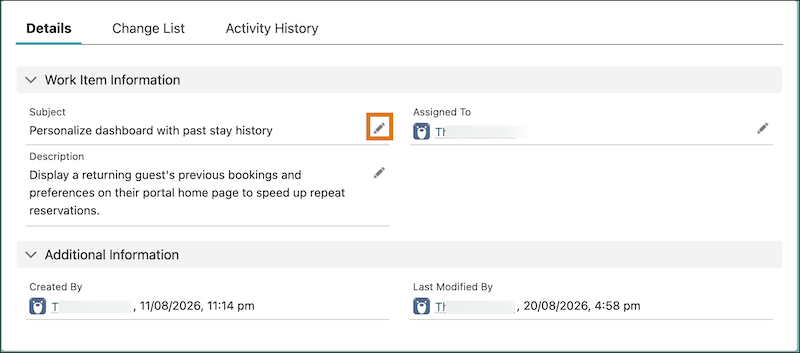
Keep work items up to date. For example, if you identify a new acceptance criteria, edit the work item to make sure that the assignee knows of the change. If you're ready to start on a work item, assign it to yourself, which lets other team members know you've picked it up.
From the Work Items tab, find the required work item and click the
work item ID. To edit details, use the Details tab, then click the
 edit icon to update the Subject, Description, or Assigned To fields.
- Work Outside the Lifecycle Center UI
Use your preferred local development tools to work on Lifecycle Center work items and commit changes directly to source control. After merging your changes, complete the promotion in Lifecycle Center. - Work Item Lifecycle and Status
A work item includes a status and progress indicator so your team can quickly understand where work stands in the release cycle. Work items move through these statuses: New, In Progress, In Review, Ready to Promote, Promoted, and Closed. - Change Work Item Status to Never
Use the Never status when plans change, when you need to start over, or when a change conflicts with another work item’s promotion.