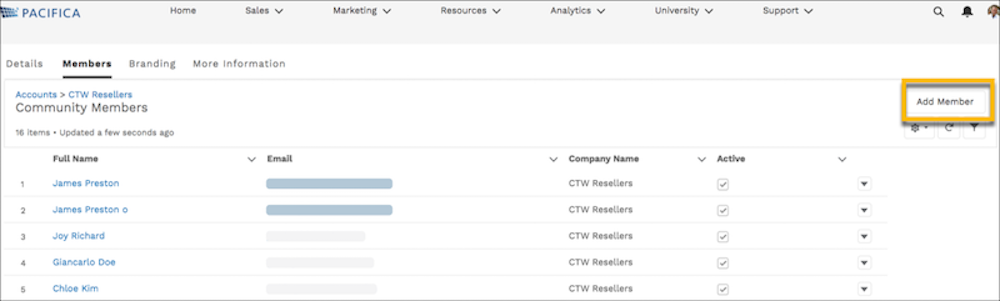
In addition to administrators and internal users, partner users with the Delegated External User Administrator permission can activate, deactivate, create, and edit members. They can also reset member passwords.
Required Editions
| Available in: both Salesforce Classic and Lightning Experience |
| Available in: Enterprise, Performance, Unlimited, and Developer Editions |
| Admin Permissions Needed | |
|---|---|
| To manage external users: | Manage External Users |
| To create, edit, and delete profiles: | Manage Profiles and Permission Sets |
To allow partner users with the Delegated External User Administrator permission to manage other members, add the Members related list to Accounts page layout.

Note To simplify the member creation process, configure a light user creation form for the
delegated administrator to use. Go to Setup | Object Manager | User | Member Page Layouts to customize which fields are included on the Member page. You can remove
Language and Locale Settings and Chatter from the form. Values for removed fields default to
the settings of the delegated administrator. If your delegated admin is entering values
other than their own in the Locale and Language and Chatter settings, leave them on the
form.
- Select the icon of the account that you’re managing, and select Account Management.
-
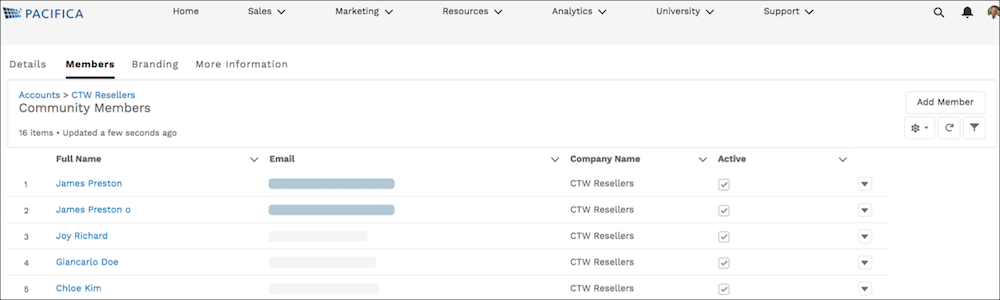
From Account Management, select the Members tab to access a list
of site members.
-
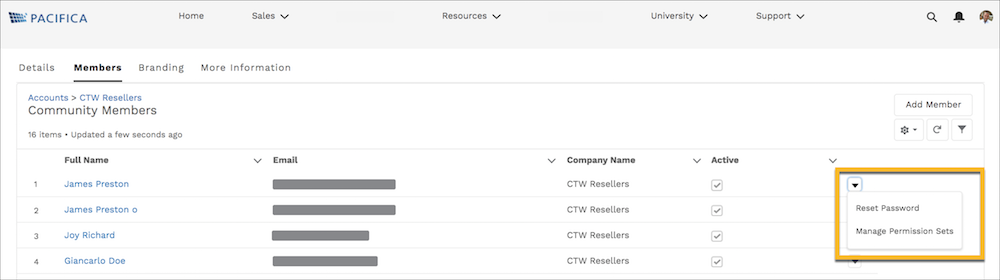
To reset a members password or manage their permission sets, select an option from the
dropdown arrow on the member’s row.
- To activate or deactivate a member, select or deselect the box in the Active column.
-
To add a member to an account, click Add Member.