Each recommendation is associated with a single flow. By default, Next Best Action launches a flow when a user accepts a recommendation. The flow then performs an action, such as updating a case or sending an email. But you can also launch a flow when a user rejects a recommendation, which gives you more flexibility. For example, a flow could run an automated process, write to another system, or create a reminder email when a recommendation is rejected.
Required Editions
| View supported editions for Next Best Action. |
| User Permissions Needed | |
|---|---|
| To open, edit, or create a flow in Flow Builder: | Manage Flow |
| To create and save Lightning pages in the Lightning App Builder: | Customize Application |
| To run a recommendation strategy on a Lightning record page: |
Run Flows OR Flow User field enabled on the user detail page |
For example, at a telecommunications company, the admin configures the Next Best Action component to display recommendations to its customer service representatives (CSRs). When a CSR accepts a recommendation for a customer who wants to purchase a discounted service, a flow is launched to calculate the discount. The admin analyzes the reactions to the recommendation, and is confused about why the CSRs are rejecting it. To help get answers, the admin uses Next Best Action to launch a questionnaire flow every time the recommendation is rejected.
This feature is available for:
- The Einstein Next Best Action component used with Lightning record pages
- The Suggested Actions component used in Experience Builder
- The Actions and Recommendations component used with Lightning console apps
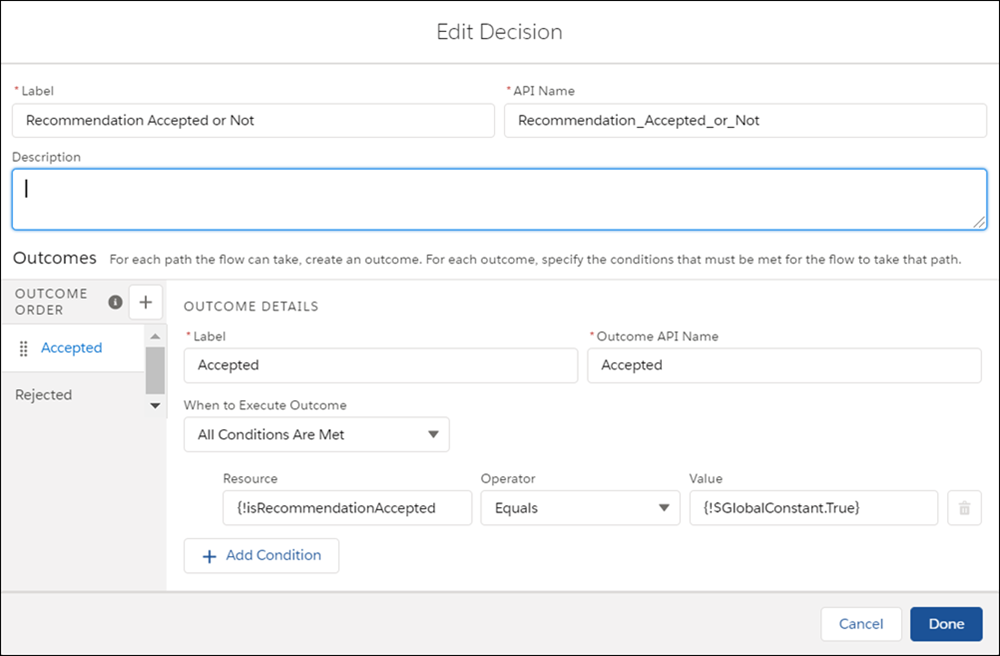
To assign a flow that runs when a customer accepts or rejects the recommendation, create an
input variable in the flow to accept the isRecommendationAccepted value. Then add a Decision element to the flow that’s based
on that value.
- In Flow Builder, configure a flow that’s associated with a recommendation. Be sure to activate the flow because Next Best Action can’t call an inactive flow from a recommendation.
-
Create the Boolean
isRecommendationAcceptedinput variable. -
Add a Decision element and select Manually Set Conditions, and
use the
isRecommendationAcceptedvariable in your outcome conditions. -
Set the outcome label of the first outcome to Accepted. Then
configure the first decision outcome to determine whether the
isRecommendationAcceptedvariable is true. -
Change the label of the Default Outcome to Rejected.
- Add any additional flow elements to handle each outcome path.
- Add a flow action.
- To add the flow, edit the recommendation.
-
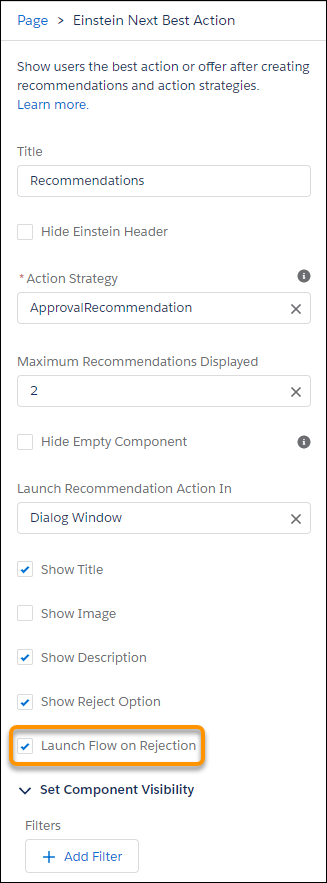
When you add the Next Best Action component to a Lightning record page, select
Launch Flow on Rejection.