
This example shows how to set up partners such that they’re unable to access each other’s data.
Required Editions
| Available in: Lightning Experience. |
| Available in: Enterprise and Unlimited Editions |
An Automotive Company and Its Stakeholders
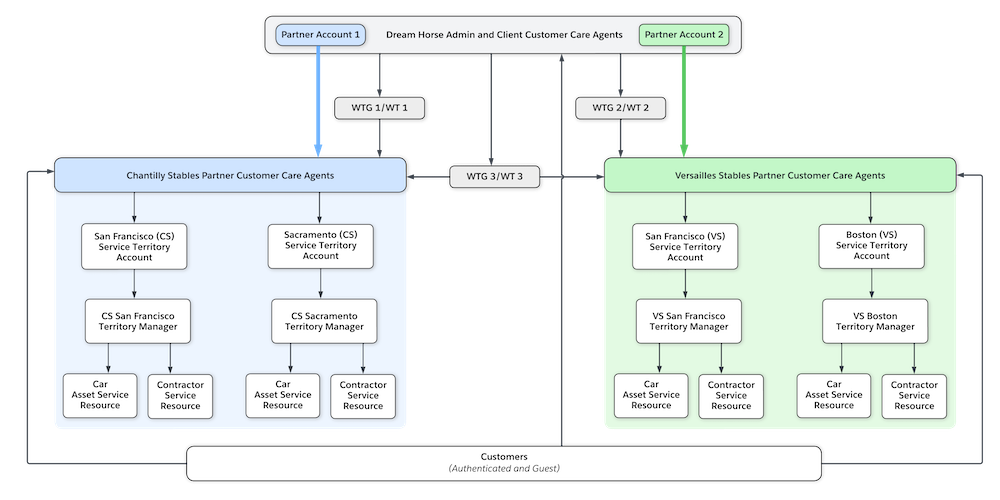
Dream Horse, an automotive company, uses Salesforce Scheduler to book customer appointments, such as booking test drives. Dream Horse now wants to set up Salesforce Scheduler for its dealerships (partner accounts): Chantilly Stables and Versailles Stables. Chantilly Stables has branches in Sacramento and San Francisco. Versailles Stables has branches in San Francisco and Boston. Let’s look at the stakeholders involved and their requirements.
| Role | Responsibilities | Licenses Required |
|---|---|---|
| Salesforce Admin |
|
— |
| Client Customer Care Agent |
|
Salesforce Platform, Salesforce CRM, or above |
| Role | Responsibilities | Licenses Required |
|---|---|---|
| Partner Customer Care Agent |
|
Customer Community Plus, Partner Community, or above |
| Partner Territory Manager |
Administer a partner branch (service territory):
|
Customer Community Plus, Partner Community, or above |
| Partner Users or Contractors |
|
|
| Role | Responsibilities | Licenses Required |
|---|---|---|
| Prospect (Guest user) |
|
Guest |
| Customer (Authenticated) |
|
Customer Community Plus, Partner Community, or above |
In this example, partner stakeholders have the Partner Community license.
Experience Cloud Sites
The Salesforce Admin at Dream Horse creates these Experience Cloud sites for different stakeholders.
- An Experience Cloud site for partners
- A site for partners' customer care agents and contractors who use the Inbound New Appointment flow to book appointments. In the Inbound New Appointment flow, the isOutboundCommunity flow variable is set to true and the IsInbound flow variable is set to false. The site is used by all the partners and the data available to the partners depends on their data access.
- An Experience Cloud site for customers
- A site for authenticated customers who use the Inbound New Appointment flow to book appointments. Customers can avail of services from all the dealerships and all their locations.
- An Experience Cloud site for guest users
- A site for guest users who use the Inbound New Guest Appointment flow to book appointments. Customers can avail of services from all the dealerships and all their locations.
Permissions and Hierarchies
The Salesforce admin of Dream Horse uses these permissions and hierarchies to ensure that all the users have only the required access.
- Portal role hierarchy: To create a hierarchy for partner stakeholders such that users get access to data owned by or shared with users below them in the role hierarchy.
- External Account Hierarchy: To make sure that a partner account has access to data from all its service territory accounts.
- Manual sharing: To share records that are created by Dream Horse admin with portal roles.
- Apex sharing: To provide access to shift records to the respective service resource.
- The Resource Appointment Sharing setting: To share appointment records with the respective service resources.
- Sharing rules: To share records with Dream Horse customer care agents (client customer care agents), guest users, and authenticated users.
Use portal role hierarchy to make sure that users who are above in the hierarchy have access to data owned by or shared with users below them in the hierarchy. Make sure that in the Settings for Digital Experiences, the number of partner roles is specified as 3. If you use Customer Community Plus licenses, make sure that the number of customer roles is 3.
By default, Salesforce creates these roles:
- Executive
- Manager
- User
To ensure that partner users, contractors, and assistants can access only their own data and data that's shared with them, add them at the lowest level in the portal hierarchy. To ensure that territory managers can access only their own data and their team’s data, add territory managers above their team in the hierarchy. To ensure that partner customer care agents can access the data of all the employees across the service territory, add them above territory managers in the hierarchy.
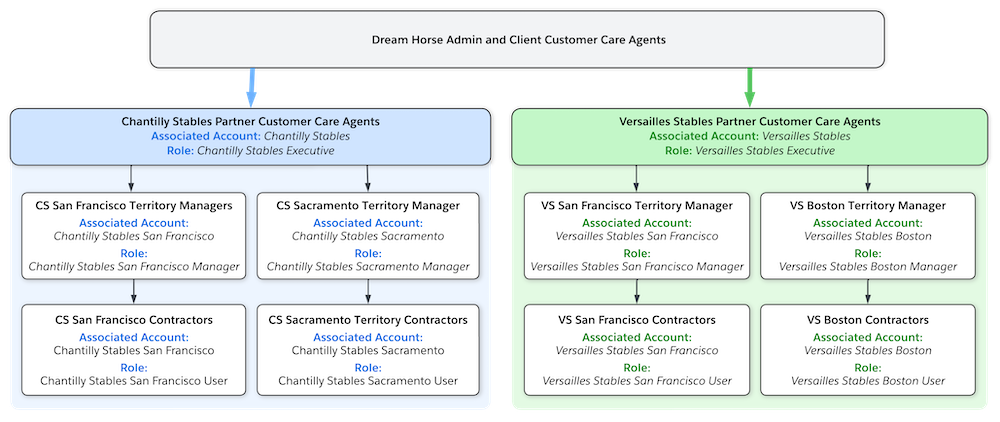
To make sure that a partner account can access data from all its service territory accounts, use external account hierarchy.
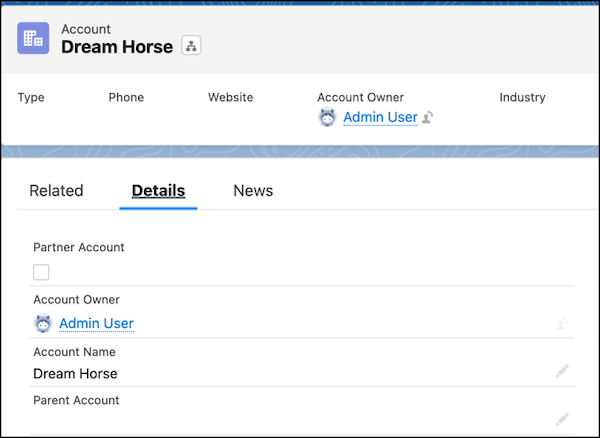
Before you set up an external account hierarchy, create an account for the parent company, Dream Horse.
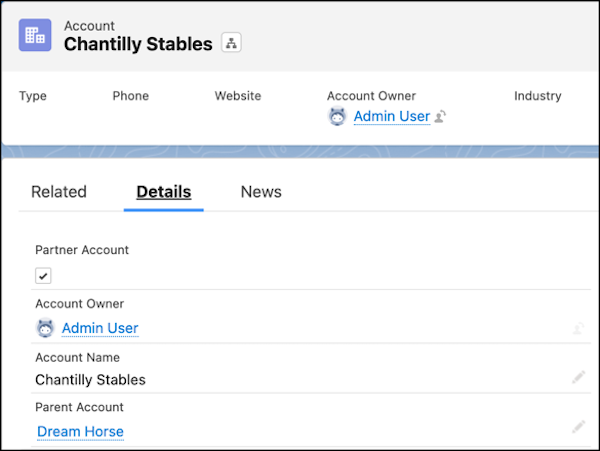
Then, create partner accounts for Chantilly Stables and Versailles Stables with Dream Horse as the parent account.
And create accounts for each branch (service territory) with its dealership as their parent record.
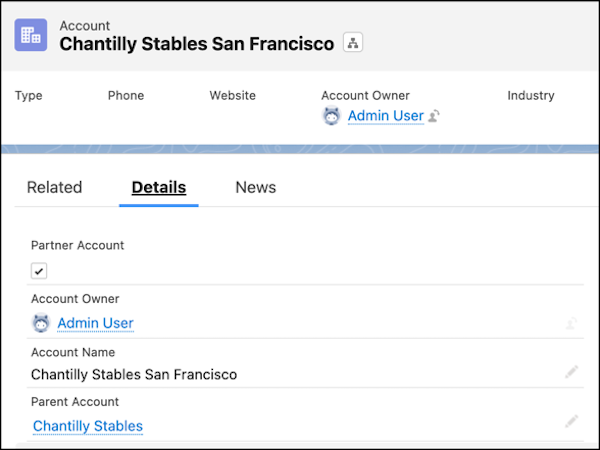
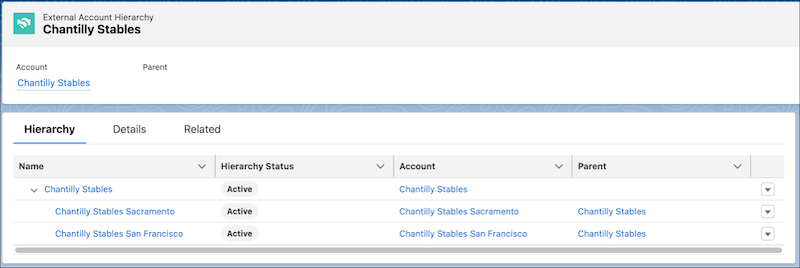
For each dealership, create an external account hierarchy with the dealership as the parent record and its branches as the child records. For example, create an external account hierarchy with Chantilly Stables as the parent record and Chantilly Stables San Francisco and Chantilly Stables Sacramento as the child records. Also ensure that the hierarchy is active.
After you set up the portal-role hierarchy and the external-account hierarchy, records are automatically shared up the hierarchies. For stakeholders who are below in the hierarchies, manually share the records, such as branches (service territories) and appointment topics (work types).
Here’s a table that lists the entities and the access required for different roles. We provide object access through user profiles and record access through sharing. The overall access depends on both the object access and the record access. Salesforce applies the most restrictive of these two accesses to determine the overall access.
| Entity | Admin | Client Customer Care Agent | Partner Customer Care Agent | Partner Territory Manager | Partner Users, Contractors, and Assistants |
|---|---|---|---|---|---|
| Service Territory (Object access) | All | Read/Edit | Read | Read/Edit | Read |
| Service Territory (Record access) | Owner | Read/Write | Read/Write | Read/Write | Read/Write |
| Service Territory (Overall access) | Owner | Read/Write | Read | Read/Write | Read |
| Service Resource (Object access) | All | Read/Edit | Read/Edit | Read | Read/Edit |
| Service Resource (Record access) | Owner | Read/Write | Read/Write | Read/Write | Owner to their Service Resource record. Read only access to other contractors in their territory. |
| Service Resource (Overall access) | Owner | Read/Write | Read/Write | Read | Owner to their Service Resource record. Read only access to other contractors in their territory. |
| Work Type Group and Work Type (Object access) | All | Read | Read | Read | Read |
| Work Type Group and Work Type (Record access) | Owner | Read | Read | Read | Read |
| Work Type Group and Work Type (Overall access) | Owner | Read | Read | Read | Read |
| Operating Hours (Object access) | All | Read | Read | Read/Edit | Read |
| Operating Hours (Overall access) | Owner | Read | Read | Read/Write | Read |
| Account/Lead/Opportunity (Object access) | All | Read/Create/Edit | Read/Create/Edit | No access | Read |
| Account/Lead/Opportunity (Record access) | Owner | Owner |
Owner Read/Write |
Read | Read |
| Account/Lead/Opportunity (Overall access) | Owner | Owner | Read/Write | No access | Read |
| Service Appointment (Object access) | All | Read/Create/Edit/Delete | Read/Create/Edit/Delete | Read | Read/Create/Edit |
| Service Appointment (Record access) | Read/Write | Read or Read/Write | Read or Read/Write | Read or Read/Write | Read or Read/Write |
| Service Appointment (Overall access) | Read/Write | Read or Read/Write | Read or Read/Write | Read | Read or Read/Write |
| Shift (Object access) | All | Read/Create/Edit/Delete | Read | Read/Create/Edit/Delete | Read/Create/Edit/Delete |
| Shift (Record access) | Read/Write | Read/Write | Read/Write | Read/Write | Owner to their shift record. |
| Shift (Overall access) | Read/Write | Read/Write | Read | Read/Write | Owner to their shift record. |
Here’s how you provide the required entity access for different client and partner stakeholders:
- Set up manual sharing: Manually share each record with portal roles (Partner Executive, Partner Manager, and Partner User) and provide the necessary access.
- Set up Apex managed sharing: Use Apex Managed Sharing to share Shift records with partner stakeholders.
- Set up sharing rules: Set up sharing rules for each object to provide access to the client's customer care agents.
- Enable the Resource Appointment Sharing setting: Enable the setting to automatically provide service appointment access to the service resources for whom the appointment is created.
Use manual sharing to share these records with portal roles:
- Service territories
- Service resources (users and assets)
- Work type groups
- Work types
- Accounts, Leads, and Opportunities

Instead of manually sharing individual records, you can manually share records in bulk by using Data Loader. For more information, see Create manual sharing rules with Data Loader knowledge.
Let’s look at a few examples.
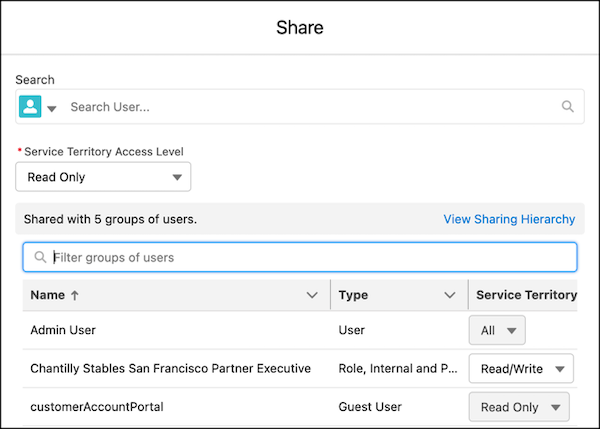
To share the San Francisco (CS) territory, add a manual share for Chantilly Stables San Francisco Partner Executive with the Role, Internal and Portal Subordinates type, and Read/Write access.
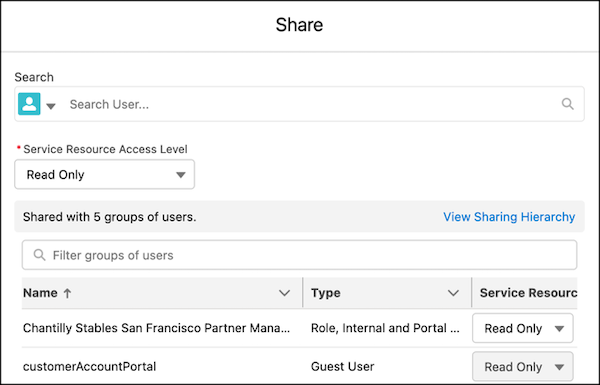
To share a service resource that belongs to San Francisco (CS), add a manual share for Chantilly Stables Partner Manager with the Role, Internal and Portal Subordinates type, and Read Only access.
If you use shifts, when territory managers create shifts for service resources, you must provide access to shift records to the respective service resource. To provide access, use Apex Managed Sharing to programmatically define sharing rules.
Here’s a sample Apex code that automatically shares shift records with the respective service resource.
trigger Shift_share_with_Contractor on Shift (after insert, after update) {
if (trigger.isinsert) {
for (Shift shift: trigger.new) {
String srId = shift.ServiceResourceId;
// if shift has no ServiceResource, then no need to share shift
if (srId == null) {
continue;
}
ServiceResource sr = [Select Id, RelatedRecordId from ServiceResource Where Id=:srId];
String userId = sr.RelatedRecordId;
// if the user is owner, no need to create share row
if (userId == shift.OwnerId) {
continue;
}
// create a ShiftShare row
ShiftShare shiftShare = new ShiftShare (
ParentId=shift.Id, // Shift Id
AccessLevel='Edit', // AccessLevel - Read/Edit/All
RowCause='Manual', // RowCause - Manual
UserOrGroupId=userId // Id of the user/group
);
insert shiftShare;
}
}
else if (trigger.isupdate) {
for(Shift shift: trigger.new) {
Shift oldShift = trigger.oldMap.get(shift.Id);
String prevSrId = oldShift.ServiceResourceId;
String newSrId = shift.ServiceResourceId;
// if service resource is changed
if (prevSrId != newSrId) {
// if previous Service Resource was present, remove the share row for that
if (prevSrId != null) {
ServiceResource prevSr = [Select Id, RelatedRecordId from ServiceResource Where Id=:prevSrId];
String prevUserId = prevSr.RelatedRecordId;
// delete ShiftShare
List<ShiftShare> shiftShare = [Select Id from ShiftShare Where ParentId=:shift.Id and UserOrGroupId=:prevUserId];
if (shiftShare.size() > 0)
delete shiftShare;
}
// if Service Resource is updated, then create a share row
if(newSrId != null) {
ServiceResource newSr = [Select Id, RelatedRecordId from ServiceResource Where Id=:newSrId];
String userId = newSr.RelatedRecordId;
// if the user is owner, no need to create share row
if (userId == shift.OwnerId) {
continue;
}
// create a ShiftShare row
ShiftShare shiftShare = new ShiftShare (
ParentId=shift.Id, // Shift Id
AccessLevel='Edit', // AccessLevel - Read/Edit/All
RowCause='Manual', // RowCause - Manual
UserOrGroupId=userId // Id of the user/group
);
insert shiftShare;
}
}
}
}
}
Enable the Resource Appointment Sharing Setting
To make sure that service resources can access their appointments, enable Resource Appointment Sharing in Salesforce Scheduler Settings.

If any appointments are created before you enable the setting, manually share those appointments with the respective service resources.
To share records with client customer care agents, create a role in Salesforce for client customer care agents. Then, create criteria-based sharing for each object to share all the records with the internal role.
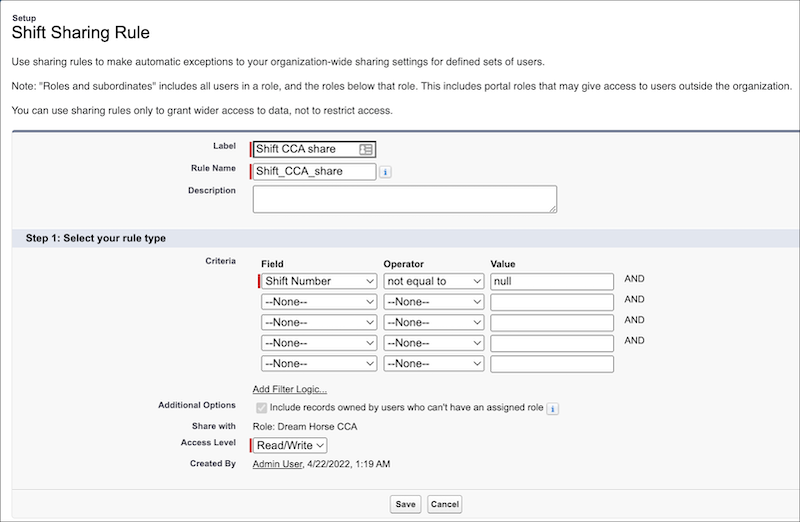
Let’s look at examples of how to share work type groups and shifts with all the client customer care agents. Before you create sharing rules, create a role called Dream Horse CCA and assign the role to all client customer care agents.
Create sharing rules to share all the active work type groups with the Dream Horse CCA role.
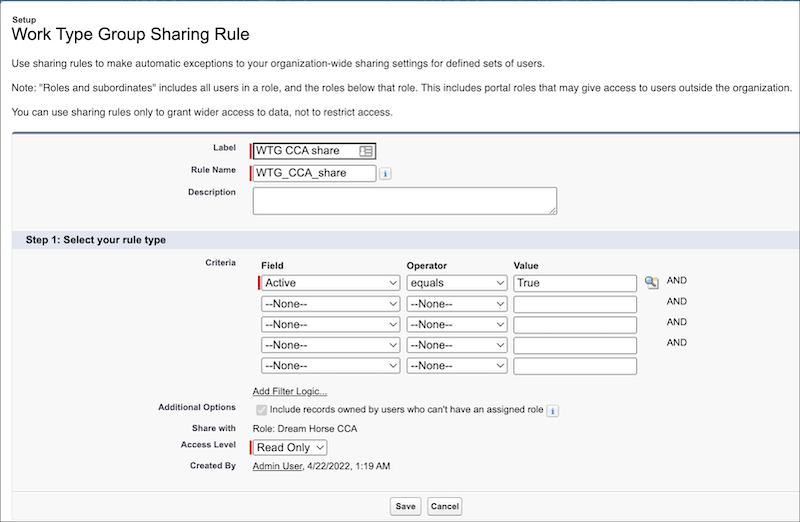
Similarly, create sharing rules to share all shift records with the Dream Horse CCA role.
To book appointments, provide guest and authenticated users access to all service territory, work type, work type group, service resource, and shift records.
To provide access to guest users, create sharing rules of the type Guest user access, based on criteria to share records with the guest user of the experience cloud site. To provide access to authenticated users, create a public group that includes all the authenticated customers. And then, create sharing rules of type Based on criteria to share records with the public group that contains all the customers.

Let’s look at some examples.
Create sharing rules to share all the active work type groups with the guest user.
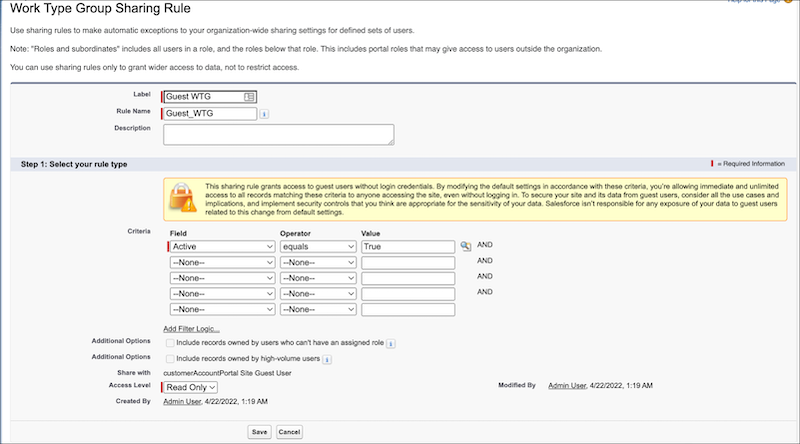
Similarly, create sharing rules to share all shift records with the guest user.
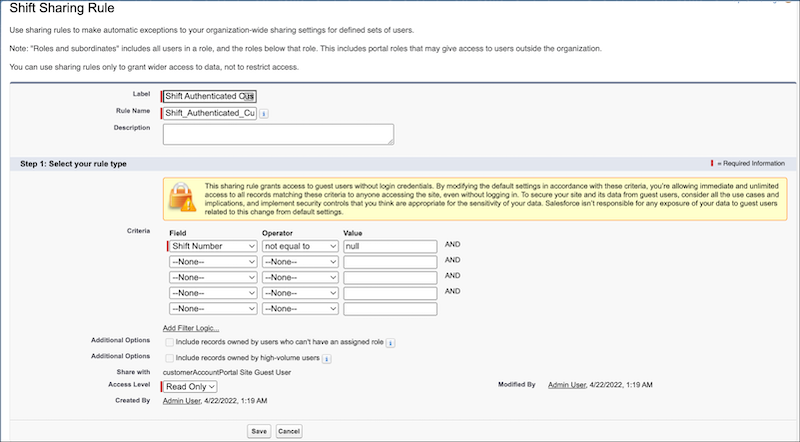
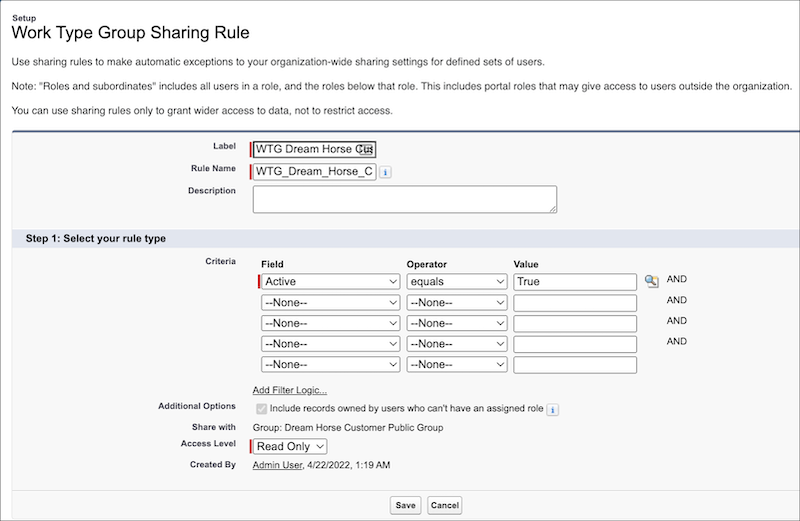
Create sharing rules to share all the active work type groups with the public group that contains all the customers.
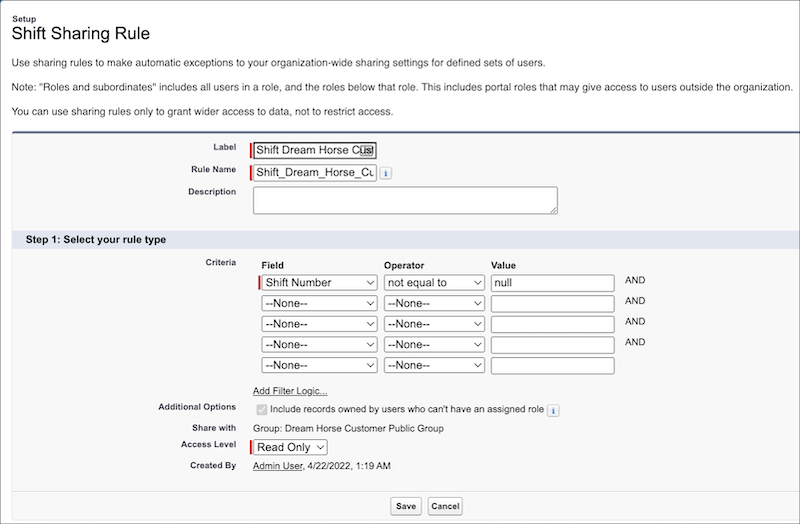
Similarly, create sharing rules to share all shift records with the public group that contains all the customers.
After completing the setup, Dream Horse and its stakeholders have the necessary access. And Dream Horse's dealerships can't access each others' data.