
Save your end users time from manually writing appointment invitation emails. Create a Salesforce Scheduler Email prompt template to direct a Large Language Model (LLM) to generate personalized appointment invitations by using up-to-the-minute data from your Salesforce objects.
Required Editions
| Available in: Lightning Experience |
| Available in: Enterprise and Unlimited Editions with Salesforce Scheduler and the Einstein for Sales, Einstein for Platform, or Einstein for Service add-on |
| User Permissions Needed | |
|---|---|
| To create and manage prompt templates in Prompt Builder: | Prompt Template Manager and Prompt Template User permission set |
- From Setup, in the Quick Find box, enter Prompt Builder, and then select Prompt Builder.
-
Click New Prompt Template.
-
Select Salesforce Scheduler Email as the prompt template
type.
 Note The Salesforce Scheduler Email template type is available only when you enable the Resource Availability Sharing Using Actionable List Salesforce Scheduler setting.
 - Enter your prompt template name.
-
If needed, write a description for your prompt template.
The prompt template name appears in the list of prompt templates that your users can choose from in the email composer.
-
Select an object to include data associated with this object in the generated
email.
Note You can create a prompt template by using any available objects, but Salesforce Scheduler supports only the prompt templates that you create by using the Appointment Invitation object.
-
Select Salesforce Scheduler Email as the prompt template
type.
-
To open the Prompt Template Workspace, click Next.
Here you can add and revise your prompt template instructions. Write a template from scratch or edit an example template by copying and pasting it into the workspace.
-
To include CRM data in your prompt template, select resources by using the Resource
picker.
When the template is resolved into a prompt, the resources are replaced with real data. If you select an object with a polymorphic field, the prompt builder resolves only the name associated with the polymorphic field.
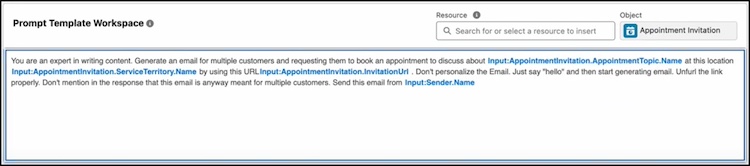
Here’s a sample template with resources from the Resource picker.
-
Test the prompt template’s effectiveness.
- In the Prompt Preview section, search for and select an object record to test in the Related Record field.
- To review a generated response, click Save & Preview.
- If the response isn’t what you expected, edit the template and repeat the steps until the LLM generates an effective response.
- Activate the prompt template.