
By default, the verification subagent verifies emails for users in your org as contacts or users. To enable Agentforce for users that aren't in your org (guest users), map new variables to agent actions and update the flows that the agent uses.
Required Editions
| Available in: Lightning Experience |
| Available in: Enterprise and Unlimited Editions with Agentforce enabled. |
-
Edit your agent and add custom variables.
- From the Agentforce Agents Setup page, open your agent in Agentforce Builder. If your agent is active, deactivate it.
- Create a custom variable called Customer ID OR EMAIL. You will later map this variable so that the agent can use the customer ID or their email for verification.
- Create another custom variable called verifiedCustomerID.
-
Edit the Email with Verification Code action to create and map variables.
- From the Agentforce Agents Setup page, open your agent in Agentforce Builder. If your agent is active, deactivate it.
- From the left sidebar, select Subagents. Then select the subagent that includes the action output that you want to map to a variable.
- On the This Subagent’s Actions tab, select the action.
- Create a new custom variable for the agent.
- In the Customer ID Instructions section, update Map to Variable to Customer ID or EMAIL
-
Map variables in the action
- On the This Subagent’s Actions tab, select the Send Email with Verification Code action.
- In the Customer ID Instructions section, update the Map to Variable field to the Customer ID or EMAIL variable.
-
Repeat these steps for the following actions and their instructions:
Verify Customer Agent: Customer ID instructions
Create and Schedule Appointment for Scheduler: verifiedCustomerID
-
Open and edit the flow for the Send Email with Verification Code agent action.
- From the Agentforce Agents Setup page, open your agent in Agentforce Builder. If your agent is active, deactivate it.
- From the left sidebar, select Subagents. Then select the subagent that includes the action output that you want to map to a variable.
- On the This Subagent’s Actions tab, select the action.
- In the Reference Action section, click the Open Reference Action icon for Send Email with Verification Code.
-
Update the flow as shown in this image.
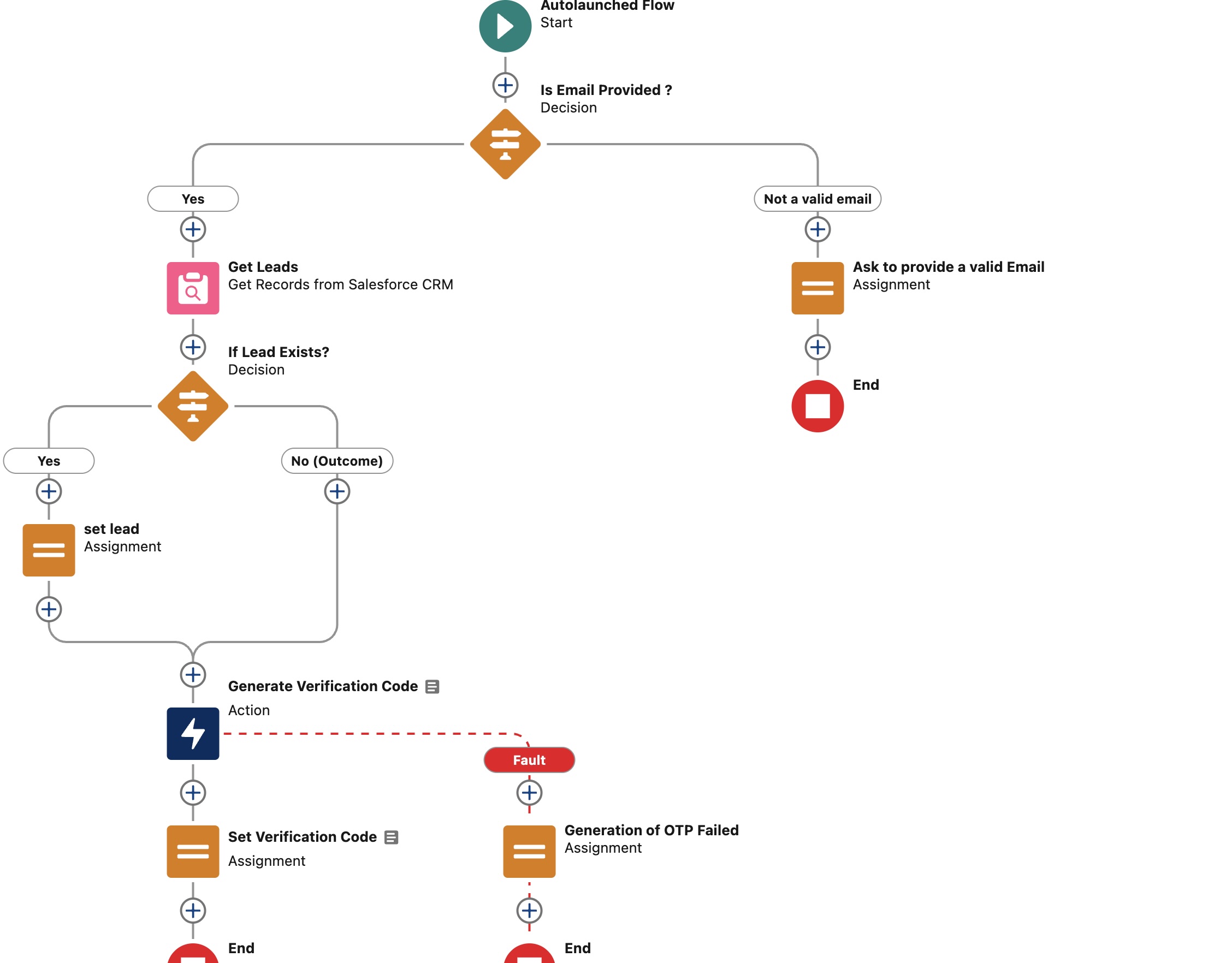
Now, when a guest user schedules an appointment, they're asked for an email to verify their identity. Once they verify their identity with an OTP a guest user is now a verified customer. To book appointments, guest users are also asked for their first name, last name, and company to create a related Lead record.