
See how your Lightning pages are performing and understand the data in the Lightning Usage App. The Lightning Usage App shows you the most used pages in your org and their page load time by browser or by page.
Required Editions
To open the Lightning Usage App, from the App Launcher, select Lightning Usage App.
| Lightning App Builder available in: both Salesforce Classic and Lightning Experience |
| Lightning Home and utility bar pages available in: Lightning Experience |
| Lightning app and record pages available in: both the Salesforce mobile app and Lightning Experience |
| Email application pane pages available in: both Salesforce Classic and Lightning Experience |
|
Available in: Group, Essentials, Professional, Enterprise, Performance, Unlimited, and Developer Editions |
Page Names in the Lightning Usage App
In the Lightning Usage App, under Page, the tables list Lightning pages by page name. Use this glossary to understand some of the page names for page types in your org.

| Name | Example Page Name | Page Type |
|---|---|---|
| Record | Account Record | An object’s record home page. |
| Record List | Account Record List |
An object list view in a standard app or a Lightning Console App. Record List can also refer to a Task list on the Task home page. |
| Related List | Account Related List | An expanded related list page for an object. To view the expanded related list, users click View All from the related list on a record page. |
| Search | Account Search | Search results for a specific object. |
| one:recordActionWrapper | Account one:recordActionWrapper | The window that appears when users select an action for an object. |
See Performance Data for Your Most Used Pages
You can see how your pages are performing in the Lightning Usage App. It shows you the most used pages in your org and their page load time by browser or by page.
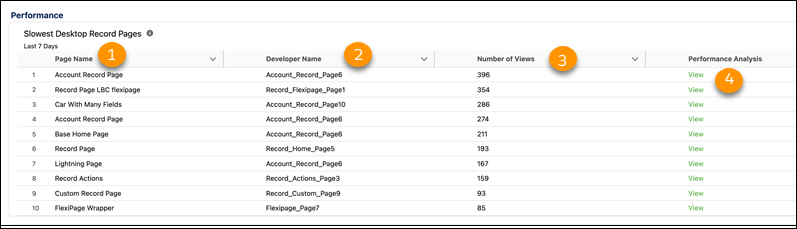
Use the Slowest Desktop Record Pages table in the Lightning Usage App to see which desktop record pages could use some tweaking to run faster. It lists the desktop record pages with a median loading time, called Experienced Page Time (EPT), of 4 seconds or longer.
The table lists the page name (1), developer name (2), and number of views (3). Click View (4) to open the record page in Lightning App Builder and view the Record Page Performance Analysis results.
Page Performance for Lightning Console Apps
Salesforce measures page performance using Experienced Page Time (EPT). EPT is a metric that calculates how long it takes for a page to load into a state that a user can meaningfully interact with. In the Lightning Usage App, performance for Lightning pages in Salesforce console apps can differ from Lightning pages in standard apps.
Salesforce console apps let you open multiple records at a time, with related records opened in subtabs under the original record. If a user opens record tabs in a Salesforce console app, the page reloads more quickly each time the user navigates back to an open tab. As a result, the average EPT for that page appears to be lower in the Lightning Usage App. If a page loads in less than 150 milliseconds, it’s filtered out of the page performance results in the Lightning Usage App.
Considerations for Lightning Usage App Tables
Keep these considerations in mind when viewing tables in the Lightning Usage App.
- Monthly tables show results for the last complete month rather than the last 30 days. For example, if you view a monthly report on May 20, you see results from April 1 through April 30. On June 1, you can see results from May.
- Daily results in the Lightning Usage App are sometimes outdated by several days. Each day, the Lightning Usage App runs jobs on usage data from the previous day. Results from that day appear in the Lightning Usage Apps tables only after the jobs complete.