With save options, you can define object-specific checkboxes that can be configured
as part of a Dynamic Forms-enabled record save. Save options are available when editing an
account or when creating, editing, or cloning a case or lead. Optionally, you can set the
checkboxes to be selected by default.
Required Editions
| Available in: Lightning Experience |
| Available in: Group, Professional, Enterprise,
Performance, Unlimited, and Developer
Editions
|
To use save options, some setup is required.
- Set up account save options like the Evaluate this account against
territory rules on save option for layout-based pages.
- Set up case save options like the Case Assignment and
Email Notification options for layout-based pages.
- Set up lead save options like the Lead Assignment option for
layout-based pages.
When a field section is added to an account, case, or lead record page in the Lightning
App Builder, Salesforce shows the save options checkboxes. Here is an example of how
configuring Save Options for an account appears in Lightning App Builder.
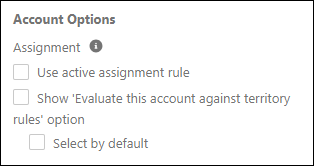
Choose whether to show the assignment rule checkbox and, if so, whether the checkbox is
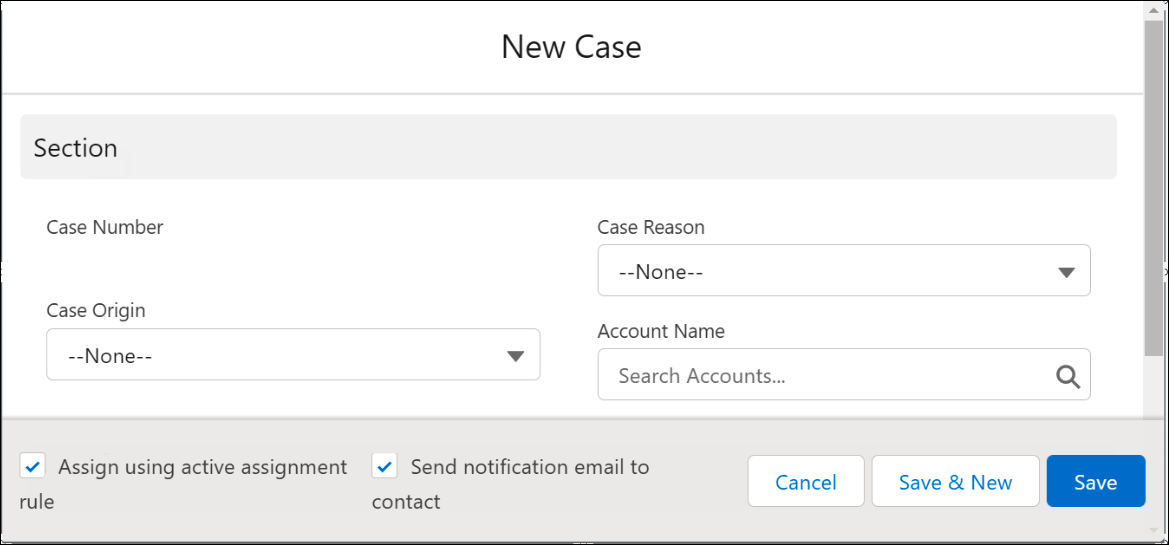
selected by default. If you set up Case Save Options, selected by default, here is how
it would appear to someone creating a case.