
Here are some best practices for building a mobile app page using the App Builder. For a consistent experience across devices, use the Lightning App Builder to preview your record and app pages.
Required Editions
| Available in: Lightning Experience |
|
Available in: Group Essentials, Professional, Enterprise, Performance, Unlimited, and Developer Editions |
To customize and preview your apps and pages for Lightning Experience or the mobile app, use the Lightning App Builder. You can specify certain components as mobile- or desktop-only.
If you need more than a preview, run the Lightning apps and components in the Salesforce mobile app. Testing in the mobile app helps validate that users have the best experience on mobile.
When you build a mobile app page, the steps include:
- Build a new app page with the App Builder
- Activate the page and add the page to your mobile navigation
- Create a Lightning app in the App Manager for your users to personalize
 Watch a Demo (9 minutes)
Display Mobile-Friendly Components
When you create a Lightning app page or record page via the App Builder, the template you choose controls how it appears across devices.
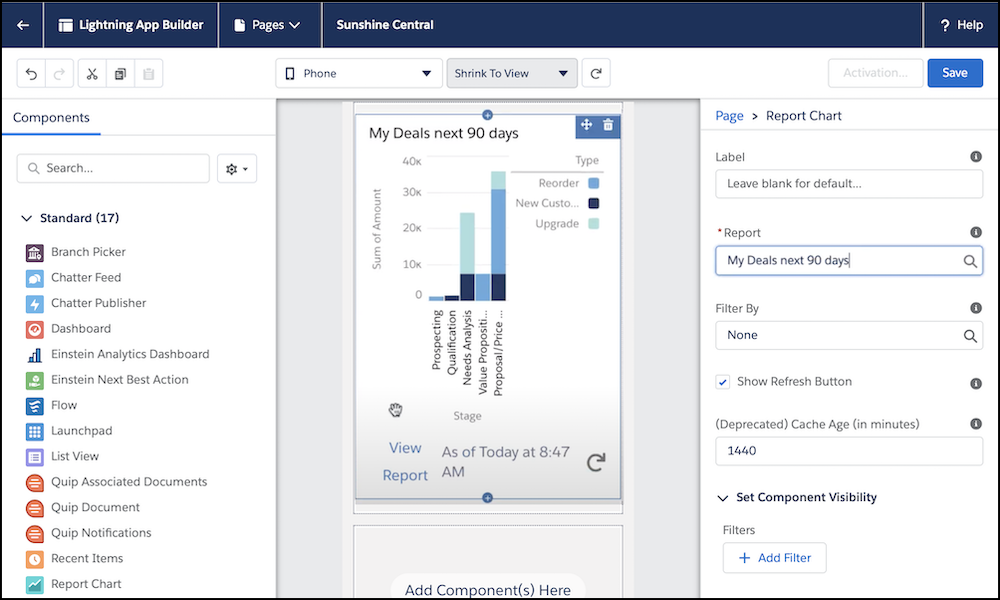
Here are several ideas on including standard components for mobile users. The list can vary depending on your user’s role.
- The Report Chart component shows helpful data, such as your top deals, based on a filter.
- The List View component can show your events, such as today’s agenda.
- The Task List component can show your open tasks, overdue tasks, or another list based on a filter.
- The Recent Items component lets you get back to the records you’re working with recently.
- The Launchpad component lets you add a grid of navigation items, such as your contacts or a custom Visualforce page, which users can access with one tap.
If standard components don’t meet your requirements, create custom components.
Customize Actions for the Mobile Page
If you’re creating an app page, you can also customize the actions available for the page. Here are several popular actions for mobile users that make them more productive. Again, the list can vary depending on your user’s role.
- Log a call
- New case
- New event
- New task
Activate the Page for Mobile Users
When you activate the page, you can add the page to both Lightning Experience and the mobile app. You can add the page to any mobile-enabled Lightning app. Adding your app page to Lightning Experience makes it available to users viewing the app on desktop and in the Salesforce mobile app.