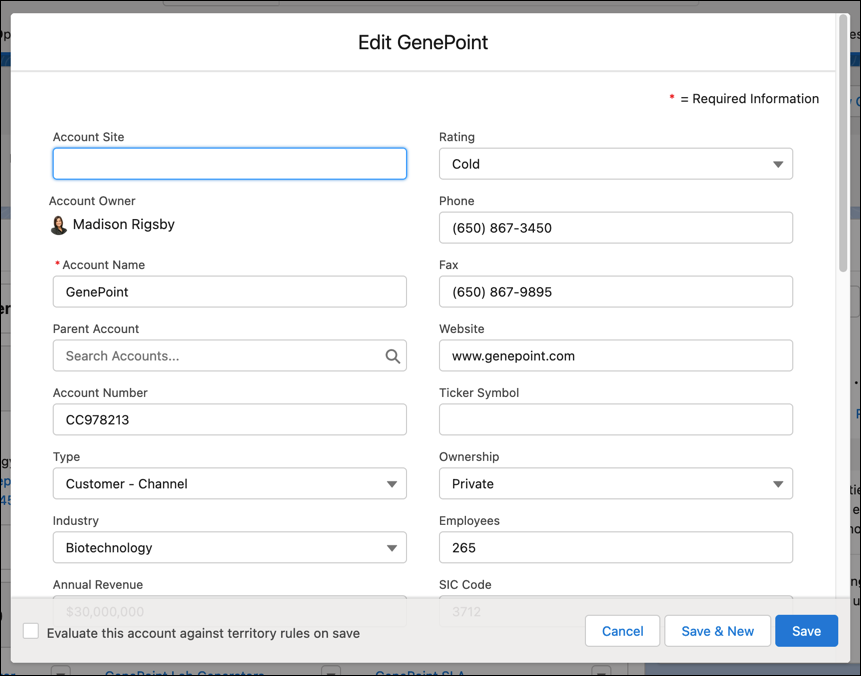
With save options, you can make object-specific checkboxes appear on the edit pages for certain standard objects. Save options trigger additional processes when a record is saved. You can also set the checkboxes to be selected by default.
Required Editions
| Available in: Salesforce Classic and Lightning Experience |
| Available in: All Editions |
To configure how Salesforce displays the checkboxes, when customizing the page layout in the enhanced page layout editor, click Layout Properties.
Use the Select by default option associated with a checkbox if you want Salesforce to automatically select the option when a user accesses the edit window.
If both Show on edit page and Select by default are selected, the save option checkbox is selected by default, but users can deselect it to disable the option.
| Object | Available Save Options |
| Account |
“Evaluate this account against territory rules on save” checkbox —Displays the Evaluate this account against territory rules on save checkbox on account edit pages. Available only if Enterprise Territory Management is enabled for your org. Territory assignment rules run automatically when the Default checkbox is selected. |
| Case |
|
| Case Close |
|
| Lead |
Lead Assignment Checkbox— Displays the Assign using active assignment rule checkbox on the lead edit page. Lead assignment rules run automatically when the Default checkbox is selected. |
| Person Account |
Evaluate this account against territory rules on save — Displays the Evaluate this account against territory rules on save checkbox on person account edit pages. Territory assignment rules run automatically when the Default checkbox is selected. |
| Task | Email notification — Displays the Send Notification Email checkbox on the task edit page. A user’s personal preference for defaulting the state of the checkbox takes precedence over the org-wide setting. |