
For flows that don't use Test Mode, use the Debug option to test or troubleshoot the flow. Review step-by-step details of how the flow runs and the path it takes.
Required Editions
| View supported editions. |
| User Permissions Needed | |
|---|---|
| To debug a flow in Flow Builder: | View All Data |
| To open, edit, create, activate or deactivate a flow using all flow types, elements, and features available in Flow Builder, including Einstein and Agentforce for Flow: | Manage Flow |

Autolaunched and record-triggered flows use Test Mode instead of the Debug option. In test mode, you can save and reuse test scenarios. To edit the flow, switch to Build mode. See Testing Your Flow in Test Mode (Beta).
Watch this video to learn the advantages of the Flow Builder debug feature and get tips for using it effectively.
View this video in a separate tab.
The Flow Builder debug option has some limitations. See Flow Builder Debugger Considerations.
To use generative AI to diagnose errors and automatically apply fixes, see Troubleshoot Flow Errors with Agentforce (Beta).
- Open an eligible flow in Flow Builder.
- Click Debug.
-
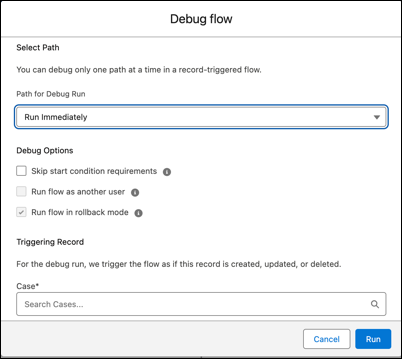
Set the debug options and input variables.
The debug options vary depending on the flow type.
-
To debug the flow as another user, in Debug Options, select Run flow as
another user and search for the user that you want to debug.
This option requires that an admin first complete a one-time org setup. See Turn On Debugging and Testing Flows as Another User. You can debug a flow as another user only in a sandbox environment.
-
Click Run.
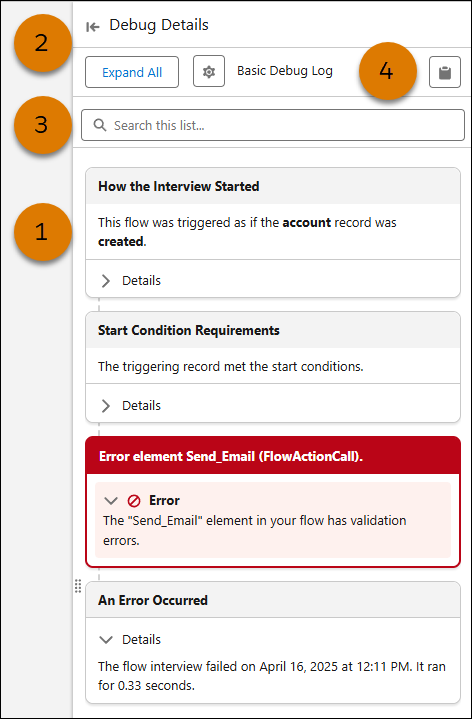
The debug details for the run appear in the debug panel. The debug run is organized into cards (1) that highlight key information about the run. To resize the debug panel, drag the edge of the panel to your desired width, or click
 and
and  (2). To search the debug run results, enter a search term in the search box (3).
To copy the debug log to your clipboard, click
(2). To search the debug run results, enter a search term in the search box (3).
To copy the debug log to your clipboard, click  (4).
(4).
 Note From the Details tab in the debug panel, you can also click Ask Agentforce (Beta) to get an AI-generated root cause analysis and optionally apply an automatic fix. See Troubleshoot Flow Errors with Agentforce (Beta).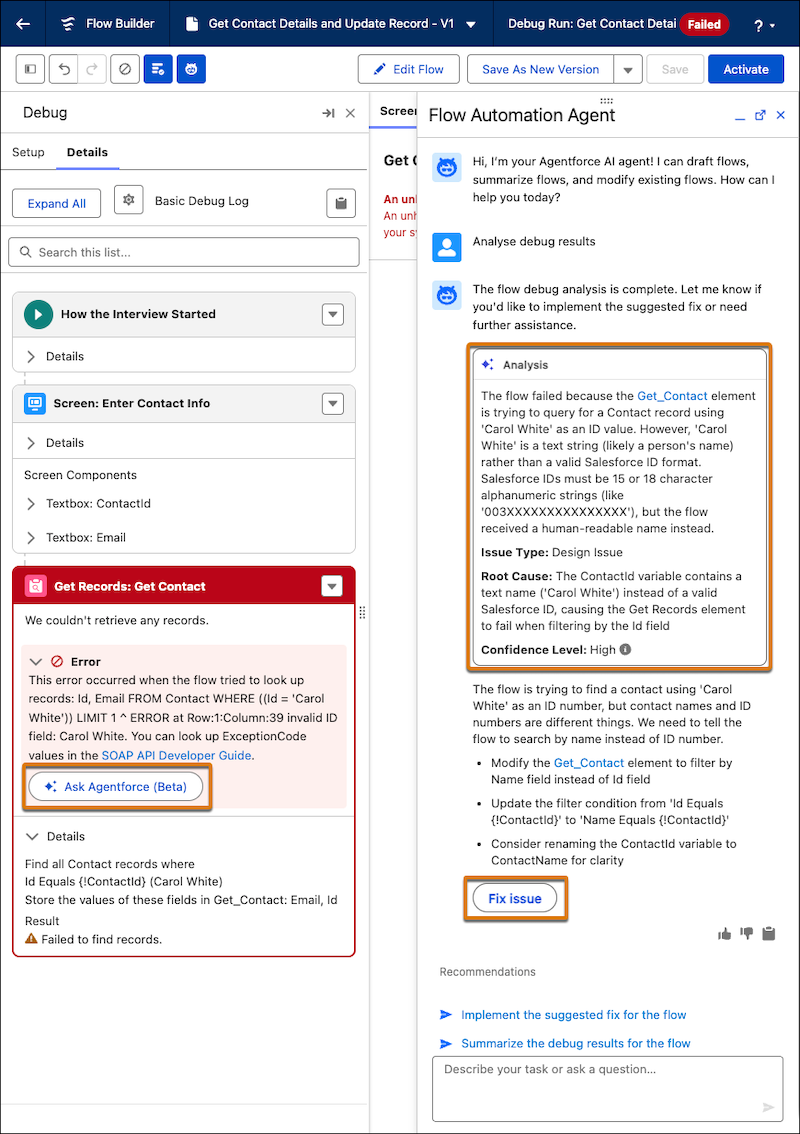
-
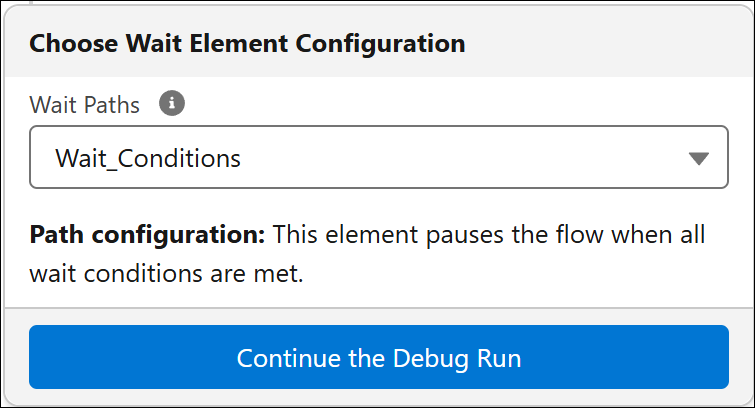
If you selected Debug wait element behavior when you set the debug options, select a
Wait Path, and then click Continue the Debug
Run for each Wait element in the flow.
The debug details for the run appear in a panel on the right.
- (Optional) To restart the flow by using the same or different values for the input variables, click Debug Again.
See Also
- Customize What Happens When a Flow Fails
- Flow Builder Debugger Considerations
- Lightning Runtime vs. Classic Runtime for Flows
- How Flows Run in Transactions
- Testing Your Flow Before Activation
- Trailhead: Flow Troubleshooting
- Process Automation Settings
- Troubleshoot Flow Errors with Agentforce (Beta)
- Testing Your Flow in Test Mode (Beta)