Send a messaging component to one or more messaging users in an enhanced messaging
channel or Enhanced In-App Chat.
Required Editions
In Flow Builder, add an Action element to your flow. In the Action field, enter
Messages, and select Send Conversation
Messages.
Set Input Values
| Field |
Description |
| Messaging Users |
Select a collection variable that contains the IDs of up to 100 messaging users to
receive the message. To send more than 100 messages, divide your end user recipients into
batches of 100 or fewer and repeat the action for each batch. |
| Messaging Component |
Select a messaging component, which provides the content of your message. Only
notification messaging components can be sent with flow actions. You can also reference up
to 5 custom parameters on the selected messaging component. |
| Messaging Timing |
Optionally, select an option to limit when the message is sent.
- Any Time: Send the message regardless of whether the messaging user is engaged in an
active messaging session with your company.
- Not During Active Sessions: Send the message unless the messaging user is engaged in a
session with a status of Active. The message is sent when the session’s status
changes.
- Not During Open Sessions: Send the message unless the messaging user is engaged in a
session with a status other than Error or Ended. The message is sent when the session’s
status changes to Error or Ended.
|
| Apply Messaging channel consent preferences |
Determine who receives the message.
- To respect messaging users' consent settings for a channel, select Yes,
apply Messaging End User settings. This is the most common approach.
- To add custom consent logic, select No, I’ll apply custom consent
logic. For example, if a channel requires users to explicitly opt in, you can
select No, I’ll apply custom consent logic and customize your flow
to send the message to users who both implicitly and explicitly opt in.
- To send the message only to messaging users who opted into a particular subscription,
select Yes, choose a communication subscription. In the subsequent
field, enter a flow variable that provides the subscription ID. The subscription must be
tied to the channel where you’re sending the message. This option is visible only if you
have a unified channel that supports marketing interactions.
|
| Session Longevity |
Decide whether to end the session after the message is sent. Available values are:
- No, Keep Session Open: After the flow sends the
message, keep the messaging session in a New state. If the end user doesn’t
respond within 48 hours, the session ends. This is a good option if you expect
customers to respond to automated messages and want service reps to see their
response in context.
- Yes, End Session Immediately: After the flow sends the
message, end the messaging session. If the customer responds, a new messaging
session is created and routed to your support team.
|
Usage
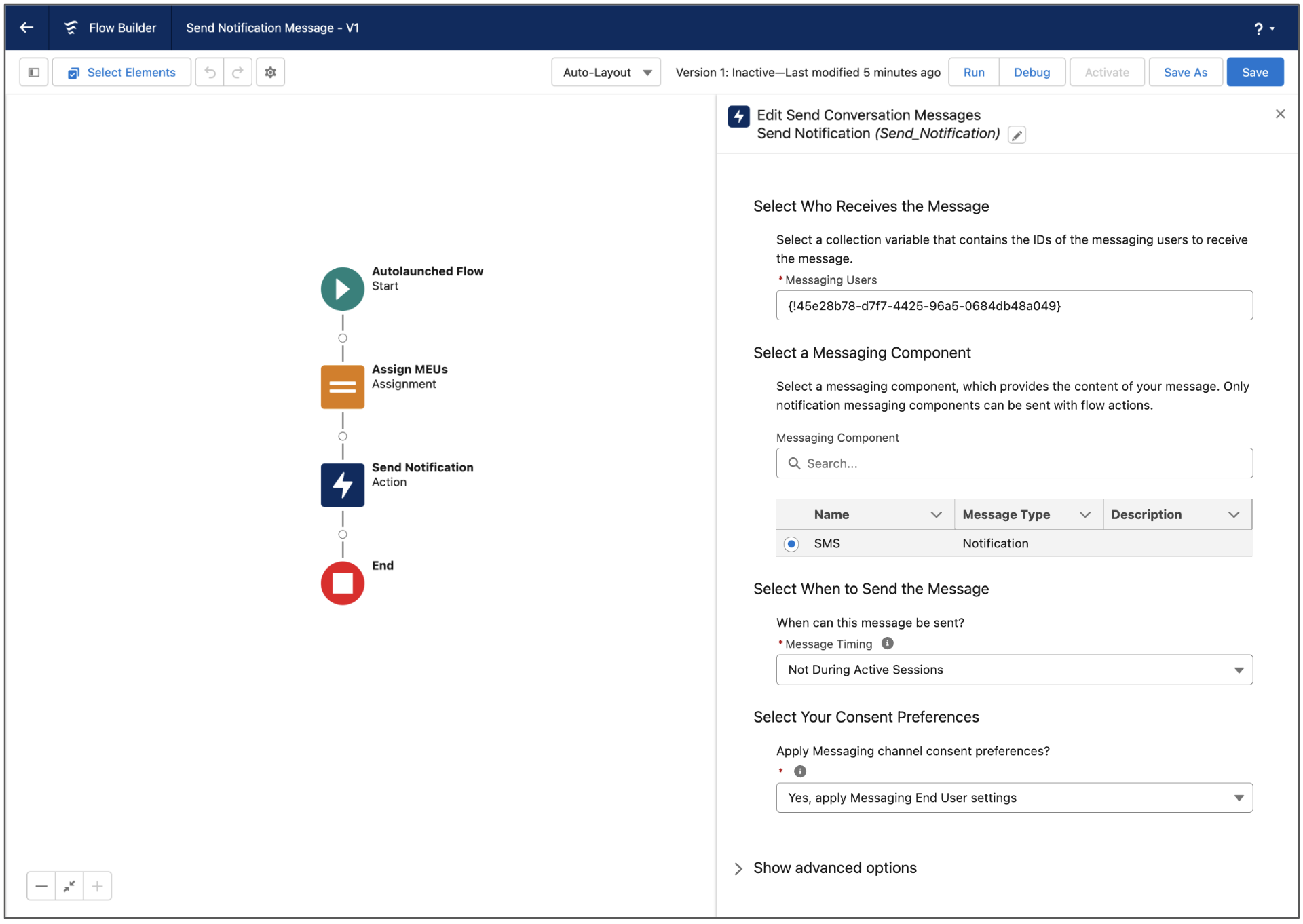
Here’s an example of the Send Conversation Messages action in a
simple flow.
To track messages sent by this action, query the ConvMessageSendRequest
object.