
Use the Migrate to Flow tool to convert your Process Builder processes and workflow rules into Flow Builder, including scheduled actions. The tool also supports partial migration of processes for most actions.
Required Editions
| View supported editions. |
| User Permissions Needed | |
|---|---|
| To open, edit, create, activate or deactivate a flow using all flow types, elements, and features available in Flow Builder, including Einstein and Agentforce for Flow: | Manage Flow |
| To create, change, activate, or deactivate workflow rules and actions: | Customize Application |
| To create, edit, or view processes: |
Manage Flow AND View All Data |
| To activate or deactivate processes: |
Manage Flow AND View All Data AND Customize Application |
Before moving your new flows to production, start with migrating and testing in a sandbox environment.
- From Setup, in the Quick Find box, enter Migrate to Flow, and then select Migrate to Flow.
- Select the process that you want to convert to a flow.
- Click Migrate to Flow.
-
Select the criteria that you want to migrate.
If it’s a process, the Migratable column indicates whether you can fully or partially migrate the process.
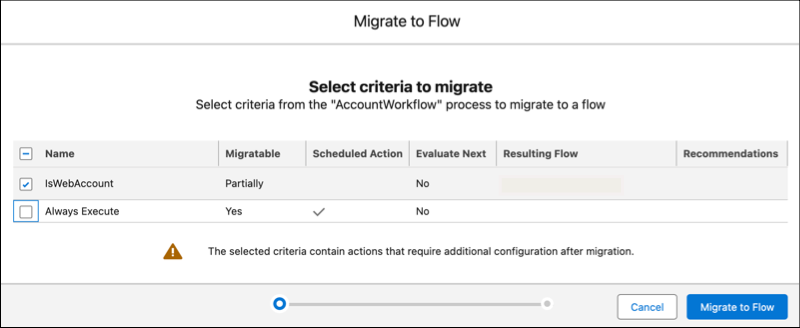
- Click Migrate to Flow.
-
If this is a partial migration of a process, click Needs Review
when the migration is complete to see the list of actions that require additional
configuration.
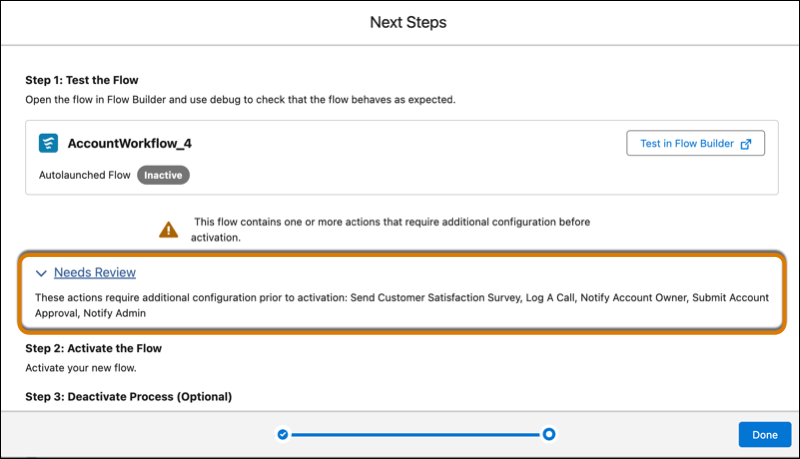
- After you migrate a process or workflow rule, test the flow in Flow Builder.
- If everything works as expected, activate the flow.
- Deactivate the process or workflow rule you migrated to Flow Builder.