
As a best practice, we recommend configuring the fault connectors in your flow so that you always receive an email when a flow fails. In the email, include the current values of all your flow’s resources. The resource values can give you insight into why the flow failed.
Required Editions
| View supported editions. |
| User Permissions Needed | |
|---|---|
| To open, edit, create, activate or deactivate a flow using all flow types, elements, and features available in Flow Builder, including Einstein and Agentforce for Flow: | Manage Flow |

Note You don't need to be an admin to have the Manage Flow permission.
Ask your admin to add it to your profile or permission set.

Important To send email from Salesforce, the Send
Email action in Salesforce Flow requires domain-level and user-level email verification.
Email delivery fails if either the user's email address or the email-sending domain is
unverified. See Requirements to Send Email from Salesforce.
-
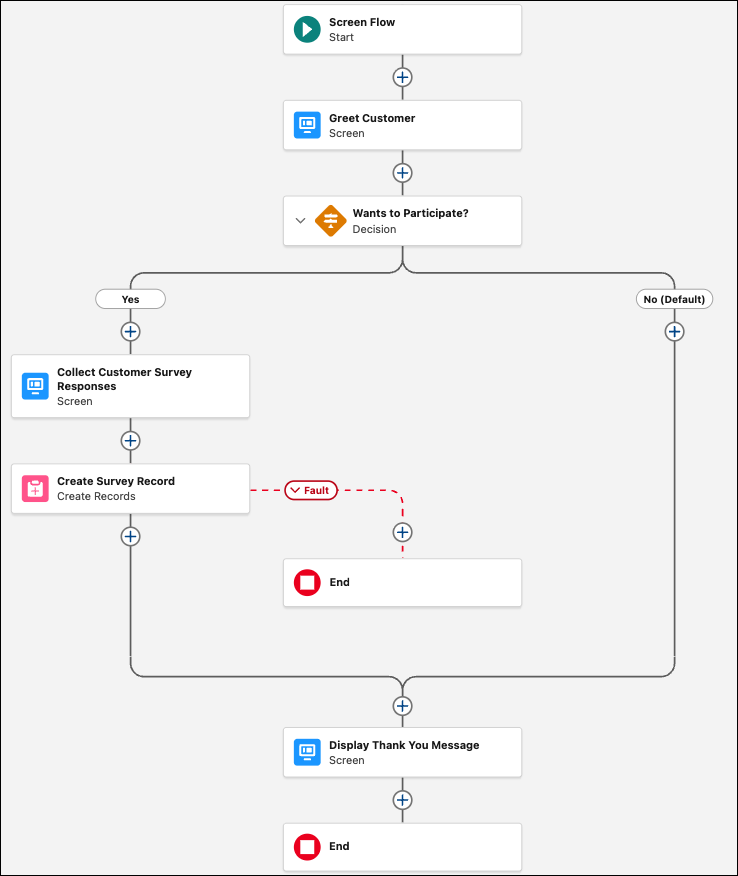
Add a fault path to an element in your flow.
In this example, we added a fault path to the Create Survey Records element.
-
Add a Send Email action to the fault path in the flow.
- For Recipient Address List, enter your email address.
- Click Compose Email Content.
- For Subject, enter a string to use as the email subject.
-
For Body, enter the email body content.
In this example, we have used the following email body content.
Error: {!$Flow.FaultMessage}

RESOURCE VALUES
Customer Response: {!CustomerResponseRadioButtons}
Value of Decision's Yes outcome: {!IsWantsToParticipate}
Company: {!CompanyNameText}
Satisfaction: {!SatisfactionPicklist}
Service: {!ServiceText}}
Other Comments:
{!OtherCommentsText}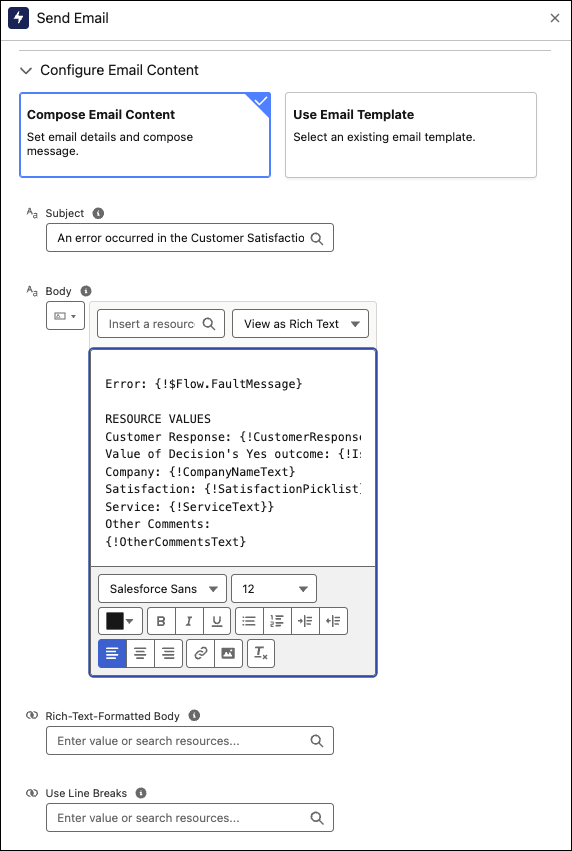
The fault path now connects to the Send Error Email element.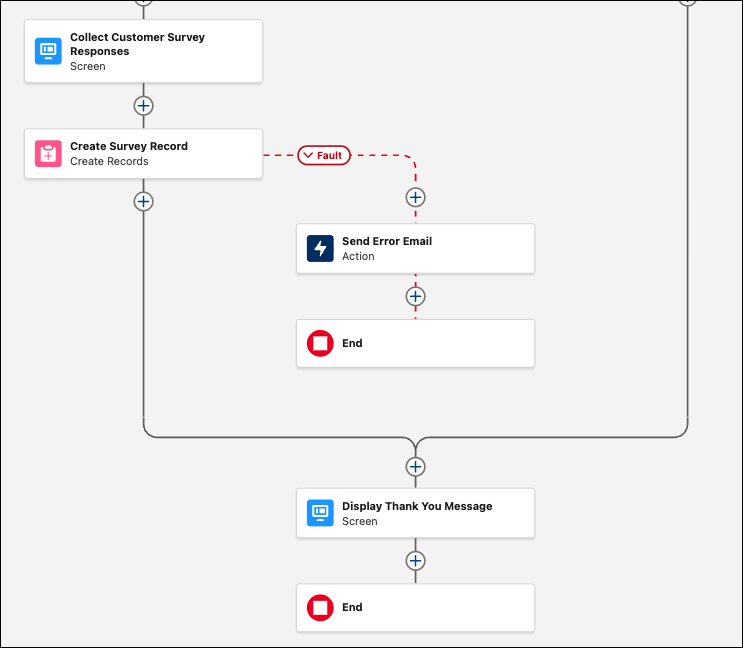
-
From every other element that can fail, add a fault path to the Send Error Email
element.
In this example, Create Survey Record is the only element that supports fault paths.