
Managing your inactive picklist values and enforcing limits on the number of inactive values for custom picklists can improve performance and the overall health of your Salesforce org. If you have a picklist with a large number of inactive unused values, you can bulk delete them.
Required Editions
| Available in: Salesforce Classic and Lightning Experience |
| Available in: all editions |
| User Permissions Needed | |
|---|---|
| To create or change custom fields: | Customize Application |
These rules apply when bulk deleting picklist values.
- This feature is available only for custom picklist fields on an object. It’s not available for standard or multi-select picklist fields, or for picklists on external objects.
- This feature is only for picklist fields that have defined values. It’s not available for picklist fields that use a global value set.
- This feature deletes inactive, unused picklist values. If a picklist value is inactive but still referenced in a record, the value isn’t deleted.
- After you delete unused values, if a picklist is unbound and the total number of inactive values falls below the limit, the field is set to a bound picklist.
- While the job that deletes inactive values runs, these actions are unavailable on that picklist field: Activate, Activate Selected, Deactivate, Deactivate Selected, Delete, Delete Selected, Replace, and Replace Selected. The buttons are enabled, but an error message is returned when you click them.
- While the job that deletes inactive values runs, changes to the picklist field via Metadata API are unavailable. You can retrieve data from the field, but you can’t create a picklist value, update the field or its values, delete the field or its values, or deploy the field.
Follow these steps to delete all inactive unused values from a picklist.
- From Setup, in the Quick Find box, enter Object Manager, and then select your object.
- Click Fields & Relationships, and then click the picklist field. In the Picklist Values Used section, you can see how many inactive picklist values the field has.
- From the Inactive Values section of the picklist field, click Delete Unused Values.
-
Click OK. The job that deletes the inactive values runs
in the background and the button becomes disabled.
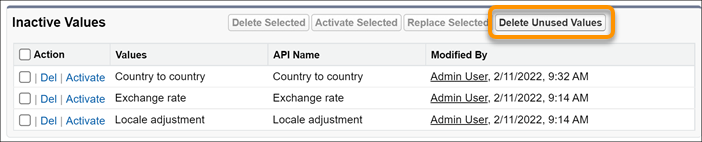
The job that deletes inactive values runs in the background. It can take some time to finish depending on the number of inactive values. A record of the change is added in the Setup Audit Trail.
To see the status of the job tasks, use the Background Jobs page. Deleting inactive picklist values involves three job tasks.
- Unused Picklist Values Delete Task (Final Delete)
- Unused Picklist Values Delete Task (Filter)
- Unused Picklist Values Delete Task (Prepass)
The job has completed successfully when the status of Unused Picklist Values Delete Task (Final Delete) is Completed.
After all the picklist values are deleted, you receive an email that tells you whether the deletion was successful or not. The email is sent to the email address associated with the user who initiated the deletion.
If you receive a success email and still see inactive picklist values in the Inactive Values section, those picklist values likely are referenced in a record. You can delete only picklist values that aren’t used in any records. To identify which records use the inactive picklist values that you want to delete, you can run a SOQL query or create a report.