Use the Address field type to create a custom address field that mimics the behavior
of standard address fields. For example, add a Warehouse Address field to a standard or
custom object. Users can populate a custom address field manually, or they can use the
Google lookup to search for an address. Then you can access each address that’s stored in a
custom address field, either as a structured compound data type or as individual address
components.
Required Editions
| Available in: both Salesforce Classic and Lightning Experience |
| Available in: all editions |
| User
Permissions Needed |
| To create or change custom fields: |
Customize Application |
-
In your Salesforce org, click
 and select
Setup.
and select
Setup.
-
Click the Object Manager tab. If you don’t see it, enter Object
Manager in the Quick Find box and select Object
Manager.
-
From the Object Manager page, select the object to which you want to add the
custom address field.
-
From the sidebar, click Fields &
Relationships.
-
To create a custom field, click New.
-
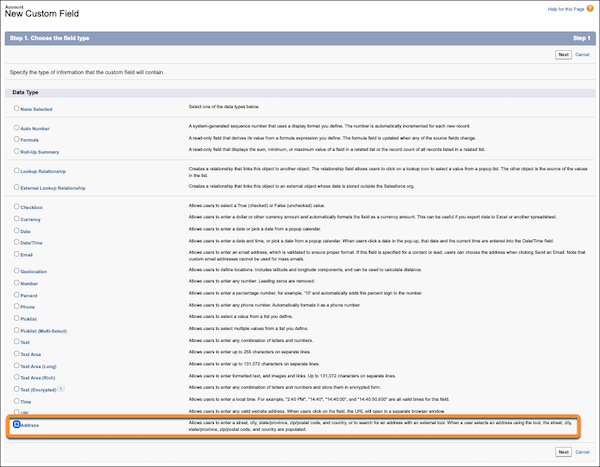
Choose Address as the data type. Address is at the bottom of the
data type list.
-
Click Next.
-
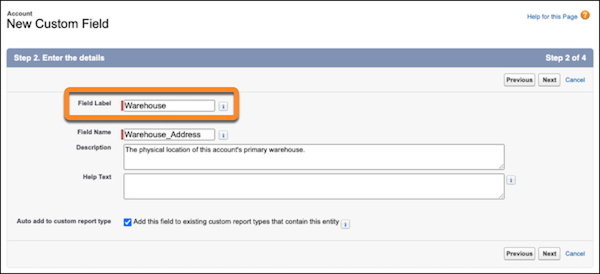
Enter the field label and field name.
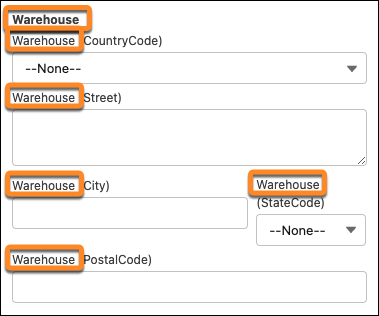
The field label appears above the custom address field and at the beginning of
each component label. When you specify your field label, consider whether the
word Address is needed. In many cases, the field label doesn’t require the word
Address. To help API users, you can add the word Address to the field
name.
Here’s the label field when building or editing a field in Object
Manager.
And
here’s the field on the Account object.
-
Optionally, enter a description and help text, and select whether to add the
new field to custom reports. Then click Next.
-
Select the field’s visibility and edit access.
-
Select the Dynamic Forms-enabled Lightning record pages that should include the
field, then click Next.
If you don’t have any Dynamic Forms-enabled Lightning record pages for the
object, this step doesn’t appear.
-
Click Next. Then click
Save.
-
To edit the placement of the custom address field on the pages associated with this
object, click Page Layouts.