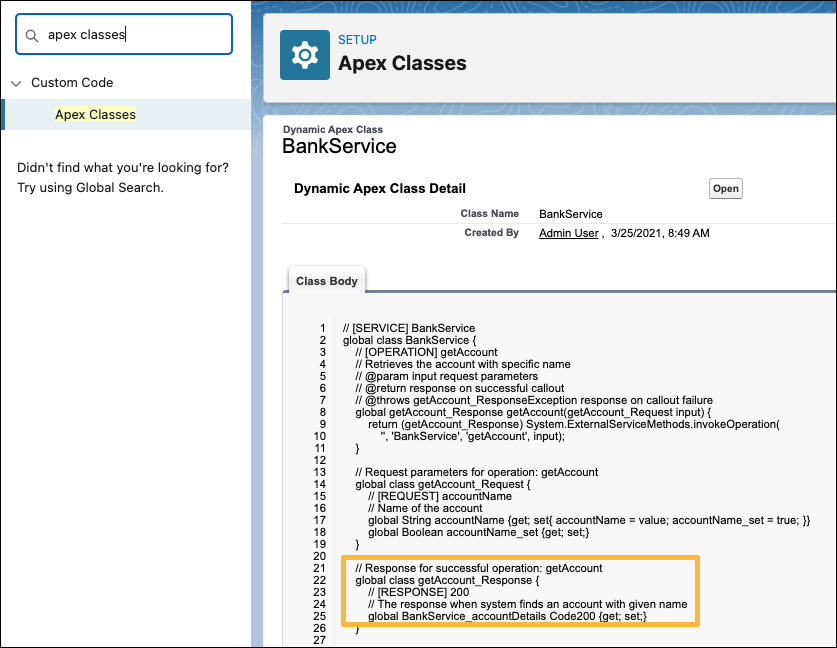
View all External Services auto-generated Apex classes in the Apex Class viewer in Setup.
Required Editions
| Available in: Lightning Experience |
| Available in: Enterprise, Performance, Unlimited, and Developer Editions |
As an example, let’s examine the BankServices’ Apex classes.
- From Setup, in the Quick Find box, enter Apex Classes, and then select Apex Classes.
- Scroll down to Dynamic Apex Classes.
- To filter the view, click Create New View.
- Enter a View Name.
-
Under Filter By Additional Fields (optional), select
- Field - Class Name
- Operator - starts with
- Value - “BankService”
- Save your changes.
Now the list includes only classes that begin with “BankService”.
To see the external service associated with your class, click Open under the Action column.
To see details about the Apex class, click the Class Name. In this example, click
BankService. In this detailed view, you can see all of
the Apex names. The order of components is the same as they appeared in the original
JSON-formatted schema. Operations, Requests, and Responses are highlighted in all
caps to make it easier to browse the Apex code. In this partial snippet, you can
view the details for BankService_accountDetails.