
A named credential stores your AWS account information. You use the named credential later to set up an event relay. You can create a named credential in the Salesforce user interface in Setup.
Required Editions
| User Permissions Needed | |
|---|---|
| To create a named credential: | Customize Application |
- From Setup, in the Quick Find box, enter Named Credentials, and then select Named Credentials.
- Expand the dropdown next to New, and then click New Legacy.
-
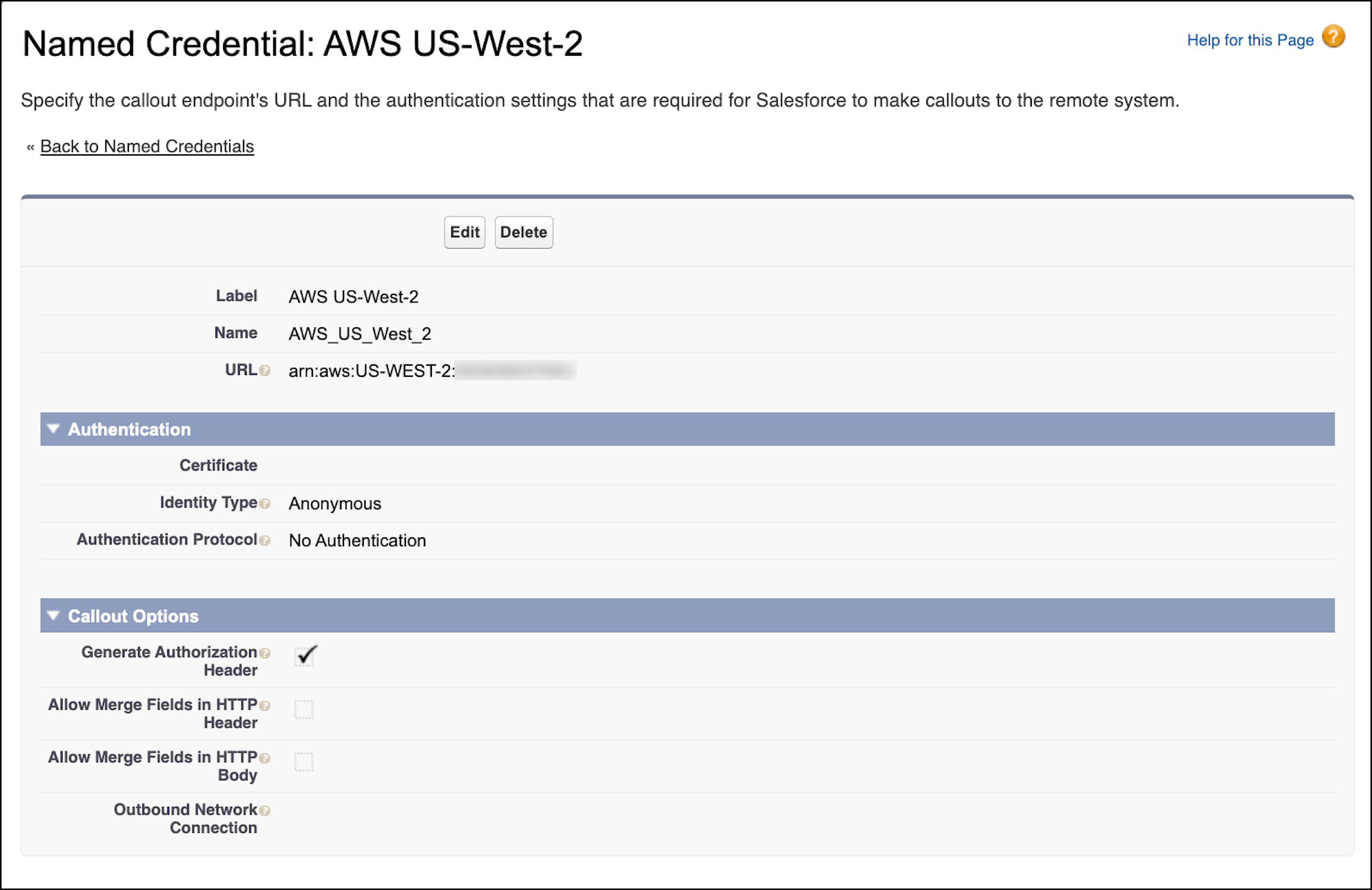
Complete the fields.
- For Label, enter AWS US-West-2.
- For Name, enter AWS_US_West_2.
-
For URL, enter a URL in the format
arn:aws:aws_region:aws_account_number. Replace theaws_regionplaceholder with your AWS region. Replace theaws_account_numberplaceholder with your 12-digit AWS account ID.The URL is case-sensitive, and aws_region must be in capital letters. For example, the URL for an account in the US-WEST-2 region has this format:arn:aws:US-WEST-2:XXXXXXXXXXXX. (XXXXXXXXXXXXis a placeholder for the 12-digit AWS account ID.) - Keep the default values for Identity Type and Authentication Protocol.
- Keep Generate Authorization Header selected.
- Save your changes.

Important You can’t modify the AWS account information in a named
credential if it has an associated event relay. The event relay doesn’t pick up the
new settings and can fail to run properly. To change the AWS account information,
delete the associated event relay first. Next, modify the named credential, and then
recreate the event relay with the named credential.