
After you have a custom source component with exposed events in your org, you can assign event targets and configure the event interactions in the Lightning App Builder.
Required Editions
| Available in: Lightning Experience |
|
Available in: Group, Professional, Enterprise, Performance, Unlimited, and Developer Editions |
| User Permissions Needed | |
|---|---|
| To create and save Lightning pages in the Lightning App Builder: | Customize Application |
- From Setup, in the Quick Find box, enter App Builder, then select Lightning App Builder.
- Edit an existing app page, or click New to create one.
-
In the Lightning App Builder, add a custom source component to your page.
If you don’t have target components on your page, add those too.
- Click the source component on the canvas.
- In the properties pane, click the Interactions tab.
-
Under the desired event, click Add Interaction.
The properties pane changes to show you the interaction details.
-
Select an interaction.
Currently, the only interaction available is Update Properties.
-
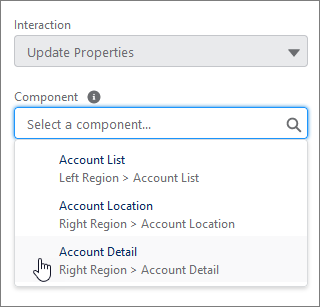
Select the target component for the interaction.
Components are listed with their region location to help you select the correct component when you work on pages with components spread across multiple regions.
-
Configure the target component properties.
When you select a target component, its properties appear in the Interaction Details pane. There you define the value that you want each target property to have when the interaction happens. If you leave a target property blank, its value remains unchanged when the event triggers.
To use an expression to define a target property value dynamically, click
 .
.Checkbox properties have a No change option. If you’ve changed the value of a checkbox property, use this option to reset it back to its original value, and to indicate that you want its value to remain unchanged when the event triggers.
- Save the page.