
Some pages have Dynamic Forms enabled by default. For those that don't, you can migrate the fields and sections from your existing record pages as individual components in the Lightning App Builder. Then you can configure them the same way as the other components on the page, so that your users get only the fields and sections that they want. If you have save options on your account, case, or lead record pages, they are migrated.
Required Editions
| Lightning App Builder available in: Salesforce Classic (not available in all orgs) and Lightning Experience |
| Lightning pages and Dynamic Forms available in: Lightning Experience and the Salesforce mobile app |
|
Available in: Group Essentials, Professional, Enterprise, Performance, Unlimited, and Developer Editions |
| User Permissions Needed | |
|---|---|
| To create and save Lightning pages in the Lightning App Builder: | Customize Application |

-
Open a Dynamic Forms-supported object record page for Lightning Experience in one of these
ways.
-
From the Setup menu on a record page, select Edit Page.
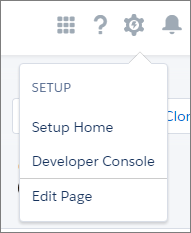
When you select Edit Page for the first time, Salesforce makes a copy of the standard page. You edit this copy in the Lightning App Builder. If a customized page exists and is active, selecting Edit Page opens that page to edit.
- From the Object Manager in Setup, open a Dynamic Forms-supported object, then select Lightning Record Pages.
- Open a record page for a Dynamic Forms-supported object from the Lightning App Builder list page in Setup. To find it, enter App Builder in the Quick Find box, and then select Lightning App Builder.
-
From the Setup menu on a record page, select Edit Page.
- Click the Record Detail component.
-
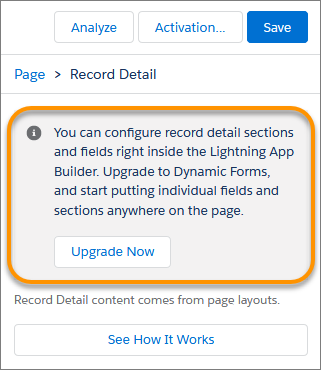
In the component detail pane, click Upgrade Now to start the Dynamic
Forms migration wizard.
-
Walk through the wizard and select the page layout that has the fields that you want to
migrate to the page.
Why select a page layout when the Fields tab has all the fields that you need? The upgrade wizard takes the fields, sections, and save options from the page layout that you choose and automatically adds them to your page. As long as a field is inside a Field Section component, you can put it anywhere on the page, even inside tabs.
During migration, the Record Detail component is removed from the page and is replaced with fields and sections that you can configure and place anywhere you like.
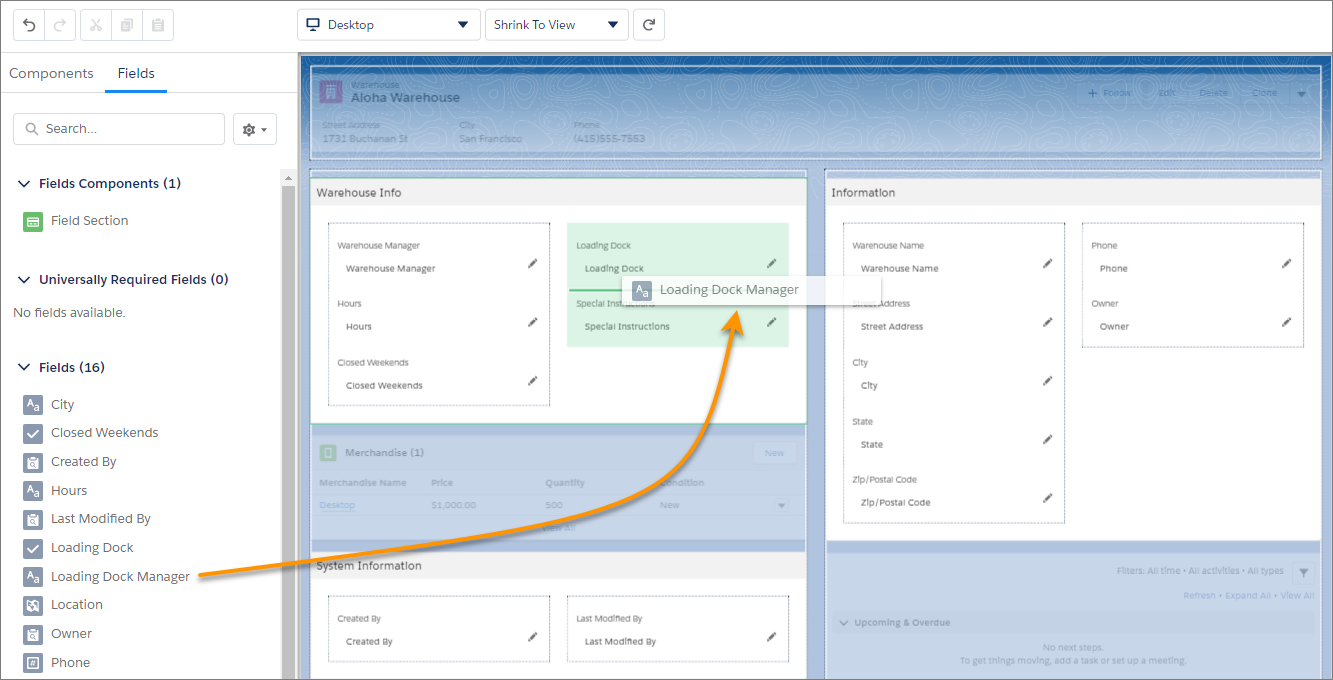
If you haven't opted in to Dynamic Forms on Mobile, and your record page supports the Phone form factor, a Record Detail - Mobile component is added to your page as part of the migration. This component is unique to Dynamic Forms. It shows the standard record detail fields and sections to your users when they view the page on a mobile device.
If you have opted in to Dynamic Forms on Mobile, the Record Detail - Mobile component isn’t added to pages you migrate to Dynamic Forms. The Dynamic Forms content is visible on mobile without the need of the Record Detail - Mobile component.