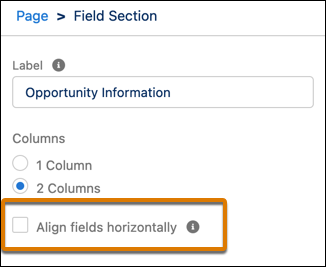
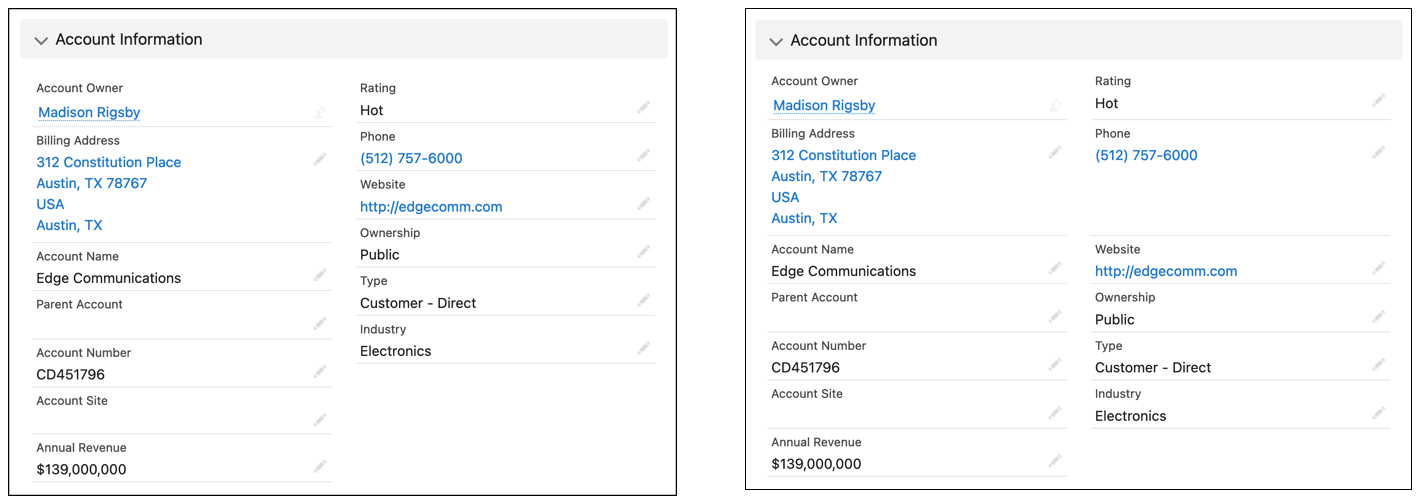
Control field alignment across columns by using the Align fields horizontally property
on Dynamic Forms Field Section components. This property prevents fields in multicolumn Field
Sections from collapsing upward when there’s a gap due to differences in field heights. Fields
remain horizontally aligned with their neighbors in the same row.
Required Editions
| Lightning App Builder available in: Salesforce Classic (not available in all
orgs) and Lightning Experience |
| Lightning pages and Dynamic Forms available in: Lightning Experience and the
Salesforce mobile app |
|
Available in: Group
Essentials, Professional, Enterprise, Performance,
Unlimited, and Developer Editions
|
| User Permissions
Needed |
| To create and save Lightning pages in the Lightning App Builder: |
Customize Application |
To enable this property, click a Field Section component on a Dynamic Forms-enabled page in
Lightning App Builder.