
Whether your brand changed or you want to use a different domain to serve your site content, you can change the domain name of an existing custom domain in Salesforce. Review these important steps to ensure a smooth transition and reduce the risk of takeover attacks.
Required Editions
| Available in: both Salesforce Classic and Lightning Experience |
| Available in: Enterprise, Performance, and Unlimited Editions. |
| Applies to: Salesforce Sites and LWR, Aura, and Visualforce sites |
| User Permissions Needed | |
|---|---|
| To view a domain: |
Manage Custom Domains OR View Setup and Configuration |
| To add a domain: |
Manage Custom Domains OR View Setup and Configuration plus either a Site.com Publisher license or Create and Set Up Experiences |
| To edit or delete a domain: | Manage Custom Domains |

These instructions apply when an existing custom domain serves your site content and you want to switch to serving the site content on a different domain name.
To serve your site content on an additional domain, add the domain in Salesforce. More than one domain can serve the same site content. For an example where three custom domains serve one parent site with two different brands, see Custom Domain Build Example.
To minimize the downtime for your site, consider setting up and activating your new domain in Salesforce, and then delete the old domain.
To update an existing custom domain to serve your site content on a different domain name and stop using the current domain, complete these steps.
Before you start, determine how to process visits to your old domain after the change. Common approaches include redirecting traffic to your new domain or displaying a landing page that directs visitors to the new page.

-
Complete the prerequisites for your chosen domain configuration option to serve
the domain.
- To serve your domain with your HTTPS certificate on Salesforce servers, complete the prerequisites for that option
- To serve your Digital Experiences with the Salesforce content delivery network (CDN), complete the prerequisites for the Salesforce CDN.
- To use a third-party service or CDN to serve your domain, complete the prerequisites for that option. These third-party services include third-party hosts, web application firewalls (WAFs), and non-Salesforce CDNs.
-
Reduce the Time to Live (TTL) of your domain in DNS. Use a small value, such as
300, for 300 seconds or 5 minutes.
Work with your DNS provider to complete this step.
Think of your TTL as a timer for calls to your domain. This value tells servers how long to cache, or keep, a web page before calling DNS again to refresh the page. When you temporarily reduce this value, you minimize the chance of your users calling the previous IP address during the move.
After you make this change, wait for the time duration of the previous TTL before you make other changes to DNS.
- If a third-party service or CDN serves your new domain, work with your third-party provider to use your target host name to forward requests to your domain to your org.
- If you plan to serve your new domain with your HTTPS certificate on Salesforce servers on with the Salesforce CDN, point the new domain to your org.
- From Setup in production, in the Quick Find box, enter Domains, and then select Domains.
- For the domain with your old domain name, click Edit.
-
Clear the Domain Name field, and then enter your new domain name.
Salesforce validates ownership based on the fully qualified domain name (FQDN) that you enter when you add a domain to your org. If you get an error message, point your custom domain to your org, and then wait for the changes to propagate. After you update your domain’s DNS record, it can take up to 72 hours for that change to take effect worldwide.
-
If you serve your domain with your HTTPS certificate, update the
certificate.
-
Under the domain configuration option, Serve the domain with your HTTPS
certificate on Salesforce servers, clear the certificate field. Then
click the lookup icon (
 ).
).
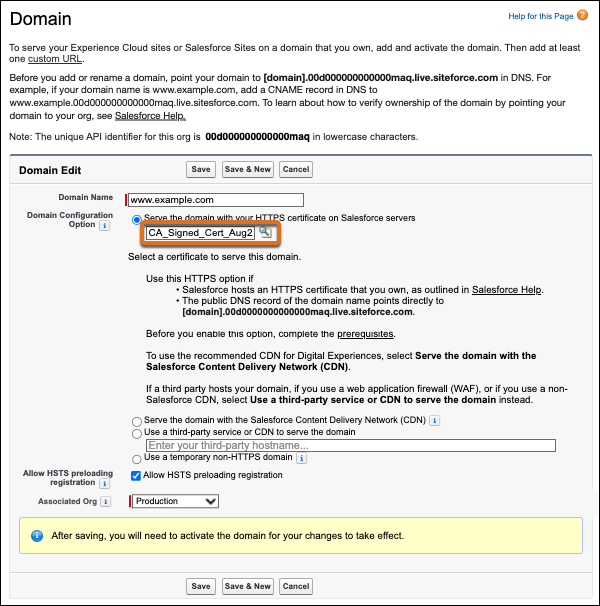
- In the lookup window, select the label of the certificate for your new domain.
-
Under the domain configuration option, Serve the domain with your HTTPS
certificate on Salesforce servers, clear the certificate field. Then
click the lookup icon (
-
If you use a third-party service or CDN to serve your domain, update the external host
name.
This step is required to serve your new domain. If you no longer have control over the DNS or service of the previous external host name, this action also reduces the risk of a domain takeover attack.
NoteWithout these steps, an attacker can potentially take over the custom domain’s live service.
For example, a third-party CDN serves your custom domain and the corresponding external host name for the domain is cdn.example.com. You remove your custom domain from that CDN, and the domain record in Salesforce isn’t updated to remove the pointer from www.example.com to cdn.example.com. In this situation, an attacker can potentially create an account with that CDN and then set up your custom domain in that CDN to serve content that’s under their control.
-
Save your domain.
After you save your custom domain, Salesforce provisions the domain or gets it ready to be used. The provisioning process can take 4–14 hours. During provisioning, your site can be inaccessible.
When that process is complete, the domain’s status on the Domains Setup page changes to Awaiting Activation and you receive an email.
Until you activate the domain, the configuration uses your previous domain name.
-
To activate your domain, on the Domains Setup page, click
Activate next to your custom domain name.
Note Custom domains for a sandbox are edited and activated in production.
Your site can be unavailable for 5–10 minutes, so activate your custom domain when your site traffic is low. When your site is active, the status changes from Awaiting Activation to Completed.
-
In DNS, remove the records that point to your Salesforce org from your old
domain. Work with your DNS provider to complete this step.
- If you use a registrable domain, work with your DNS provider to remove the alias record or canonical name (CNAME) flattening setting that points to your Salesforce org.
- If you serve your domain with your HTTPS certificate, remove the CNAME record for your old domain that points to your internal Salesforce CNAME.
- If you serve the Salesforce CDN, remove the CNAME record for your old domain that points to your internal Salesforce CNAME. Also remove the acme-challenge CNAME for your old domain.
- If a third-party service or CDN serves your domain, work with that third party to remove the target host name that points to your Salesforce org.
For more information on these settings, see Point Your Custom Domain to Your Salesforce Org and Prerequisites for a Custom Domain That Uses a Third-Party Service or CDN. -
Update your old domain to redirect or inform users.
Update DNS or work with your third party to establish a redirection to your new domain, or to display a page informing visitors about the new domain.
If you still have control over the old domain, you can reset the TTL in DNS after your users transition to the new site. You can also remove redirections or the informational page about the move when that redirection is no longer required.