
If you’re new to DevOps Testing, here’s a quick overview of the UI and what you can achieve on each tab.
Required Editions
| Available in: Lightning Experience |
| Available in: Enterprise, Performance, Professional (API access required), Unlimited, and Developer Editions |
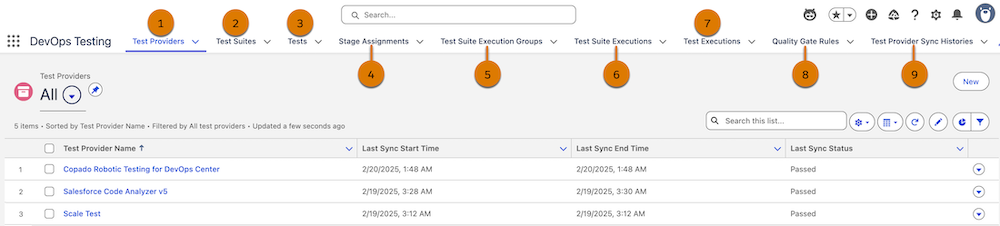
- Test Providers (1): View and manage your test providers. We recommend starting here and adding an available test provider.
- Test Suites (2): View and manage your test suites. Here, you can easily create and run test suites.
- Tests (3): View all your tests on a single page. Modify test severity, and mark them as essential for test suite runs.
- Stage Assignment (4): Assign test suites and quality gate rules to your DevOps Center pipeline stages.
- Test Execution Groups (5): View the outcomes of your test suite runs. If your quality gate rules fail, reevaluate them.
- Test Suite Executions (6): View the outcomes of your individual test suite runs.
- Test Executions (7): View detailed analysis of your test runs. See which tests passed and which ones failed.
- Quality Gate Rules (8): Create quality gate rules to prevent low-quality work items from moving through your pipeline stages.
- Test Provider Sync Histories (9): View the details of how your test provider sync performed.


Important We recommend that you don’t edit any fields on any tabs, even if they are
editable. Changing field values causes unexpected product outcomes. Users with the DevOps
Testing Manager permission set can only edit the Severity and
Essential fields in the Tests tab.