
Because the development environment has source tracking enabled, DevOps Center knows what files have been added, changed, or removed. When you pull changes, DevOps Center displays a list of all files that it has identified as changed. These changes aren’t associated with the work item until you select and commit them to the source control repository.
-
From within the Work Item Changes tab, click Pull Changes.
DevOps Center displays how many files were pulled, how many files are available to pull, and how many files were ignored. See Available Changes List for details. DevOps Center can retrieve approximately 40 changes at a time. You can keep clicking Pull Changes until all changes are listed.
-
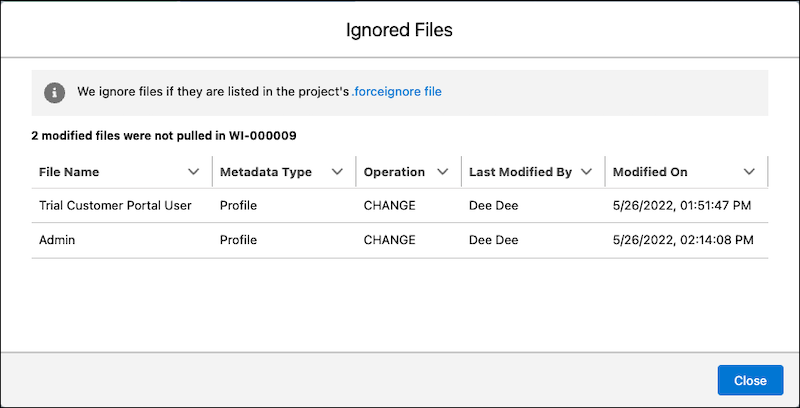
(Optional) Click n files ignored to view which files were
excluded as determined by the .forceignore file.
In this example, two profiles were excluded and aren’t available to commit.
- Next, select the changes to commit to the source control repository.