
If you upgraded from a previous version of DevOps Center, the Connect Repository button doesn’t always show up in the Source Control System (VCS) page layout. This button is required when initially setting up a source control system vendor, such as Bitbucket.
- In Setup, find and select Object Manager.
- Find and click Source Control System (sf_devops_Vcs__c).
- From Page Layouts, click Vcs Layout.
- From the side panel, click Mobile & Lightning Actions, then
locate the Connect Repository button tile.
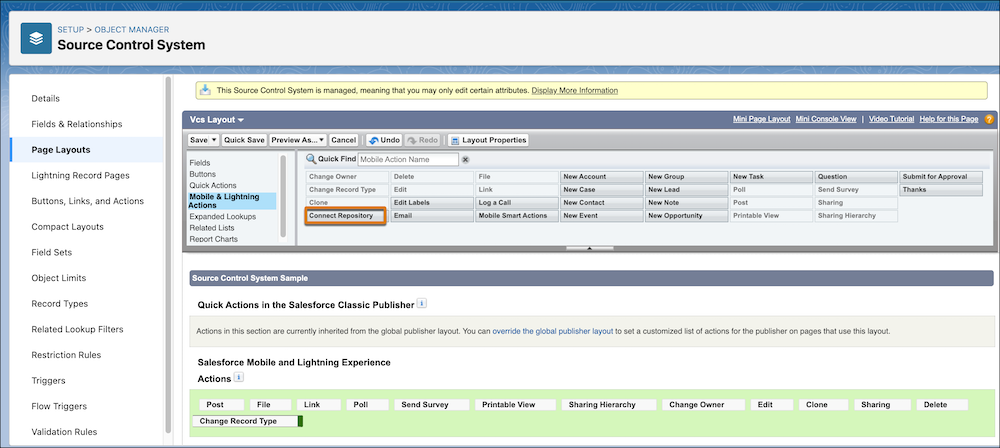
- Under Salesforce Mobile and Lightning Experience Actions, drop the Connect Repository
button tile at the beginning of the list.
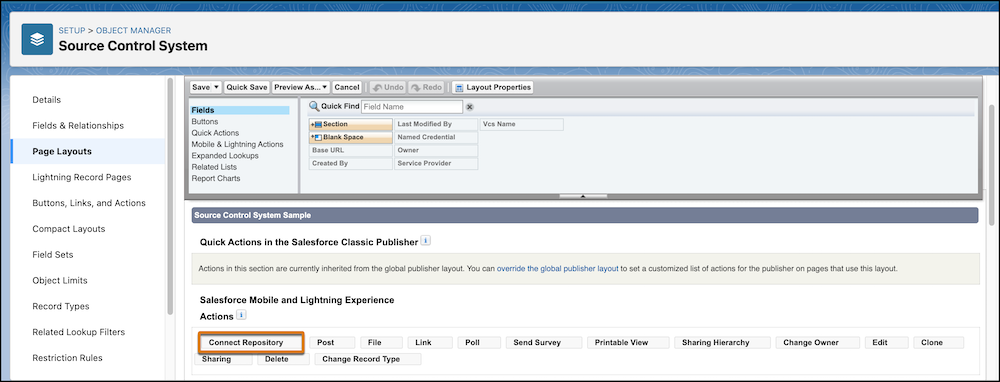
If you don’t see a list or the red No Symbol icon appears when you attempt to drag the tile, click the Override the Predefined Actions link to make the section editable. The text link is “override the global publisher layout” when the page layout is editable.
- Save your changes.