
Here are some tips if you encounter issues when installing or configuring DevOps Center.
Provide General Feedback
If you want to provide general feedback, request product enhancements, start discussions with other DevOps Center users or the product team, and share best practices, use the DevOps Center Trailblazer group.
Issue: Auto-generated work item numbers aren’t consecutive
Sometimes, auto-generated record numbering, including work item numbers, aren’t sequential or consecutive.
Cause: Record numbers can skip when multiple operations are running concurrently.
Action: No action required. See Knowledge Article: Auto numbers that are generated are not sequential all the time for more information.
Issue: Can’t add or log in to a sandbox
When attempting to add a sandbox as a development or pipeline environment, or to log in to
a sandbox, DevOps Center launches login.salesforce.com so you can’t log in
to it.
Cause: Often, the cause is that the required auth provider, DevOps Center Test, has been deleted.
Action: Toggle the DevOps Center Setup option to recreate all DevOps Center auth providers.
- In Setup, find and select DevOps Center.
- Click to disable DevOps Center and then click again to enable it.
- In Setup, find and select Auth. Providers.
- Verify that the list contains DevOps Center auth providers, including
DevOps
            Center Test
.
After you re-add the DevOps Center Test auth provider, you’re directed to the expected
login URL, test.salesforce.com.
Issue: DevOps Center doesn’t load
When you launch DevOps Center, you see a spinner but the Project page never loads.
Cause: If you installed the Salesforce Page Optimizer Chrome extension, it’s not compatible with DevOps Center. We plan to fix this issue in a future release.
Action: Remove or disable the extension.
Issue: Can’t connect a release environment to a project or perform common operations
You see this error, Error: There was an error. Please reload the page,
when you try to connect a release environment to a project.
Cause: If you have the API Access Control Setting For
admin-approved users, limit API access to only allowlisted connected apps
enabled, it blocks DevOps Center from interacting with required APIs. The behavior you see
depends on if it was enabled before or after you installed and configured DevOps Center.
- If this setting was enabled before DevOps Center was installed, you can’t add a release environment to a project.
- If this setting is enabled after DevOps Center was installed, you can’t perform common operations, such as commits and promotions.
Action: Disable the setting. From Setup, in the Quick Find box, enter API Access Control, then select API Access Control.
Issue: DevOps Center doesn’t appear in the App Launcher
Cause: If you miss some of the post-installation configuration steps, DevOps Center doesn’t appear in the App Launcher.
Action: Try these troubleshooting steps in order:
- Did you create the connected app? Be sure to complete all steps.
- If you created the connected app, did you assign the
sf_devops_NamedCredentialspermission set to it? - Does the DevOps Center app Start URL appear in App Manager?
- Go to Setup > App Manager.
- Find DevOps Center and select Manage from the menu.
- Click Edit Policies.
- In the Start URL field, enter
/sf_devops/DevOpsCenter.app, then click Save.
Error: There was an error. Please reload the page...
You see this error when trying to add an environment to the project.
Cause: If Session Security “Level Required at Login” is set to
High Assurance, it prevents the use of asynchronous processing.
Action: Ask a Salesforce admin to turn off high assurance for Manage Auth. Providers.
- From Setup, enter Identity Verification in the Quick Find box, then select Identity Verification.
- Under Session Security Level Policies, for Manage Auth. Providers, select None.
- Click Save.
Issue: You don’t see an existing branch in the dropdown when building your pipeline
Cause: When using an existing source control repository for the DevOps Center project, you don’t see the branch you want to select in the dropdown when building the pipeline. The Branch Settings dialog dropdown can display a maximum of 500 branches.
Action: As a workaround, delete any obsolete branches in the source control repository and try again.
Issue: Logged in to GitHub using the incorrect account
When creating or opening a project, all team members log in to GitHub using the account that has access to the repos that your team wants to use with DevOps Center. If someone logs in with the incorrect GitHub account, a team member with Salesforce admin privileges can delete the authorization information so you or the team member can log in using the proper credentials.
Action: See Connect to a Different GitHub Account for instructions.
Error: Did You Log In to the Correct Environment?
Cause: DevOps Center acts like you didn’t log into the correct sandbox. In Winter ’24, Salesforce enforced enhanced domains, which changed sandbox My Domain URL formats to conform to new security standards. When you connect a sandbox in DevOps Center, DevOps Center uses a named credential to facilitate authentication. If you set up DevOps Center when enhanced domains weren’t deployed, the named credential requires an update.
This issue surfaces when a DevOps Center user tries to perform an action using the sandbox. Actions include opening a connected sandbox, pulling changes from a connected environment, or promoting changes to the environment.
Action: Users with Salesforce admin privileges or the “Customize Application” user permission can update named credentials.
- From Setup, in the Quick Find box, enter Named Credentials in the Quick Find box, then select Named Credentials.
- Locate the named credential records that correspond to sandboxes used as development
environments or in pipeline stages.
Look for the environment’s DevOps Center record ID in the Label field. DevOps Center uses this pattern for creating Named Credential records:
Release environments:
environmentRecord ID_projectName_environmentName_sequentialNumber
Other environments:
environmentRecord ID_environmentName_sequentialNumber
- From the Actions menu, select Edit.
- In the URL field, replace your old My Domain login URL with your new My Domain login
URL.
For example, replace:
https://MyDomainName--SandboxName.my.salesforce.com/with
https://MyDomainName--SandboxName.sandbox.my.salesforce.com - Deselect Start Authentication Flow on Save and save your changes.
Issue: DevOps Center Setup page doesn't appear in the org
Cause: DevOps Center is available in Enterprise, Performance, Professional, Unlimited, and Developer editions, as well as scratch orgs and Trailhead playgrounds. It's not available in sandboxes or other unlisted org editions.
Action: To evaluate DevOps Center, we suggest using a Developer Edition org or scratch org. Scratch orgs don't live forever, so we suggest indicating a duration of 30 days so you have ample time to try out DevOps Center.
Error: Package can't be installed because Duplicate Rules and Matching Rules features are missing.
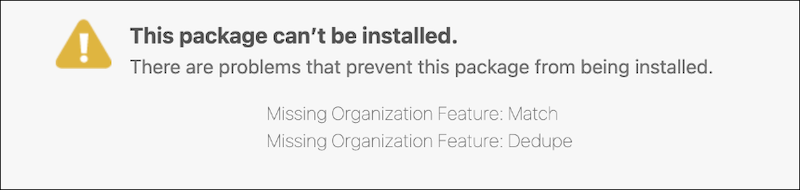
Cause: DevOps Center is available in Enterprise, Performance, Professional, Unlimited, and Developer editions, as well as scratch orgs and Trailhead playgrounds. It's not available in sandboxes or other unlisted org editions.
Action: To evaluate DevOps Center, we suggest using a Developer Edition org or scratch org. Scratch orgs don't live forever, so we suggest indicating a duration of 30 days so you have ample time to try out DevOps Center.
Error: “You don’t have permission to view this data, enter credentials for the named credential in your personal settings. Or ask your Salesforce admin for help.”
Cause: After the DevOps Center package is upgraded to the current version, a user sees this error when they try to open a project. This error is likely to occur when a user isn't logged into GitHub or doesn't have access to the project’s GitHub repo.
Action: To work around this issue, click New Project, which prompts you to log in to GitHub.
Error: “(DevOps_Center_GitHub) In field: authProvider - no AuthProvider named DEVOPS_CENTER_GITHUB found DevOps_Center_GitHub: In field: authProvider - no AuthProvider named DEVOPS_CENTER_GITHUB found”
Cause: It’s highly likely that you didn't enable DevOps Center in your org.
Action: Enable DevOps Center and accept the license terms in the DevOps Center Setup page. From Setup, enter DevOps Center in the Quick Find box, then select DevOps Center.
Error: “The request was invalid. Resource protected by organization SAML enforcement.”
Cause: GitHub repos owned by an organization aren’t visible in DevOps Center until an organization account owner provides access.
Action: See If an Organization Owns the GitHub Repo for instructions on fixing this issue.
Error: Problem Logging In Due to Login IP Restrictions
Cause: The org or org user attempting to connect has login IP restrictions. DevOps Center uses named credentials and OAuth to facilitate a trusted connection between itself and the other environments. When you attempt to log in, you see an error popup and a URL format that conveys the existence of IP restrictions.
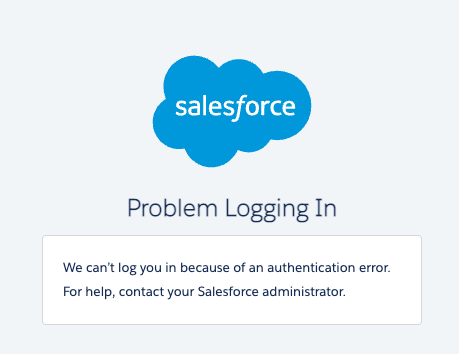
In the address bar, you see a URL that ends with something like this:
/AuthorizationError?ErrorCode=No_Oauth_Token&ErrorDescription=invalid_grant+ip+restrictedAction: Here are some options to work around this error:
- Create an integration user in the target org, with a profile that doesn't have IP restrictions.
- Add Salesforce IPs and DevOps Center service IPs to the list of trusted IPs in the target user's profile. See Salesforce IP Address and Domains to Allow and Update IP Allow List for DevOps Center App.
- Completely disable IP allow-listing in the target org.
Error: Commit or Promotion Failed Due to API Version Mismatch
Action: To resolve this error, update the source API version. For more information, see Update the Project’s Source API Version Each Salesforce Release.