
This error can occur if you attempt to promote work items but DevOps Center is processing pending events from the source control system. You sometimes see this dialog in combination with the “Too Many Callouts” error message. To fix this error, you perform a SOQL query to determine if event processing is continuing as expected or has stalled.
- In DevOps Center, click the Home button.
- Click the quick access menu (
 )
then click Developer Console.
)
then click Developer Console.
In this example, the target stage is UAT.
- Select the Query Editor tab.
- Execute this SOQL query to list the current commit information that DevOps Center is
processing.
Substitute the name of your target stage and DevOps Center project name.
SELECT Id, Name, sf_devops__Branch__r.sf_devops__Remote_Reference__c, sf_devops__Branch__r.sf_devops__Remote_Reference_Date__c FROM sf_devops__Pipeline_Stage__c WHERE Name = 'UAT' and sf_devops__Pipeline__r.sf_devops__Project__r.Name = 'Recruiting App' - Note the values in the sf_devops_Remote_Reference__c and sf_devops_Remote_Reference_Date__c fields.
- Attempt the promotion again.
If the promotion is successful, you can continue with your work. If the promotion is unsuccessful, go to the next step.
- In Developer Console, execute the query again.
- If the values in the sf_devops_Remote_Reference__c and sf_devops_Remote_Reference_Date__c fields changed, DevOps Center is processing the events correctly. Keep trying the promotion until all external events are processed.
- If the values in the sf_devops_Remote_Reference__c and sf_devops_Remote_Reference_Date__c fields didn’t change between executions, DevOps Center has encountered an error processing the events. Go to the next step.
- In Pipeline Stages, click the dropdown menu in the target stage, then select
View Branch in Source Control.
In this example, the target stage is UAT.
- In GitHub, find the unique ID (SHA) for the latest commit.
- Click the Commits history icon, which is a clock next to the total number of commits for
this branch.
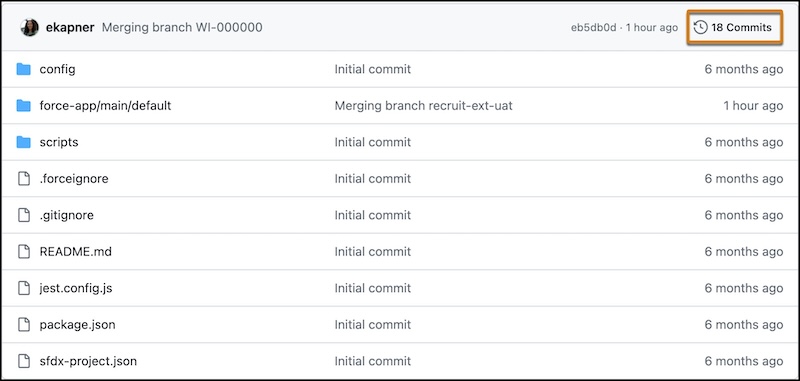
The most recent SHA is listed first.
- Click the Copy Full SHA icon.
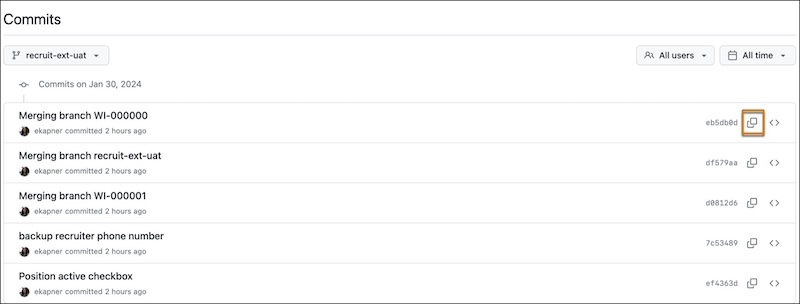
- Keep the SHA in your clipboard, or paste it in a text file to save it for use in the next step.
- Click the Commits history icon, which is a clock next to the total number of commits for
this branch.
- View the list of branches.
- In DevOps Center, in the org URL, delete
sf_devops/DevOpsCenter.appand replace it withlightning/o/sf_devops__Branch__c/list.https://<my-domain>.lightning.force.com/lightning/o/sf_devops__Branch__c/list - Find the branch record that corresponds to the target branch, for example,
recruiting_app_uat.
If you don’t see any branches or the repo contains many branches, create a list view to display your branches. To find the exact branch, include the branch name.
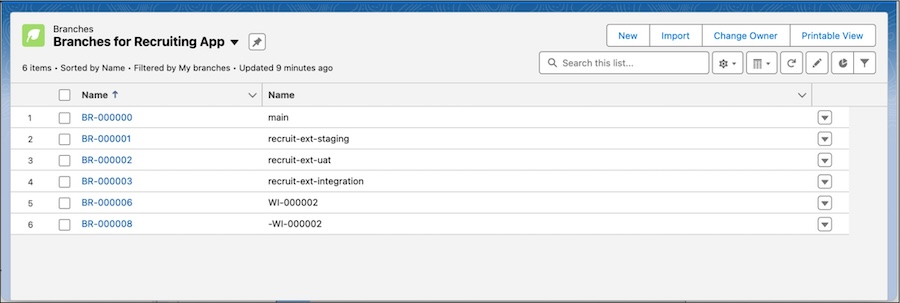
- Delete the existing value for Remote Reference and paste the SHA that you copied.
- Update the Remote Reference Date field to the current date and time.
- Click Save.
- In DevOps Center, in the org URL, delete
- Promote the work items.