
Syncing ensures your pipeline has the latest test data and configurations from your connected test providers. Run a sync whenever test suites are added, removed, or updated in your provider tool.
Required Editions
| Available in: Lightning Experience in Professional (API access required), Enterprise, Performance, Unlimited, and Developer Editions |
| Not Available in: Government Cloud Plus. Contact your Salesforce account executive for more details. |
| Not available in: EU Operating Zone. EU Operating zone is a special paid offering that provides an enhanced level of data residency commitment. Lifecycle Center is supported in orgs in the EU that aren't part of EU OZ, per standard product terms and conditions. |
| User Permissions Needed | |
|---|---|
| To sync test providers: | Lifecycle Center Testing Manager |
Before syncing, make sure these requirements are met:
- To sync Salesforce Code Analyzer: You must be connected to GitHub and have access to the pipeline repository.
- To sync Apex or Flow test providers: You must be authenticated to all environments in the pipeline.
If these requirements aren't met, errors appear during sync. The error message indicates which connection or authentication is missing.
- From the pipeline view, select the Tests tab.
- Click Sync Test Provider.
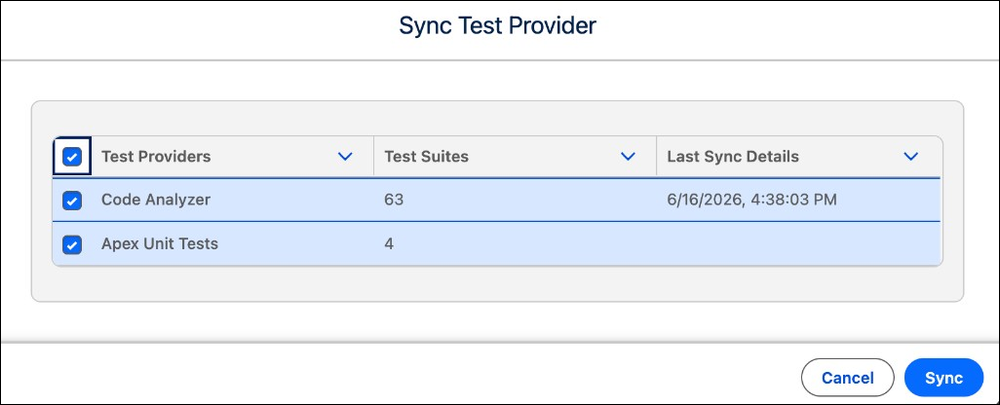
- In the Sync Test Provider window, select the test provider you want to sync.
- Review the Test Suites count and Last Sync Details to confirm you're syncing the correct provider.
- Click Sync.

Note It is recommended to schedule regular syncs after your team adds or updates test
suites in your provider tool to keep your pipeline assignments accurate.