
Move changes from the first pipeline stage to your development environment. Running a back sync makes sure that you're working with the most up-to-date, approved changes.
Required Editions
| Available in: Lightning Experience in Professional (API access required), Enterprise, Performance, Unlimited, and Developer Editions |
| Not Available in: Government Cloud Plus. Contact your Salesforce account executive for more details. |
| Not available in: EU Operating Zone. EU Operating zone is a special paid offering that provides an enhanced level of data residency commitment. Lifecycle Center is supported in orgs in the EU that aren’t part of EU OZ, per standard product terms and conditions. |
| User Permissions Needed | |
|---|---|
| To run back sync: | Lifecycle Center User |
Before you start, make sure that no other operations are in progress in the first stage or the development environment.

Warning Back sync overwrites unpromoted changes in your development environment.
To avoid losing work, make sure your environment has no unpromoted work items before you
proceed. Work items that are In Progress, In
Review, or Ready to Promote block the sync until you
commit and promote them.
- Go to the Pipelines tab and open your pipeline.
-
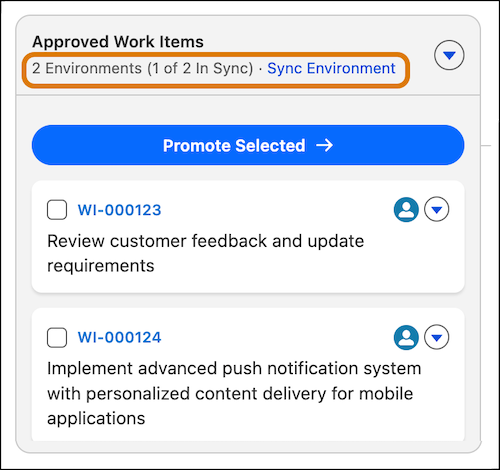
Under Approved Work Items, select Sync Environment.
-
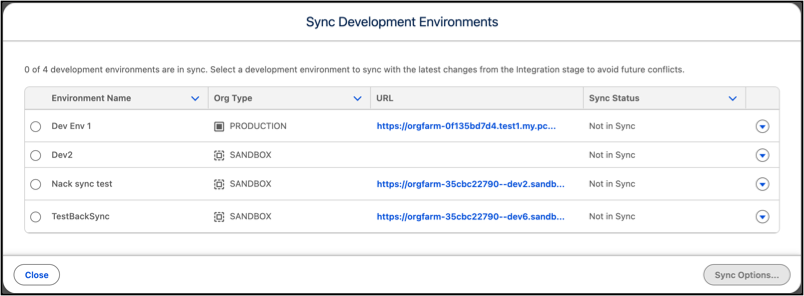
Select the development environment that you want to sync, and select Sync
Options....
-
Under Test Options, select which Apex tests to run.
- Default: No tests are run in sandboxes and scratch orgs.
- Run local tests: All local tests are run.
- Run all tests: All tests in your org are run.
- Run specified tests: Only the tests that you specify are run. Provide the names of test classes in a comma-separated list with no spaces. Example: TestDeleteData, TestDataFactory.createTestRecords
-
Under Changes to Sync, select the changes to deploy.
- Partial Deploy (default): Deploys changes from the work items that are missing from your development environment. In the work items to sync list, deselect any work items that you want to exclude.
- Full Deploy: Deploys all changes from the first pipeline stage branch to your development environment.
-
Click Sync.
Lifecycle Center deploys the selected changes to your development environment.