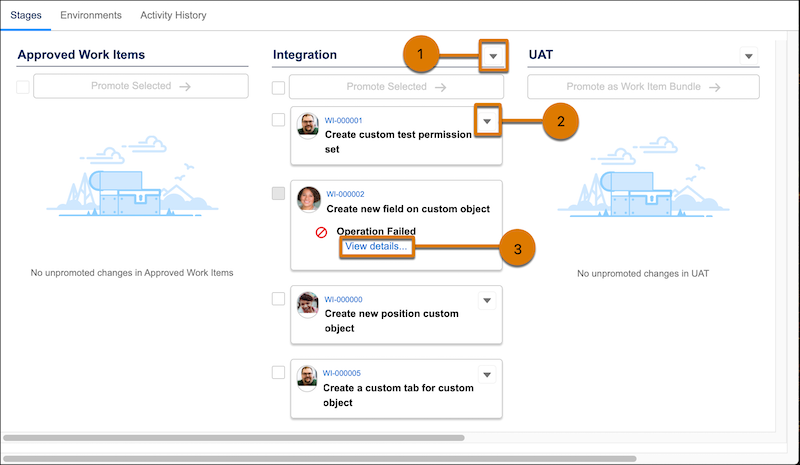
When promotion completes, you see a success banner or a failure banner where you can see details of the error. You have several options to validate the promotion or dig into errors.
From the pipeline stage dropdown menu (1):
- Open Environment — opens the environment so you can validate changes.
- View Branch in Source Control – opens the branch in source control so you can view the files in this branch.
- View Last Commit in Source Control – opens a list of commits (individual changes to a set of files) in source control. Here, you can see what’s changed between two branches.
From the Work Item:
- View Change Request from the work item dropdown menu (2) – opens the pull request in source control so you can view the changes and troubleshoot any merge conflicts.
- View details (3) – opens the Activity History tab for a failed promotion, where you can view more information.
From the Activity History tab:
- View the promotion details including work items that were part of the promotion.
- View whether the promotion succeeded or failed, failure details, and the date and time of completion.