
If DevOps Center deployed the changes to the target environment but didn’t merge them into the target stage branch, set the associated async request record status to Error. Then refresh the pipeline and try the promotion again.
Required Editions
| Available in: Lightning Experience in Professional (API access required), Enterprise, Performance, Unlimited, and Developer Editions |
| Not available in: Government Cloud Plus. Contact your Salesforce account executive for more details. |
| Not available in: EU Operating Zone. EU Operating zone is a special paid offering that provides an enhanced level of data residency commitment. DevOps Center is supported in orgs in the EU that aren’t part of EU OZ, per standard product terms and conditions. |
| User Permissions Needed | |
|---|---|
| To fix a stalled promotion: | DevOps Center Deployment Manager |
To identify where the promotion stalled, see Troubleshoot a Stalled Promotion.
- In your DevOps Center org, open Developer Console, then select the Query Editor tab.
-
To find the Work Item Promote record that’s still in progress, run this SOQL query:
SELECT Id, sf_devops__Status__c FROM sf_devops__Work_Item_Promote__c WHERE sf_devops__Status__r.sf_devops__Status__c = 'In Progress' - In the query results, select the affected Work Item Promote record, and then click Open Detail Page.
-
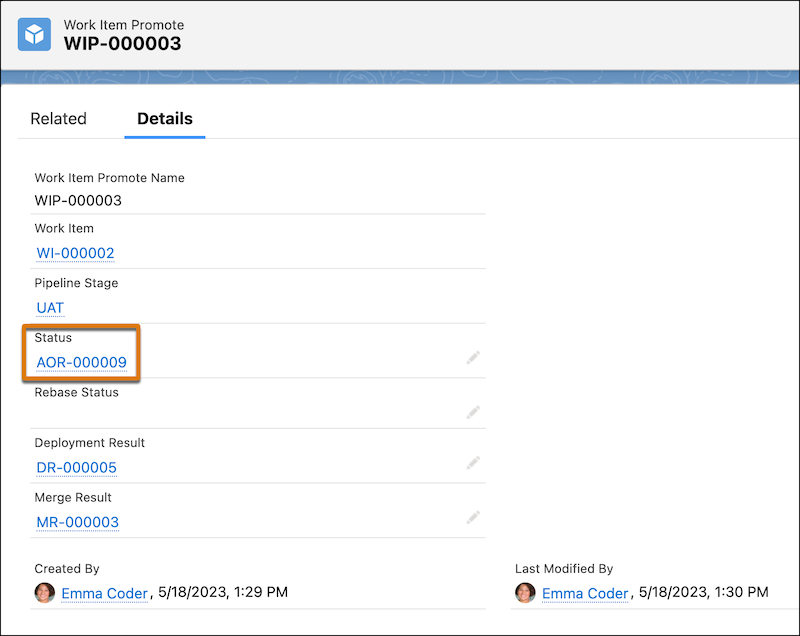
Click the AOR-<id> link in the
Status field to open the associated Async Operation Result record.
- On the Async Operation Result record, change Status to Error, and then save your changes.
- In DevOps Center, refresh the Pipeline Stages view.
-
Promote the changes again.
The stalled-promotion error no longer appears.