
A promotion can stall while Lifecycle Center deploys changes to the target environment or merges changes into the target stage branch. Check the deployment and change request to determine where the promotion stalled, and then follow the appropriate recovery procedure.
Required Editions
| Available in: Lightning Experience in Professional (API access required), Enterprise, Performance, Unlimited, and Developer Editions |
| Not available in: Government Cloud Plus. Contact your Salesforce account executive for more details. |
| Not available in: EU Operating Zone. EU Operating zone is a special paid offering that provides an enhanced level of data residency commitment. Lifecycle Center is supported in orgs in the EU that aren’t part of EU OZ, per standard product terms and conditions. |
The promotion process has two main operations:
- Lifecycle Center deploys the selected changes to the target environment.
- Lifecycle Center merges the changes into the target stage branch.
If communication from an external service to Lifecycle Center is interrupted during either operation, the promotion status in Lifecycle Center may not reflect the actual result.
A stalled promotion has one of these outcomes:
- The promotion failed: The changes weren’t deployed to the target environment or merged into the target stage branch.
- The promotion succeeded, but its status wasn’t updated: The changes were deployed to the target environment and merged into the target stage branch, but the promotion doesn’t appear as completed in Lifecycle Center.
- The deployment succeeded, but the branch merge failed: The changes were deployed to the target environment but weren’t merged into the target stage branch.
To determine which recovery procedure to use, check the deployment in the target org. If the deployment succeeded, check the associated change request in source control.
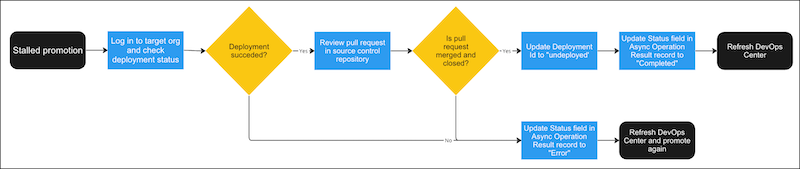
- Log in to the target org.
- From Setup, in the Quick Find box, enter Deployment Status, and then select Deployment Status.
-
Find the deployment associated with the stalled promotion and check its status.
- If the deployment failed, see Fix a Stalled Promotion.
- If the deployment succeeded, continue to the next step.
-
Open the change request (pull request) associated with the stalled promotion.
If a stalled-promotion error appears in Lifecycle Center, use the dropdown menu to open the change request. If the promotion status is Pushing, the dropdown menu is unavailable. Open the project repository directly in your source control system.
- In the source control repository, open the list of pull requests.
-
Find the pull request associated with the stalled promotion.
- If you promoted all work items in the stage, look for a pull request with a title that
begins with
[DO NOT MERGE] For DevOps Center use only - <source stage> to
       <target stage>
. - If you promoted selected work items, look for pull requests whose titles contain the
work item IDs, such as
[DevOps Center] Merge WI-000002 to <target
       stage>
. - If you promoted a work item bundle, look for a pull request whose title identifies the
source and target stages, such as
[DevOps Center] <source stage> to
       <target stage>
.
- If you promoted all work items in the stage, look for a pull request with a title that
begins with
-
Review the pull request status, and then see Fix a Stalled
Promotion.
- If all associated pull requests are merged, the promotion completed but its status wasn’t updated in Lifecycle Center.
- If any associated pull request remains open, the deployment succeeded but the branch merge failed.