
Move your work items through a predefined sequence of pipeline stages, guiding them from development to production.
Required Editions
| Available in: Lightning Experience in Professional (API access required), Enterprise, Performance, Unlimited, and Developer Editions |
| Not available in: Government Cloud Plus. Contact your Salesforce account executive for more details. |
| Not available in: EU Operating Zone. EU Operating zone is a special paid offering that provides an enhanced level of data residency commitment. Lifecycle Center is supported in orgs in the EU that aren’t part of EU OZ, per standard product terms and conditions. |
| User Permissions Needed | |
|---|---|
| To promote work items: | Lifecycle Center Deployment Manager |
When you promote work items, their associated changes are first merged from the current stage branch to the next, and then deployed to the org for that next stage.
Lifecycle Center primarily supports stage promotion (also known as work item bundle promotion in DevOps Center (Managed Package)), which makes releases more stable and predictable. After a work item is considered ready to promote, it’s added to the Approved Work Items list. You can promote individual, approved work items into the initial pipeline stage, where they’re combined with other changes intended for the same release. Then, you promote the entire stage as a single, consistent unit to subsequent stages.
To promote individual work items, see Promote Individual Work Items from a Stage.

To view metadata and data changes in a work item, open the work item record page and review the details in the Change List tab.
- Go to the Pipelines tab and under Approved Work Items, select the work items to promote.
-
Click Promote Selected.
The selected work items are promoted to the next stage and are now ready to be promoted as a unit. After all work items for a release are grouped, promote them to the next stage in the pipeline.
- In the pipeline view, click Promote Stage.
-
If you haven’t logged in to the environment for the next pipeline stage from within
Lifecycle Center, complete the login process, then click Promote
Stage.
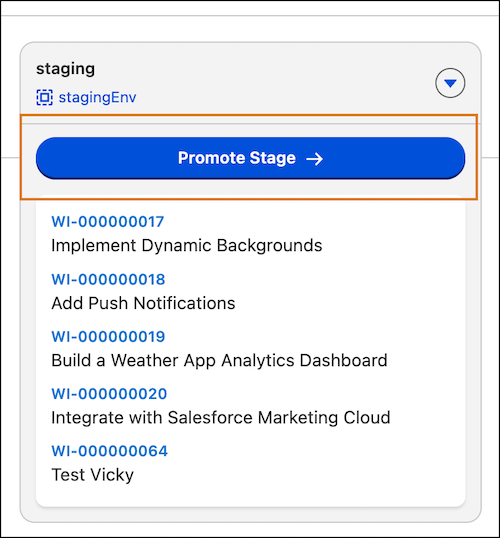
- In the Promotion Options window, select Promote now, the changes to promote, and the Apex tests to run. For details, see Promotion Options.
-
Click Promote.
Lifecycle Center merges branches and deploys the work items to the environment associated with the next stage.
- (Optional) If Lifecycle Center detects a merge conflict for the selected work items, it provides recommendations to resolve merge conflicts using Lifecycle Center MCP tools.