
Move selected DevOps Center (Managed Package) projects to Lifecycle Center.
Required Editions
| Available in: Lightning Experience in Professional (API access required), Enterprise, Performance, Unlimited, and Developer Editions |
| Not available in: Government Cloud Plus. Contact your Salesforce account executive for more details. |
| Not available in: EU Operating Zone. EU Operating zone is a special paid offering that provides an enhanced level of data residency commitment. Lifecycle Center is supported in orgs in the EU that aren't part of EU OZ, per standard product terms and conditions. |
| User Permissions Needed | |
|---|---|
| To migrate DevOps Center (Managed Package) projects: | Lifecycle Center Admin |

Note The feature is in developer preview and is subject to the Beta Services Terms at Agreements -
Salesforce.com or a written Unified Pilot Agreement, if executed by Customer. Its use is
at the Customer's sole discretion.
Before you start migration, complete these tasks.
- Review migration best practices and limitations. See DevOps Center Managed Package Migration.
- Notify your team members about the migration. Ask them to promote, mark as Never, or close open work items before migration starts. Open work items refer to work items in In Progress, In Review, Ready to Promote, Approved, or Promoted status.
- Make sure that Lifecycle Center is accessible from the App Launcher.
Note Lifecycle Center may appear as DevOps Center in Setup and the App Launcher. If you don't
find Lifecycle Center, search for DevOps Center instead.
- From Setup, in the Quick Find box, enter Lifecycle Center, and then select Lifecycle Center.
- Turn on Enable DevOps Center Migration and accept the terms and conditions.
- From the App Launcher, enter Lifecycle Center in the Search box and then select Lifecycle Center (DevOps Center).
-
From the Lifecycle Center Home tab, select the Lifecycle Center Hub org for
migration.
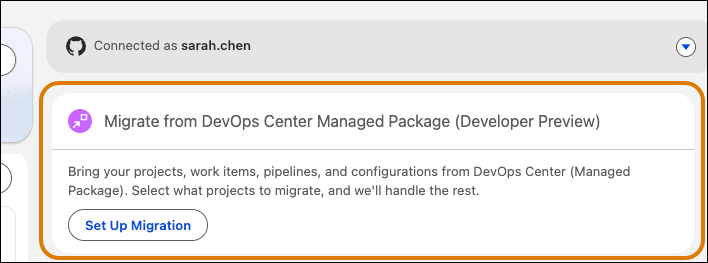
- Click Set Up Migration.
- Review the migration details, then click Continue.
-
Select the projects that you want to migrate, then click Migrate.
Migration starts immediately and runs in the background.
Post-Migration Tasks
After migration completes, complete these tasks to finish the transition to Lifecycle Center.
-
Check the Activity History tab in Lifecycle Center to confirm the status for each migrated
project.
Verify that all expected projects appear in Lifecycle Center.
-
Reactivate your pipelines in Lifecycle Center.
See Build Your Pipeline.
- Log in to all pipeline stage environments to reauthenticate credentials.
-
Review placeholders for open work items.
To continue your work, create work items in Lifecycle Center and commit your changes.
-
Turn off the DevOps Center (Managed Package) in Setup only after you migrate all required
projects.
If you're running a phased migration, wait until you move all projects to Lifecycle Center before turning off the managed package. This action makes sure that DX Inspector commits to Lifecycle Center.