
Connect your development environment directly to your Lifecycle Center project to manage work items and track changes without leaving your org.
DX Inspector connects your development environment and your Lifecycle Center project. It’s available by default and appears at the top of any page or builder in your Salesforce sandbox, scratch org, or Developer Edition org.
Instead of switching between multiple browser tabs to manage your DevOps tasks, you can track changes, create work items, commit metadata, and create change requests directly within the org where you're building.
The Change Management tab in DX Inspector provides a comprehensive view of all source-tracked changes in your org. When your development work is complete, you can create a work item and commit your changes directly to the project repository. The real-time sync between Lifecycle Center and DX Inspector makes sure that every commit and status change is immediately reflected in Lifecycle Center.
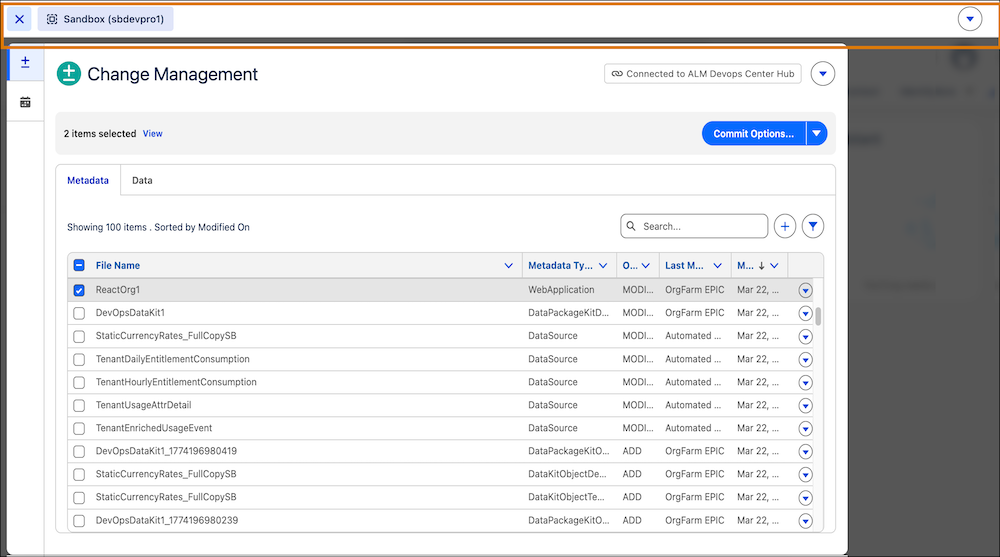
When ready, start the peer review process by creating a change request (pull request) in DX Inspector. After your team reviews and approves the request in your source control, the work item moves to the Ready to Promote state. Then, your deployment manager can start the promotion process in Lifecycle Center.

- Reconnect DX Inspector to Lifecycle Center
If your team recently migrated from DevOps Center (Managed Package) to Lifecycle Center, remove your existing DX Inspector connection and reconnect to Lifecycle Center so that your commits go to the right project. - Add Metadata Manually
The Change Management tab uses source tracking to automatically track metadata files in your org. However, when you require flexibility to include additional metadata files that source tracking hasn’t pulled automatically, you can add metadata manually. - Data Commit and Deployment
Maintain data integrity and keep dependencies intact by moving metadata and data together in a single work item. In Lifecycle Center, you can move configuration data between environments using the same commit and deploy flow that you use for metadata. - Commit Changes to Source Repository
Commit changes to your source repository directly from the Change Management tab. After you make the changes, decide which changes to include for the work item and commit them to the Lifecycle Center project’s source control repository. - Create a Change Request
Start a peer review of your work item by creating a change request directly from DX Inspector. - Shift-Left Testing for Review Events
Lifecycle Center Testing automatically runs assigned test suites when a developer creates a review in DX Inspector, catching issues early before changes advance through the pipeline.