
To ensure a successful deployment ahead of time, create a validate-only deployment. You can create a validation for only the bundling stage and versioned stages. You can run a validate-only deployment within DevOps Center or using Salesforce CLI.

A validation checks the results of Apex tests and deploying components but doesn’t save any components in the org. A validation enables you to view the success or failure messages that you’d receive with an actual deployment.
Later, you can perform a quick deployment to promote changes to a pipeline stage or to your release environment without having to run tests.
- In DevOps Center, go to Pipelines Stages.
- In the bundling or a versioned stage, click Promote as Work Item
Bundle, Promote Work Item Bundle, or Promote
Work Item Bundles, as applicable.
If you have an existing validation, you see a warning indicating that any subsequent promotion disqualifies the existing validation for quick deployment.
- For Promotion Option, click Run a Validate-Only Deployment.
- Select the changes to promote.
- Select the appropriate test option.
If you plan to run a quick deployment for this validation, you must run tests, the Apex tests must pass, and code coverage requirements must be met.
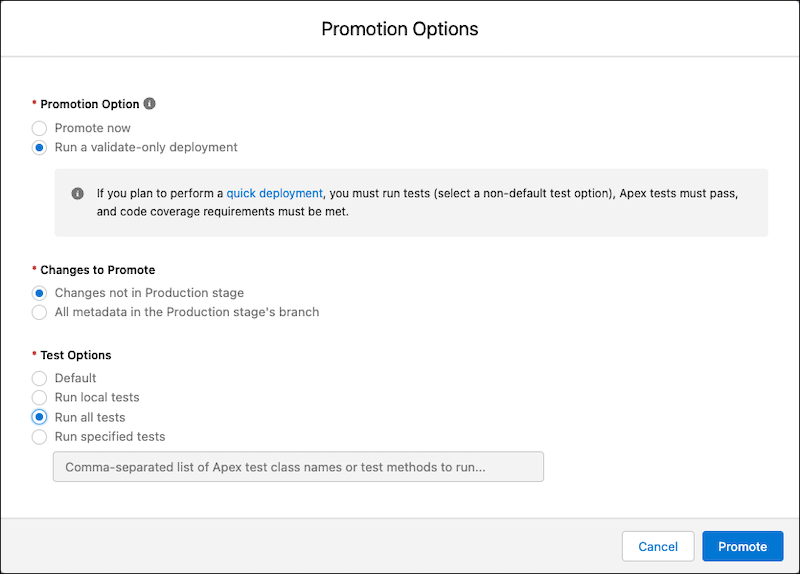
- Click Promote.
If you ran the validation without running tests, the Quick Deploy button isn’t available. A successful validate-only deployment is valid for 10 days. If the validation fails, see Activity History for details.
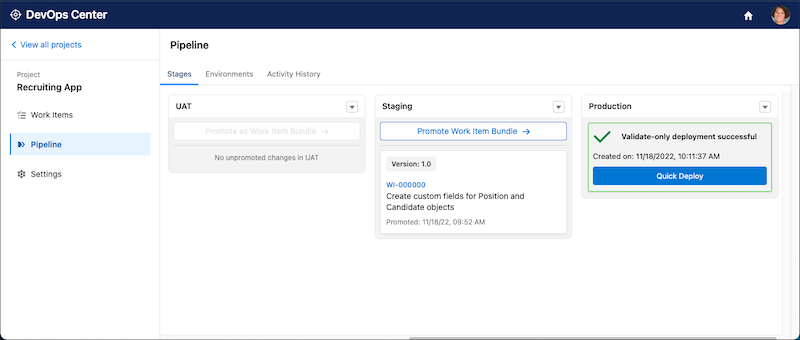
- Within 10 days, click Quick Deploy to complete the promotion.