
Create a GitHub project to help you and your team manage changes for a particular application or customization.
To create a Bitbucket project, see Set Up DevOps Center for Bitbucket (Beta).
Projects in DevOps Center require an associated source control repository that uses the Salesforce DX project structure. The repository is used to store project changes.
-
From App Launcher, find and select DevOps Center.
DevOps Center opens to the All Projects page. If you’re logging in for the first time, the list is empty.
-
Click New Project.
The first time you create a project, you’re prompted to log in to GitHub, so you can authorize DevOps Center to work with your GitHub account. After you go through the authentication process, DevOps Center can make changes on your behalf in your project’s GitHub repository.
-
Click Connect to GitHub.
Is your GitHub repo owned by an individual or an organization? How to proceed Individual account Authorize access so DevOps Center can make changes in GitHub on your behalf. After authentication, you’re returned to the DevOps Center Projects page. Organization account Sometimes, GitHub repos owned by an organization aren’t visible in DevOps Center without specifically providing access via OAuth. After you follow the instructions in If an Organization Owns the GitHub Repo, and the repo owner approves the request for access, you can create the project. -
On the Projects page, click New Project (again).
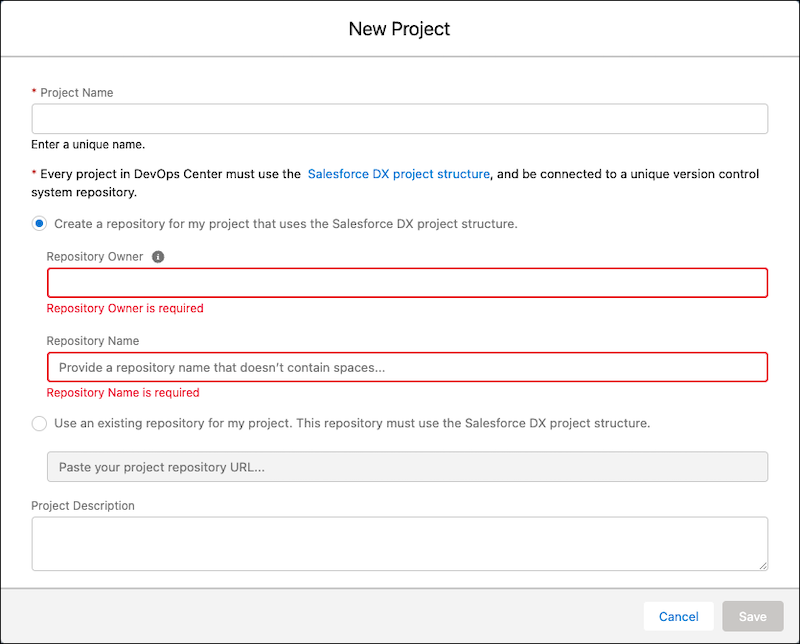
- Enter a unique name for your project.
-
Create a repository or use an existing one.
- If you create a repo, we base the repository name on the project name. However, you can change the name as long as it doesn’t contain any spaces.
- If you use an existing repository, enter the URL of the GitHub repository you want to use for the project. For example, https://github.com/mygithubusername/Myrepo. If using the same source control repository as another DevOps Center project, use unique branches for each pipeline stage, except for the release branch (often called main), when building the release pipeline.
- (Optional) Enter a description to identify the purpose of the project.
-
Click Save.
Your project is created and added to the Projects page. Different projects can be in different phases of project setup.
- Under Release Environment, click Click to Create Pipeline to build your pipeline and add the associated environments.