
Define the sequence of stages for your release lifecycle by building a pipeline in Lifecycle Center.
Required Editions
| Available in: Lightning Experience in Professional (API access required), Enterprise, Performance, Unlimited, and Developer Editions |
| Not available in: Government Cloud Plus. Contact your Salesforce account executive for more details. |
| Not available in: EU Operating Zone. EU Operating zone is a special paid offering that provides an enhanced level of data residency commitment. Lifecycle Center is supported in orgs in the EU that aren’t part of EU OZ, per standard product terms and conditions. |
| User Permissions Needed | |
|---|---|
| To build a pipeline: | Lifecycle Center Admin |
Before you build a pipeline, connect to your source control. See Connect to the Source Control Repository.
A pipeline defines the sequence of stages that work items progress through as they go through the release lifecycle from development to production (or some other final release stage). For example, Dev → Integration → UAT → Staging → Production. The pipeline consists of pipeline stages. Each pipeline stage corresponds to an environment (currently a Salesforce org) and a branch in your source control repository.
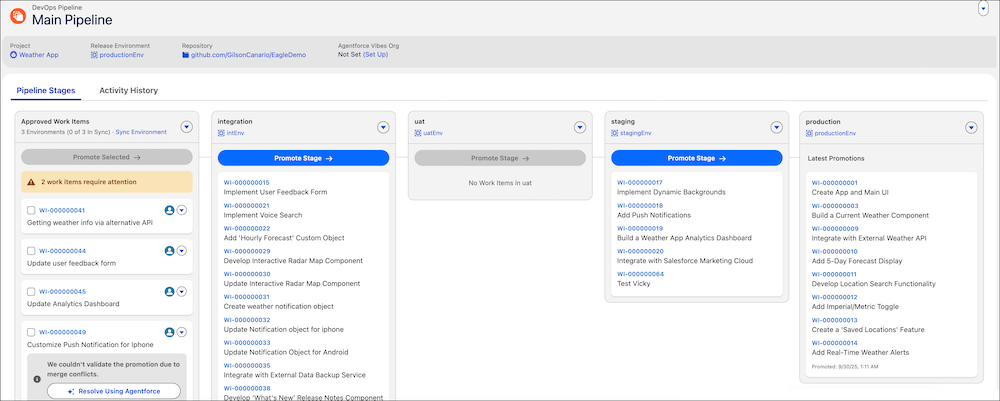

The number of pipeline stages depends on your development and business processes. Besides the production and development environments, the default pipeline includes Integration, User Acceptance Testing (UAT), and Staging stages. If your team works in sandboxes and scratch orgs, you can connect them to these stages.
- From the Pipelines tab, click New.
- Enter a name for your pipeline.
-
Select your source control system.
If you aren’t authenticated to the source control provider, follow the prompts to log in.
- (Optional) Create a repository or select an existing one.
- Click Next.
-
Select the projects to associate with this pipeline, and click Create
Pipeline.
Your default pipeline is ready.
-
For each stage in the new pipeline, complete these steps to finish the setup:
-
Connect your environment.
 Note Lifecycle Center pipelines require a release environment (often your production org) and one development environment. Make sure that all team members are users in these environments if they require access to deploy within Lifecycle Center.
To identify and prepare the release, development, and pipeline stage environments that your project needs before you connect them, see Lifecycle Center Environments. To connect them, see Add a Release Environment and Add Development Environments. To connect a pipeline stage environment, such as Integration, UAT, or Staging, follow the same steps as for a development environment and select the relevant stage.
-
Create a branch in the source control repository for this stage, or use an existing
branch.
For branch naming recommendations and sourcing rules, see Specify a Branch for a Pipeline Stage.
-
Connect your environment.
-
(Optional) To update the project associated with the pipeline, complete these steps:
- Click the icon next to the Activate Pipeline button.
- From the list, select Edit Project Connections, and associate a project with the pipeline.
- Click Activate Pipeline to turn on the pipeline.
- Add a Release Environment
Connect your production org as the release environment in Lifecycle Center. Every project requires one release environment and at least one development environment. - Add Development Environments
Add source-tracked development environments for team members in Lifecycle Center. You can add a development environment manually from the pipeline, or automatically when your team members commit changes from DX Inspector. - Specify a Branch for a Pipeline Stage
Each pipeline stage in Lifecycle Center has an associated branch in your source control repository that contains the changes for your team's work items. When you build your pipeline, let Lifecycle Center create a branch for a stage, or specify an existing branch in the repository.