
After you connect the Bitbucket repository in DevOps Center, create the DevOps Center project associated with this source code repository to help you and your team manage changes for a particular application or customization.
Before you continue, complete the steps in Set Up DevOps Center for Bitbucket (Beta).

As part of our extensibility initiatives, we’re transforming our user interface, where DevOps Center functionality is moving to Lightning Experience so you have more control and flexibility in customizing the user experience. During this transition period, some Bitbucket setup and configuration tasks, such as creating a DevOps Center project for Bitbucket, are performed in Lightning Experience instead of directly in the DevOps Center app.
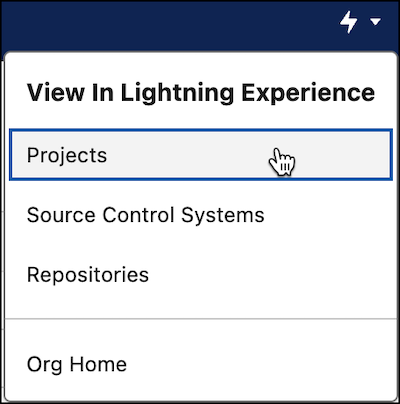
- In the DevOps Center app, from the Lightning Experience menu, select Projects.
- (Optional) Select All to view all DevOps Center projects in the Projects list view.
- Click New.
- In the New Projects dialog, enter a unique project name and optional description.
- In the Platform Repository field, enter or search for the appropriate Bitbucket
repository.
Copy the full repository name, or search by entering the starting string.
- Click Save.
DevOps Center opens the project’s record page.
- Click View in DevOps Center to continue project configuration in
the DevOps Center app.
If you upgraded from a previous version of DevOps Center, it’s possible that the View in DevOps Center button is missing. We recommend that you add it to the page layout; however, you can also launch the DevOps Center app from App Launcher.
In the DevOps Center app, add your project environments, build your pipeline, and create and assign work items.