
Connect your production org as the release environment in Lifecycle Center. Every project requires one release environment and at least one development environment.
Required Editions
| Available in: Lightning Experience in Professional (API access required), Enterprise, Performance, Unlimited, and Developer Editions |
| Not available in: Government Cloud Plus. Contact your Salesforce account executive for more details. |
| Not available in: EU Operating Zone. EU Operating zone is a special paid offering that provides an enhanced level of data residency commitment. Lifecycle Center is supported in orgs in the EU that aren’t part of EU OZ, per standard product terms and conditions. |
| User Permissions Needed | |
|---|---|
| To add a release environment: | Lifecycle Center Admin |
Before you begin, complete these tasks.
- Make sure that team members who deploy to production are users in the production org.
- Make sure that you have the production org login credentials ready.
- Go to the Pipelines tab, and select your pipeline.
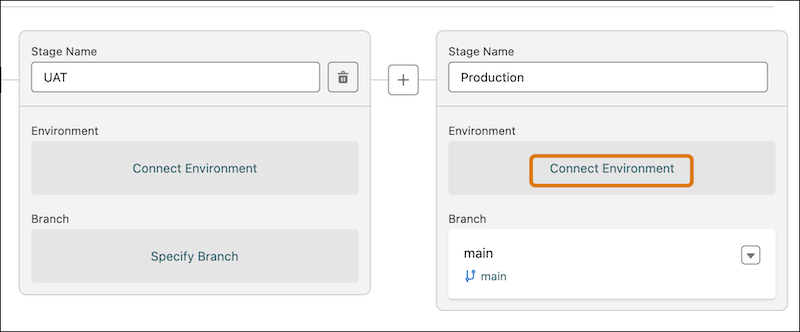
- Locate the Production stage in your pipeline.
-
Click Connect Environment.
-
In the Add Environment window, enter an environment name and
environment type.
 Tip For the release environment, select the environment type as Production Org.
 - Click Connect.
-
Log in to your production org, and authorize the connection.
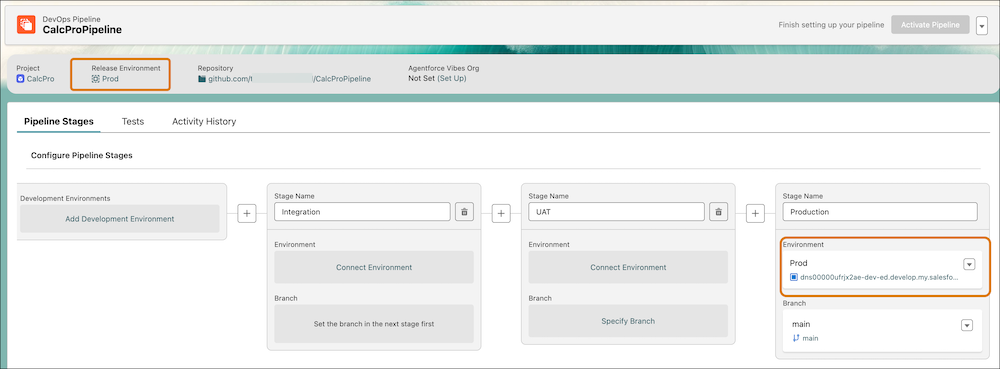
Your release environment appears on your pipeline.
Next, add at least one development environment so that your team can start making changes. See Add Development Environments.