
From Setup, enter Sandboxes in the Quick Find box, then select Sandboxes. The list displays all your sandboxes. Select a sandbox to view details about its copy or refresh progress.
Required Editions
| Available in: both Salesforce Classic and Lightning Experience |
| Available in: Professional, Enterprise, Performance, Unlimited, and Database.com Editions |
| User Permissions Needed | |
|---|---|
| To view a sandbox: | View Setup and Configuration |
| To create, refresh, and delete a sandbox: | Manage Dev Sandboxes (Developer or Developer Pro only) or Manage Sandboxes (all sandbox types) |
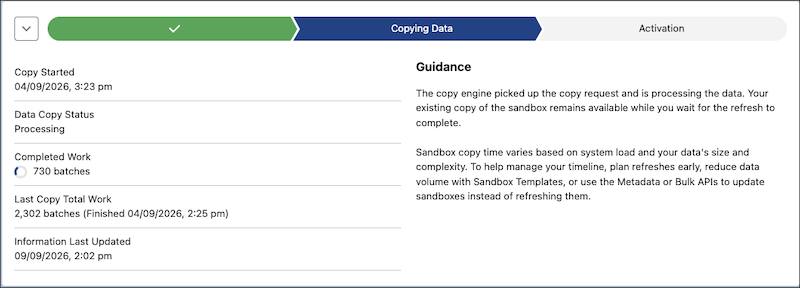
While a sandbox copy or refresh is in progress, a visual progress bar shows three stages: In Queue, Data Copy, and Activation. You can select each stage individually to view additional progress details updated in real time as the copy proceeds.

Note Users can temporarily revert to the old UI in Dev Hub Settings. This override will
remain available until the Winter ’27 release.
- For all stages, you can view when the sandbox started and ended that stage, when the internal system last updated progress information, and stage-specific guidance.
- During the Data Copy and Activation stages, you can view the amount of work required and work completed for that stage.
- After the sandbox completes, the sandbox detail view shows how much time before the next available refresh.
This example shows the information available during the Data Copy stage.
Note If your sandbox is suspended or
stopped for more than 1 hour, contact Salesforce Customer Support.