
You can assign a Trailhead or enablement site (myTrailhead) module or a custom learning item such as a video, tutorial, or reference guide. You can assign a learning item to individuals, public groups, or all users. And you can associate a learning item with an app and a particular object and page within the app.
Required Editions
| Available in: Lightning Experience |
| Available in: Developer, Professional, Enterprise, Performance, and Unlimited Editions |
| Not Available for: Chatter External, Chatter Free, or Communities (now known as Experience Cloud) user licenses |
| Enablement Sites (myTrailhead) available in: Enterprise, Performance, and Unlimited Editions |
| User Permissions Needed | |
|---|---|
| To manage as an admin | Modify All Data OR Customize Application |
| To manage as a designated trainer | Manage Learning |

Learning Paths is turned off by default in all environments in Winter ’25 and later. To turn on Learning Paths, contact Salesforce Customer Support.
Learning Paths isn’t available in a sandbox or in Government Cloud Plus environments.
To see learning items in action, check out this video.
-
To open the panel, click the icon for Guidance Center in the global
header.

-
At the bottom of the panel, click Assign Learning
Content to go to Learning Home.
You can also get to Learning Home via the App Launcher. Add Learning Home to your navigation bar for easy access.
- On Learning Home, click Manage Learning Assignments, then click New. Only admins or users with the Manage Learning user permission have access to the Manage Learning Assignments page.
-
In the New learning item window, select a content type, then search for a
Trailhead or enablement site module, or enter the URL for a custom link.
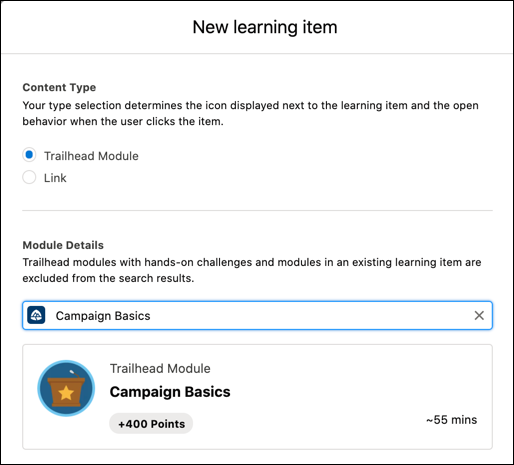
When users click the link for a Trailhead or enablement site module in the side panel or on Learning Home, the item opens in the app. The progress that’s shown for the learning item depends on the progress that users make in the module.
When users click a custom link, the link opens in a new browser tab and the learning item is marked as complete immediately. If you previously included custom links in the Help Menu, add those links with Learning Paths instead.
-
Under Location, specify where the learning item appears in the app by selecting
an app and, if you want, an object and record.
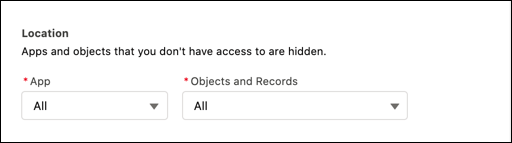
- To make the learning item appear across Salesforce, select All for App and Object and Record.
- To make the learning item show up on every page in an app, select an app in the App picklist, then select All in the Object and Record picklist.
- To make the learning item show up for a specific object in an app, select a value in the App and the Object and Record picklists.
- To have the learning item show up for the same object across Salesforce, select All in the app picklist, then select a value in the Object and Record picklist.
- To add a module to a specific Setup page, enter a URL. If you don’t specify a URL, the module shows up on all pages in Setup.
-
Under Assignments, specify which users and public user groups see the module.
If you don’t assign the module to at least one user or public group, it doesn’t
show up in the app.
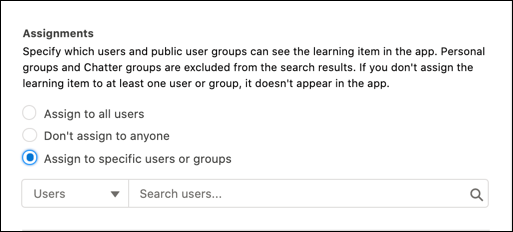 When you assign a learning item to a public group, the assignment also applies to members that you subsequently add to the group. The assignment is removed for members that you remove from the group.
 -
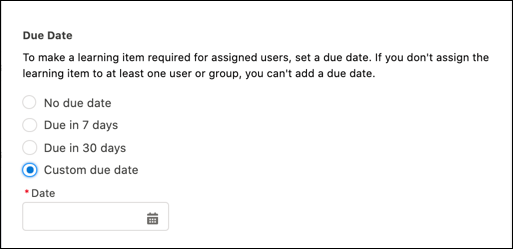
To require users to complete the learning item, include a due date.
-
Save your changes.
- The Selected for You section in the Guidance Center displays up to two learning items with a due date and no location specified for Objects and Records. When completed, the learning items are removed from the panel.
- The Related to This Page section in the Guidance Center displays up to five learning items with a location specified for Objects and Records. An option to view more items in this section, up to 100, is also available. When completed, the learning items remain.
- A learning item that’s assigned to an app or a page is visible in the side panel only when users are in the associated app.
- Users can see all assigned learning items on Learning Home.
-
On the Manage Learning Assignments page, you can expand a row in the Name
column to see all the users and groups that the learning item is assigned
to.
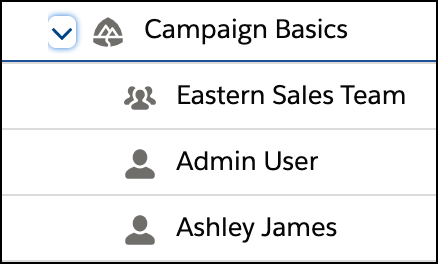 Use the row-level actions for a learning item to edit, delete, or add assignees to the item.
- To change the page that a learning item is assigned to, select Edit from the actions menu for the learning item.
- To assign a learning item to another individual or group, select Add Assignments from the actions menu for the learning item.
- To remove all assignments, select Unassign All in the row-level actions menu for the learning item.
- To delete a particular assignment, select Remove Assignment from the row-level action menu for an individual or group.
We suggest that you let your users know about Guidance Center and Learning Home so they can watch out for required content. To hide Learning Home, in Setup, turn off Learning Paths on the Guidance Center page.
See Also
- Learning Paths Considerations and Limitations
- Learning Paths Best Practices
- Customize the Help Menu in Lightning Experience
- Customize Content in the Guidance Center
- Plan Your Enablement Site Solution
- Your Trailblazer Profile
- Merge Trailblazer Accounts
- Personalize the Navigation Bar in Lightning Experience
- Personalized Navigation Considerations
- Add and Customize Tabs on Lightning Pages Using the Lightning App Builder
- What Is a Group?
- Create and Edit Groups